VPN Configuration
The VPN Configuration page manages the network infrastructure for ThetaSecure's VPN service. This includes the IP address pool from which VPN clients receive their tunnel addresses and the always-on VPN behavior that controls whether users must maintain a persistent VPN connection.
Navigate to Configuration > VPN Configuration to access this page. The interface is organized into two tabs: IP Pool and Always-On Settings.
IP Pool
The IP Pool tab displays the current VPN address space allocation and utilization metrics.
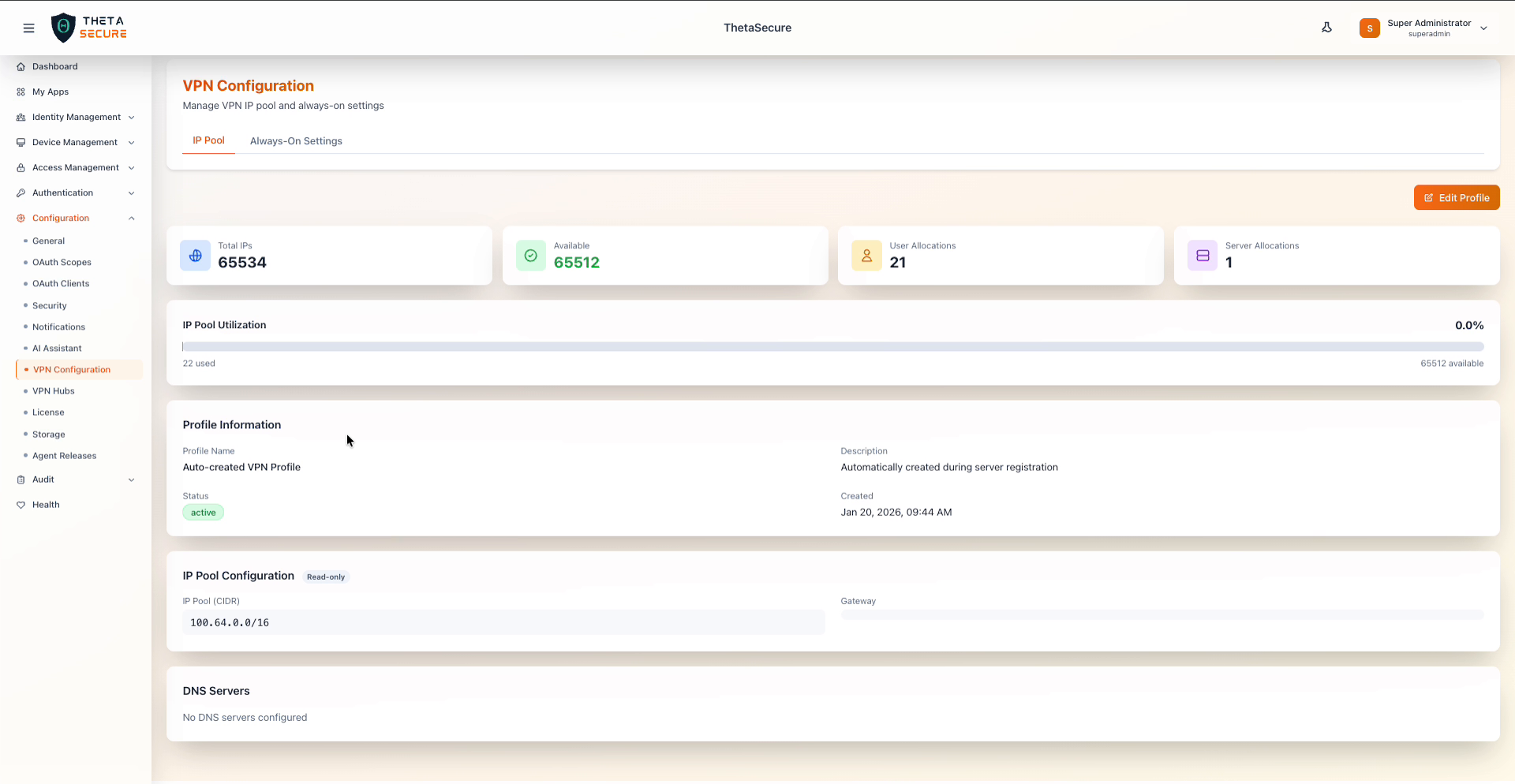 IP Pool overview showing total capacity, available addresses, and allocation breakdown
Pool Statistics
Four summary cards at the top provide a real time view of address space consumption.
| Metric | Description |
|---|---|
| Total IPs | Total number of addresses available in the configured CIDR range. |
| Available | Number of unallocated addresses remaining in the pool. |
| User Allocations | Number of IP addresses currently assigned to VPN user connections. |
| Server Allocations | Number of IP addresses allocated to VPN gateway servers (hubs). |
The IP Pool Utilization bar provides a visual representation of consumption, showing the count of used addresses against the total available.
Profile Information
| Field | Description |
|---|---|
| Profile Name | Name of the VPN profile. Auto created profiles are generated during initial server registration. |
| Description | Purpose of this VPN profile. |
| Status | Current state of the profile (active or inactive). |
| Created | Timestamp when the profile was created. |
IP Pool Configuration
The IP Pool Configuration section displays the network range in use. This section is marked Read-only because the pool CIDR is established during initial server setup and cannot be changed without re provisioning.
| Field | Description |
|---|---|
| IP Pool (CIDR) | The network range used for VPN tunnel addresses (for example, 100.64.0.0/16). This range is from the Carrier Grade NAT space (RFC 6598), which avoids conflicts with typical private network ranges. |
| Gateway | The gateway address for the VPN network, if configured. |
DNS Servers
Displays the DNS servers configured for VPN clients. When no DNS servers are configured, VPN clients use their default system DNS settings. DNS configuration is managed through the VPN hub settings or by editing the profile.
Click Edit Profile to modify the profile name, description, or DNS server settings.
The 100.64.0.0/16 range provides 65,534 usable addresses, which is sufficient for most deployments. This CGNAT range is specifically chosen because it does not overlap with standard RFC 1918 private address spaces (10.0.0.0/8, 172.16.0.0/12, 192.168.0.0/16), reducing the risk of routing conflicts with corporate and home networks.
Always-On Settings
The Always-On Settings tab configures whether VPN connections are maintained persistently and whether users can temporarily pause them.
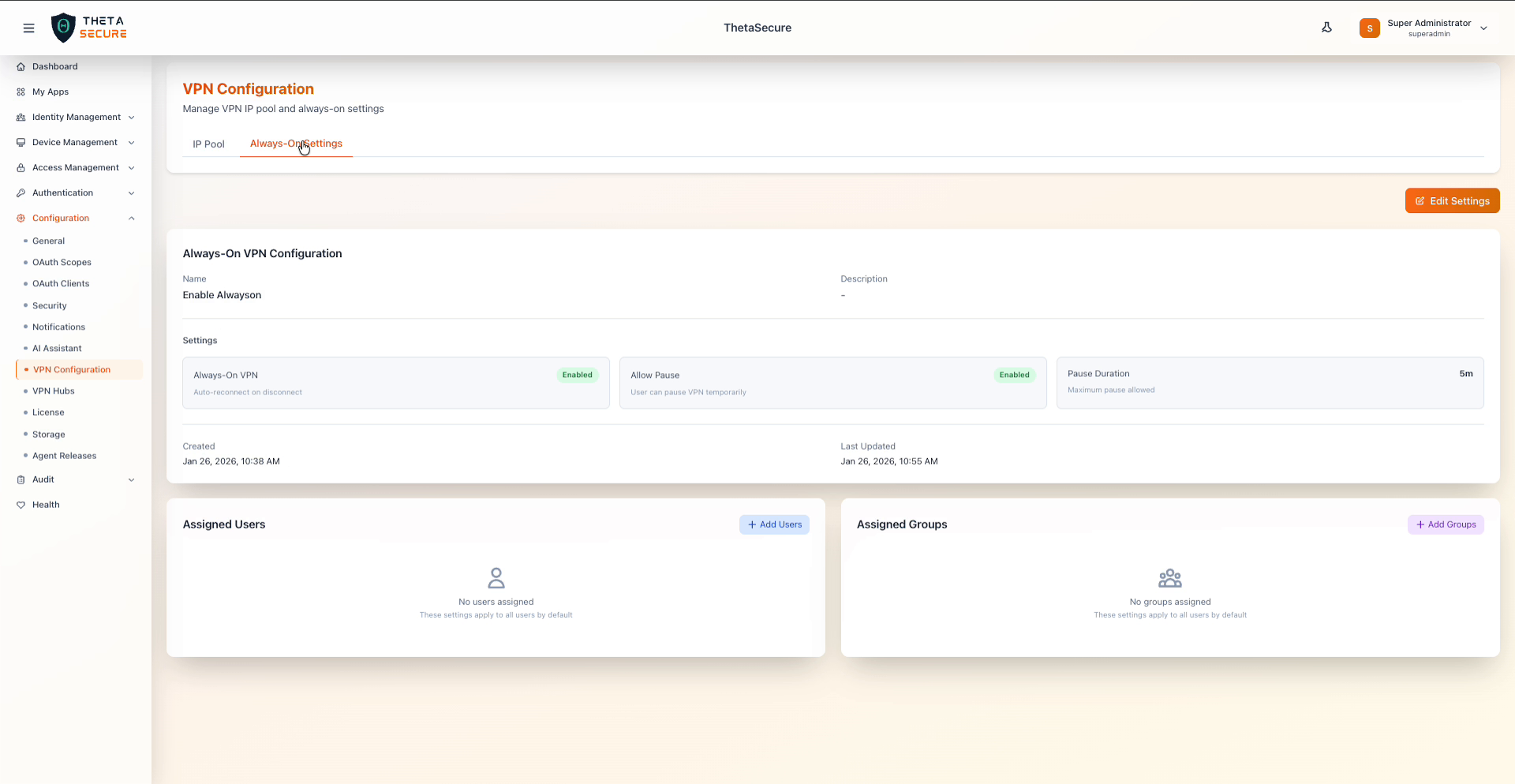 Always-On VPN configuration showing enabled settings, pause controls, and user assignments
Configuration Details
| Field | Description |
|---|---|
| Name | Display name for the always-on configuration. |
| Description | Optional description of the policy's purpose. |
Settings
Three cards summarize the current always-on behavior.
| Setting | Description |
|---|---|
| Always-On VPN | When Enabled, the VPN client automatically reconnects if the connection drops. Users cannot manually disconnect the VPN. |
| Allow Pause | When Enabled, users can temporarily pause the VPN connection for a limited duration. Useful for situations where VPN connectivity causes issues with local network resources. |
| Pause Duration | Maximum time a user can pause the VPN before it automatically reconnects. Shown as a duration value (for example, 5m for five minutes). |
Assignments
The assignment sections determine which users and groups the always-on policy applies to.
| Section | Description |
|---|---|
| Assigned Users | Specific users the policy applies to. Click + Add Users to assign individual users. |
| Assigned Groups | Groups the policy applies to. Click + Add Groups to assign groups. |
When no users or groups are assigned, the always-on settings apply to all users by default. Adding specific users or groups narrows the scope so the policy only affects those assignments.
Click Edit Settings to modify the always-on configuration, pause behavior, or assignments.
Enable Allow Pause with a short duration (5 to 15 minutes) rather than disabling always-on entirely. This gives users a way to troubleshoot connectivity issues without creating a permanent gap in VPN coverage. The automatic reconnect after the pause expires ensures the device returns to a protected state.