License Management
License Management is where you track and maintain the software licenses that authorize your ThetaSecure deployment. This page gives you a real-time view of how many user slots you have purchased, how many are in use, and whether your licenses are valid and secure.
The section is organized into three tabs: Overview for a quick health check, Licenses for detailed license records, and Security for tamper detection and validation scheduling.
Overview
The Overview tab provides a dashboard-style summary of your licensing status through four metric cards at the top of the page, followed by a list of active licenses below.
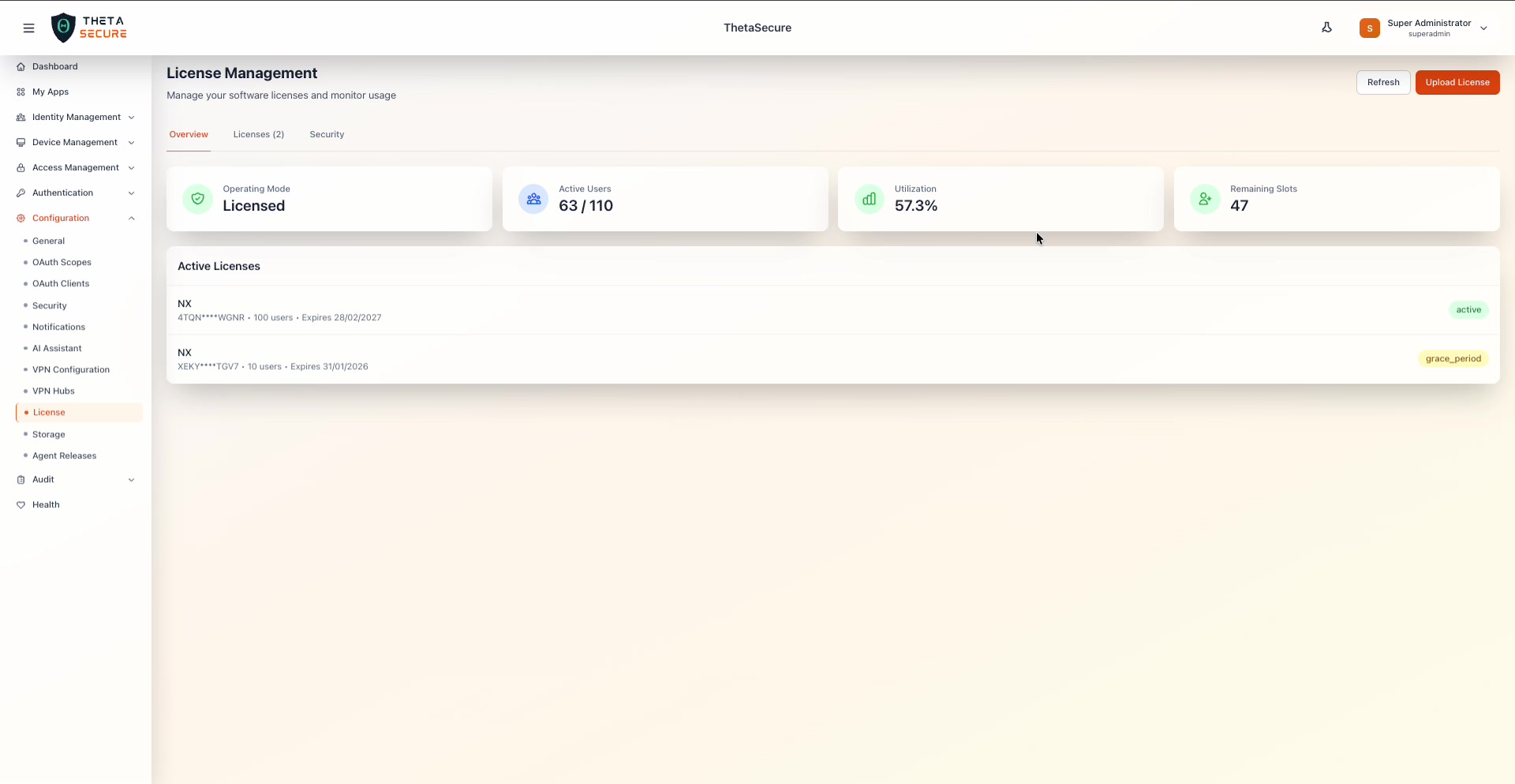 The License Overview tab. The four cards show Operating Mode, Active Users, Utilization percentage, and Remaining Slots. Below, the Active Licenses section lists each license with its key, user capacity, expiration date, and status badge.
Status Cards
| Card | Description |
|---|---|
| Operating Mode | Indicates whether ThetaSecure is running in Licensed mode (fully activated) or in a limited/trial mode. A green checkmark confirms the system is properly licensed. |
| Active Users | Shows the current count of active users against the total licensed capacity. For example, 63 / 110 means 63 of 110 available user slots are occupied. This count aggregates across all active licenses. |
| Utilization | The percentage of licensed capacity currently in use, calculated from the Active Users ratio. This number helps you plan for license renewals or expansions before you hit capacity. |
| Remaining Slots | The number of unused user slots available for new user provisioning. When this number approaches zero, it is time to purchase additional licenses or clean up inactive accounts. |
Active Licenses
Below the status cards, the Active Licenses section lists every license currently applied to the system. Each entry shows the license product type (e.g., NX), a partially masked license key for security, the maximum user count, the expiration date, and a status badge.
License statuses include:
| Status | Meaning |
|---|---|
| active | The license is valid and within its validity period. Shown with a green badge. |
| grace_period | The license has expired but ThetaSecure is allowing continued use for a limited grace period. Shown with an orange badge. You should renew before the grace period ends to avoid service disruption. |
Multiple licenses can coexist. ThetaSecure aggregates the user capacity across all active licenses. In the example shown, a 100-user license (active) and a 10-user license (grace period) combine to provide 110 total user slots.
Licenses
The Licenses tab presents a detailed table view of every license that has been uploaded to the system.
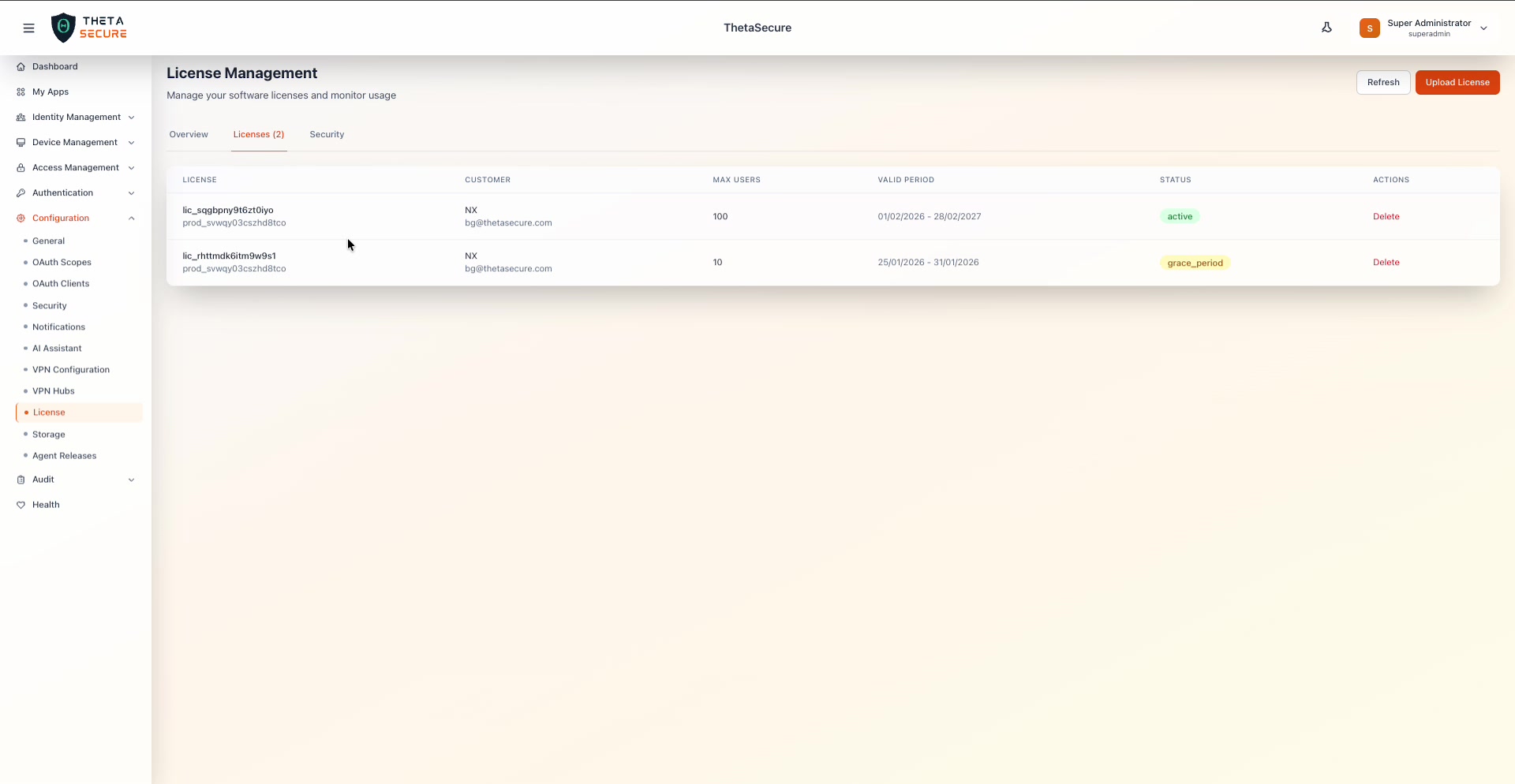 The Licenses tab with two license entries. Columns include License ID, Customer, Max Users, Valid Period, Status, and an Actions column with a Delete option.
License Table Columns
| Column | Description |
|---|---|
| License | The license identifier and the product instance ID. The license ID is a unique string assigned by the ThetaSecure licensing portal. The product instance ID (shown below the license ID) ties the license to a specific deployment. |
| Customer | The customer name and the email address associated with the license purchase. |
| Max Users | The maximum number of concurrent users this license supports. |
| Valid Period | The start and end dates of the license validity window (e.g., 01/02/2026 - 28/02/2027). |
| Status | The current state of the license: active, grace_period, or expired. |
| Actions | A Delete link to remove the license from the system. Use this to clean up expired or replaced licenses. |
Uploading a New License
Click the Upload License button in the upper right corner to add a new license. This opens a dialog where you select the license file.
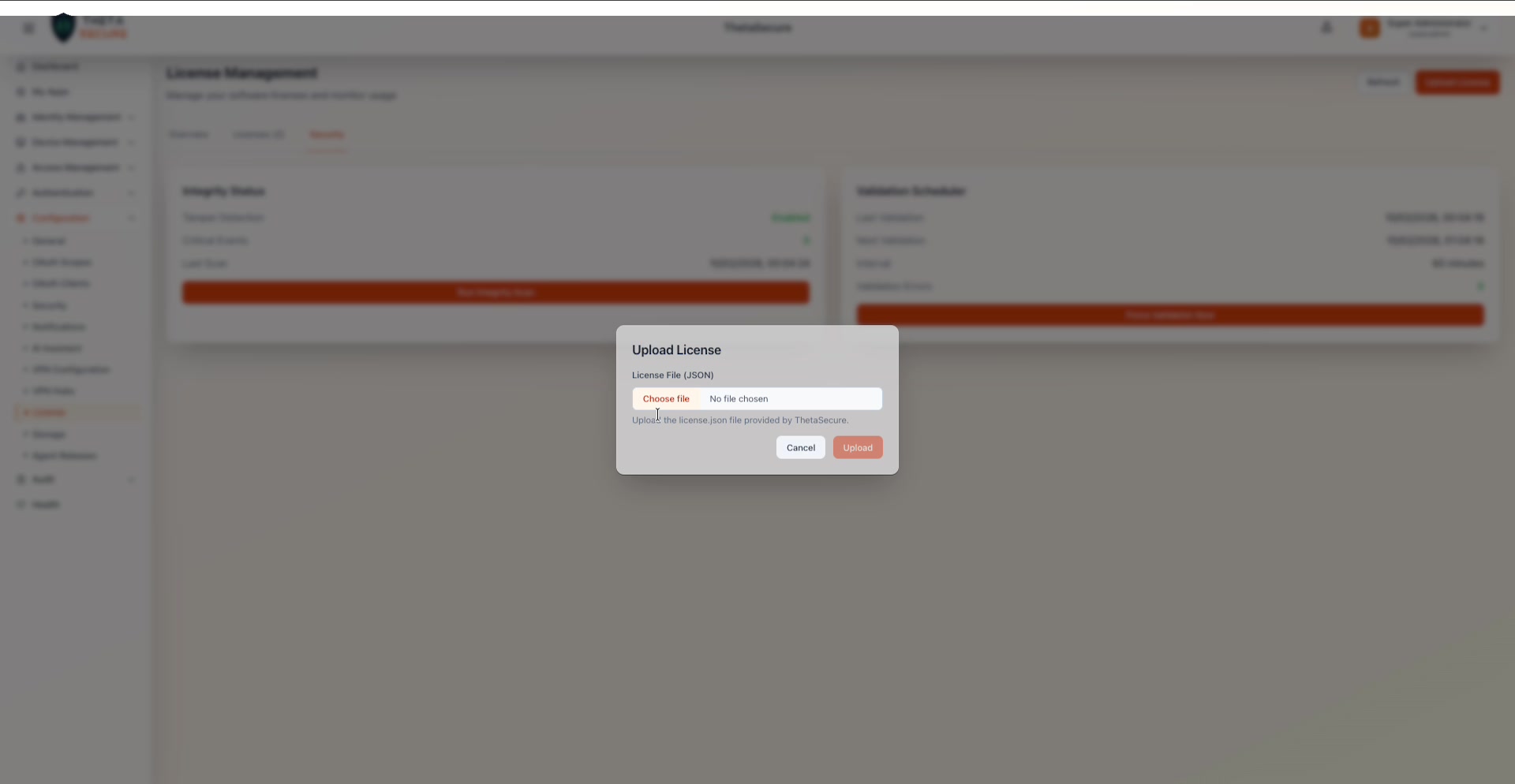 The Upload License dialog. It accepts a JSON file provided by ThetaSecure. Click Choose file to select the license.json from your local machine, then click Upload to apply it.
The license file is a JSON document issued by ThetaSecure through the licensing portal at license.thetasecure.com. After upload, ThetaSecure validates the file signature, checks the expiration date, and applies the new license immediately. The Overview and Licenses tabs update to reflect the new capacity.
Refreshing License Data
Click the Refresh button next to Upload License to force ThetaSecure to re-read and re-validate all installed licenses. This is useful after a license renewal or if the portal shows stale data.
Security
The Security tab provides tools to verify that your license files have not been tampered with and that the licensing subsystem is operating correctly.
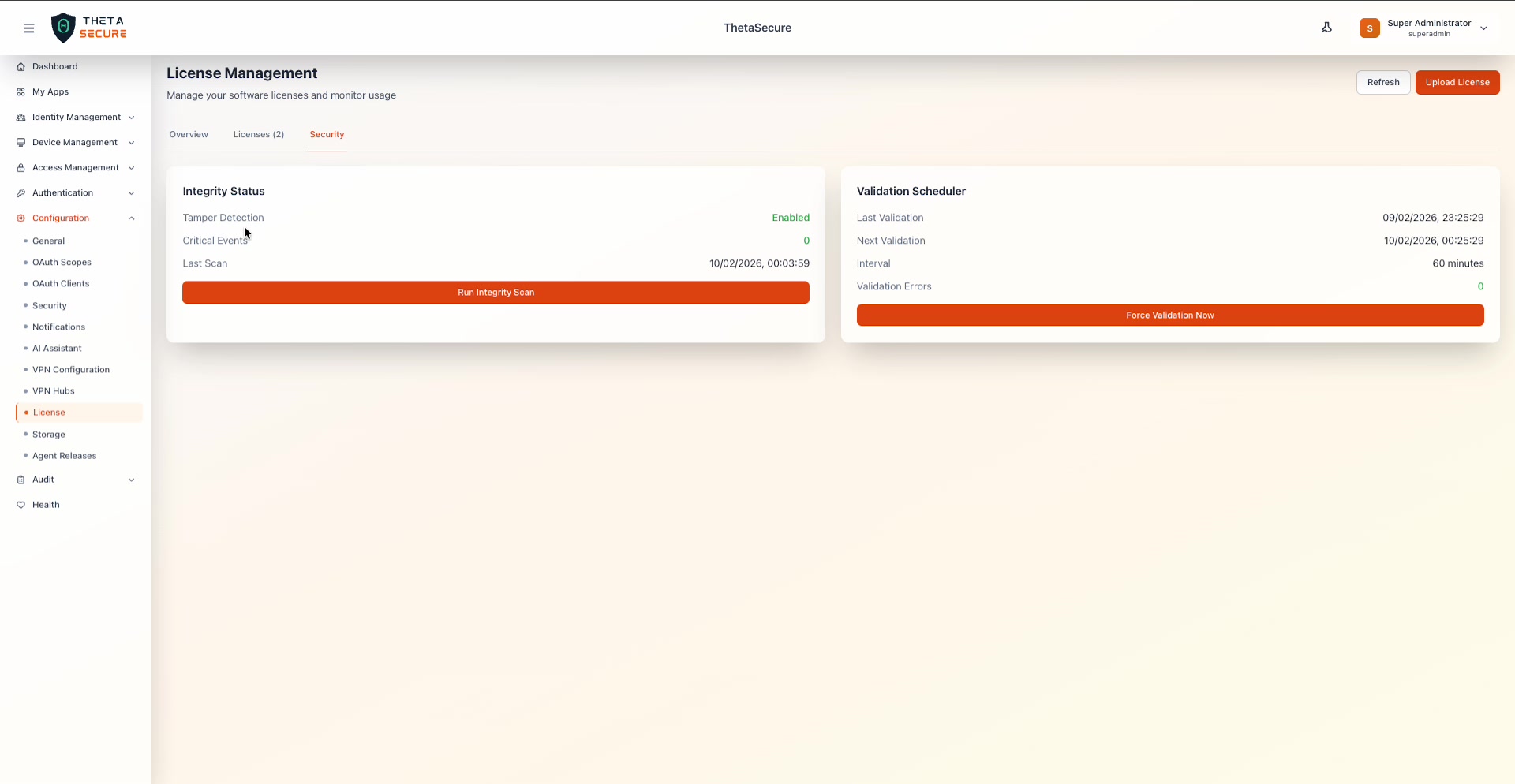 The Security tab with two panels. On the left, Integrity Status shows tamper detection status, critical event count, and last scan time. On the right, the Validation Scheduler shows the last and next validation times, the interval, and the validation error count.
Integrity Status
The Integrity Status panel monitors the license files for unauthorized modifications.
| Field | Description |
|---|---|
| Tamper Detection | Whether tamper detection is enabled. When Enabled (shown in green), ThetaSecure continuously monitors the license files for any unauthorized changes to their content or signatures. |
| Critical Events | The number of tamper events detected since the last scan. A value of 0 means no integrity violations have been found. Any non-zero value requires immediate investigation. |
| Last Scan | The timestamp of the most recent integrity scan. |
Click the Run Integrity Scan button to trigger an on-demand scan immediately. This is useful after any administrative changes to the system or if you suspect license file manipulation.
Validation Scheduler
The Validation Scheduler automates periodic license validation to ensure licenses remain valid over time.
| Field | Description |
|---|---|
| Last Validation | The timestamp of the most recent scheduled validation. |
| Next Validation | When the next automatic validation will run. |
| Interval | The time between automatic validations. The default is 60 minutes. |
| Validation Errors | The count of errors encountered during validation. A value of 0 (shown in green) indicates clean validations. |
Click Force Validation Now to run a validation cycle immediately without waiting for the next scheduled interval.
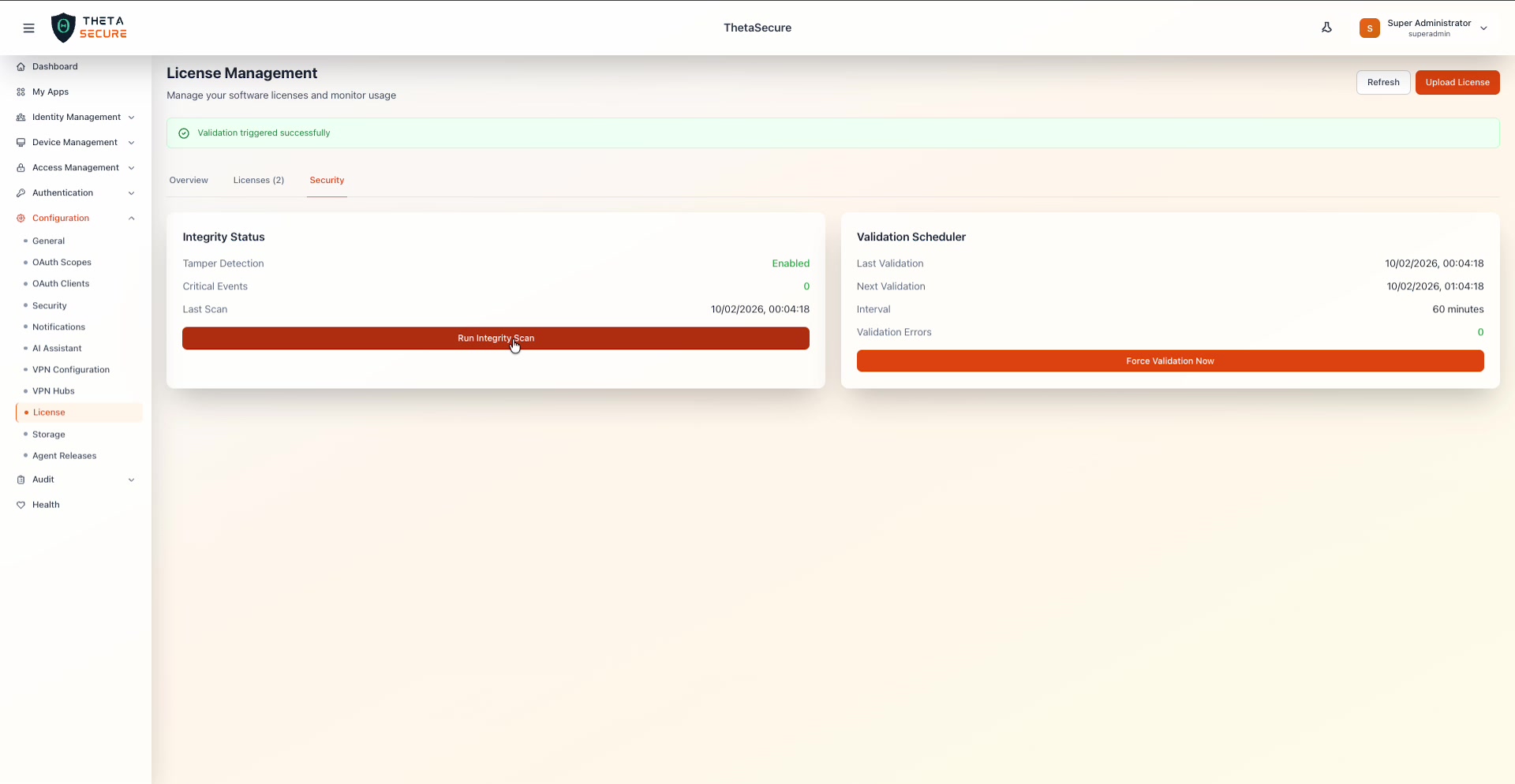 After clicking Force Validation Now, a green banner confirms "Validation triggered successfully." The Last Validation and Next Validation timestamps update accordingly.
Run a manual validation after uploading a new license or after system maintenance to confirm everything is in order. The combination of the integrity scan and the validation check gives you confidence that your licensing is both authentic and current.
If Tamper Detection reports critical events or Validation Errors are non-zero, investigate immediately. These conditions may indicate unauthorized modifications to license files, which could compromise your deployment's compliance status.