Agent Releases
Agent Releases is where you manage the ThetaSecure Connect agent binaries that your endpoints run. Every version of the agent for every supported platform is listed here, synced from the ThetaSecure release repository. You control which versions are available to your users, which are disabled, and when to pull the latest releases.
This page is essential for staged rollouts, version pinning, and maintaining control over what software runs on your organization's devices.
Sync Status
At the top of the page, a status banner shows the result of the most recent sync with the ThetaSecure release repository.
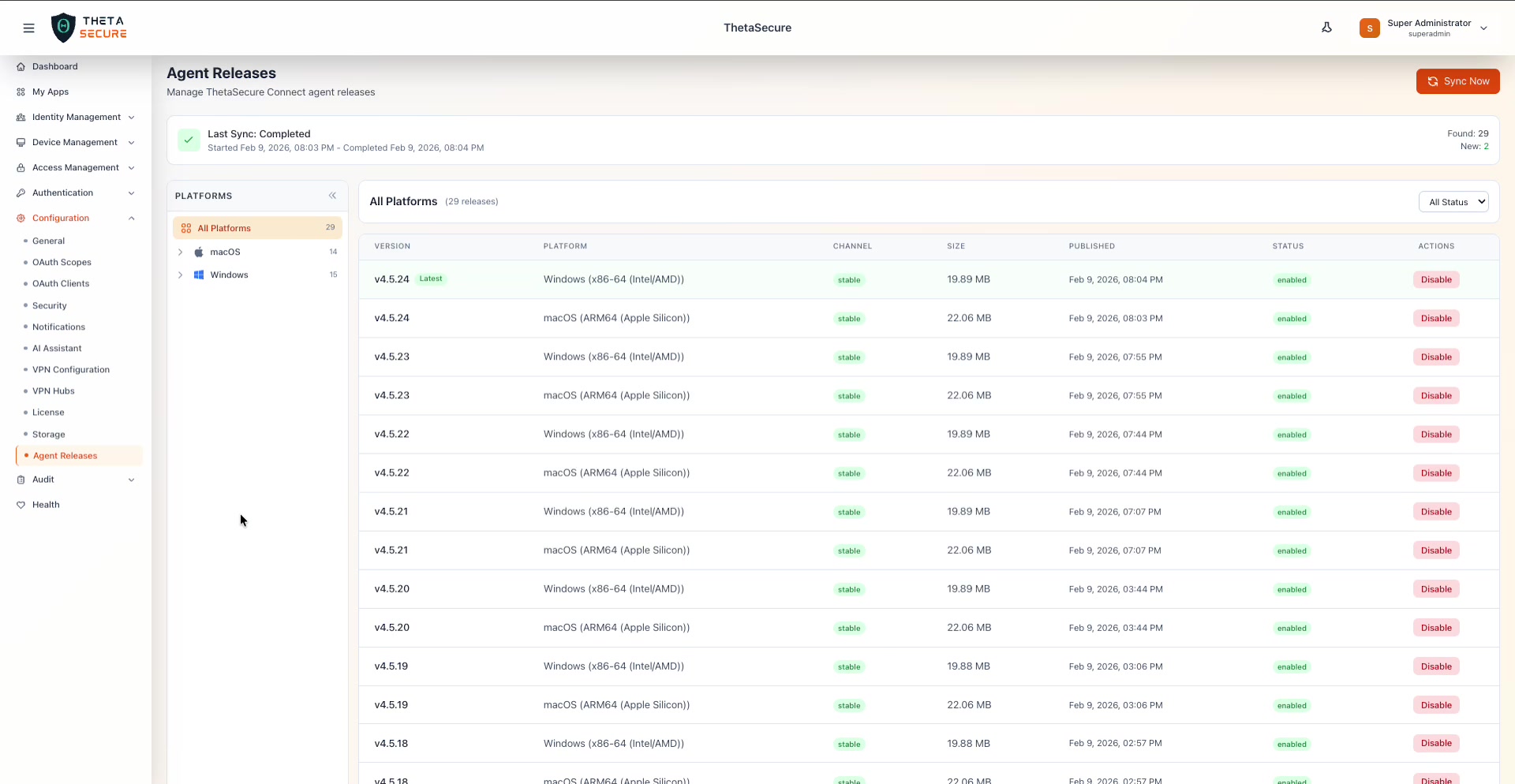 The Agent Releases page with All Platforms selected. The sync banner shows "Last Sync: Completed" with start and end timestamps. The summary on the right shows Found: 29 and New: 2, meaning the last sync discovered 29 total releases and 2 were new. The table lists every release across both platforms, sorted by version descending.
The sync banner displays the sync state (Completed, In Progress, or Failed), the start and completion timestamps, the total number of releases found, and how many were new since the previous sync. Click the Sync Now button in the upper right corner to trigger a manual sync at any time. This pulls the latest agent binaries from the ThetaSecure release servers and adds any new versions to the list.
Platform Navigation
The left panel organizes releases by operating system and CPU architecture. The tree structure gives you a quick count of available releases per platform and lets you drill down to a specific architecture.
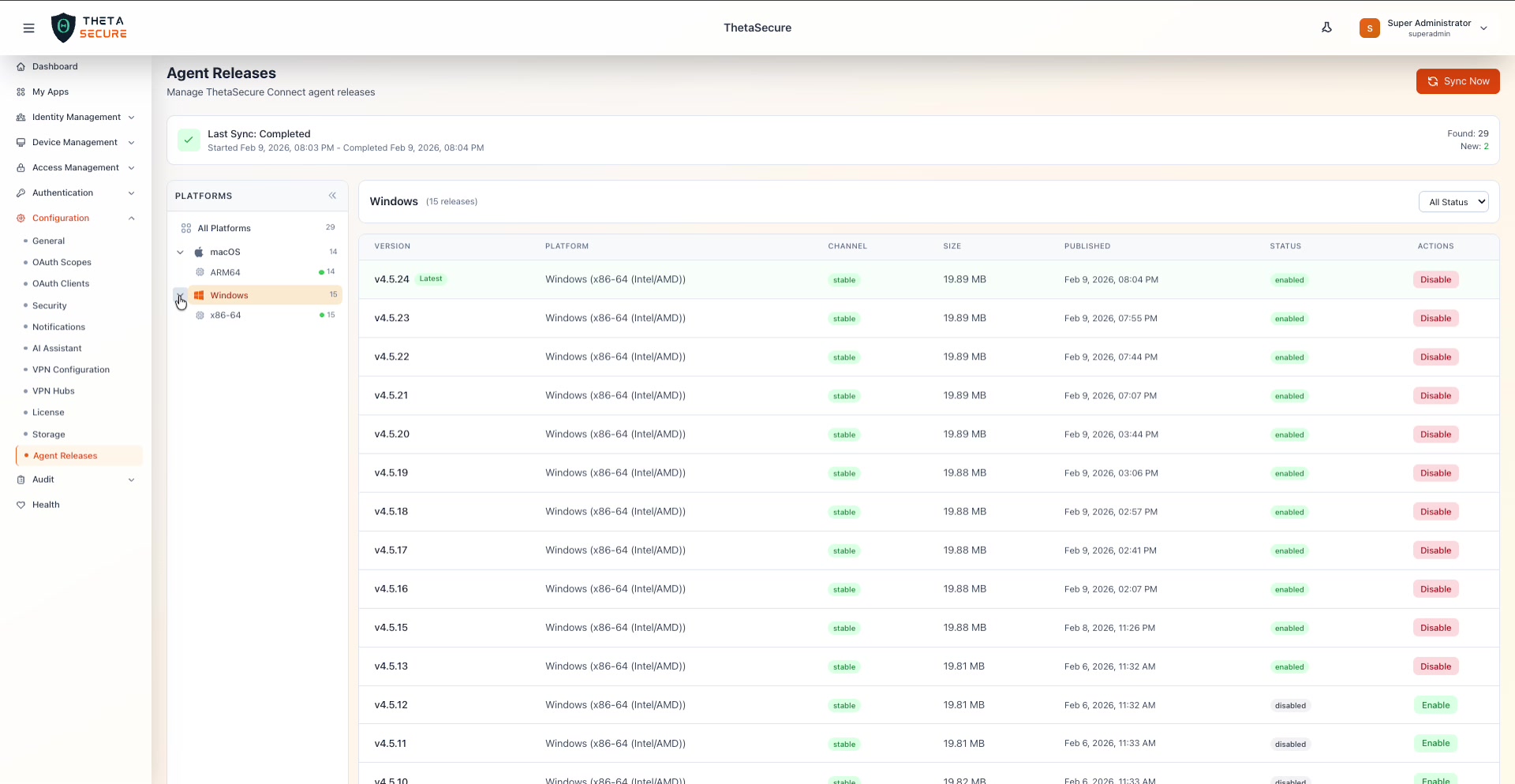 The PLATFORMS tree expanded to show the full hierarchy. macOS has 14 releases under the ARM64 architecture (Apple Silicon). Windows has 15 releases under x86-64 (Intel/AMD). Green dots next to each architecture indicate that releases are available and active.
| Platform Node | Description |
|---|---|
| All Platforms | Shows every release across all operating systems and architectures in a single combined list. The count (e.g., 29) reflects the total. |
| macOS | Filters to macOS releases only. Expand to see the ARM64 sub-node for Apple Silicon Macs. |
| Windows | Filters to Windows releases only. Expand to see the x86-64 sub-node for Intel and AMD processors. |
Clicking any node in the tree filters the release table to show only the matching releases. The heading above the table updates to reflect the current filter (e.g., "Windows (15 releases)" or "macOS (ARM64) (3 releases)").
A Refresh link at the bottom of the platform panel reloads the tree counts.
Release Table
The release table is the core of this page. It lists every agent version with the details you need to manage your deployment.
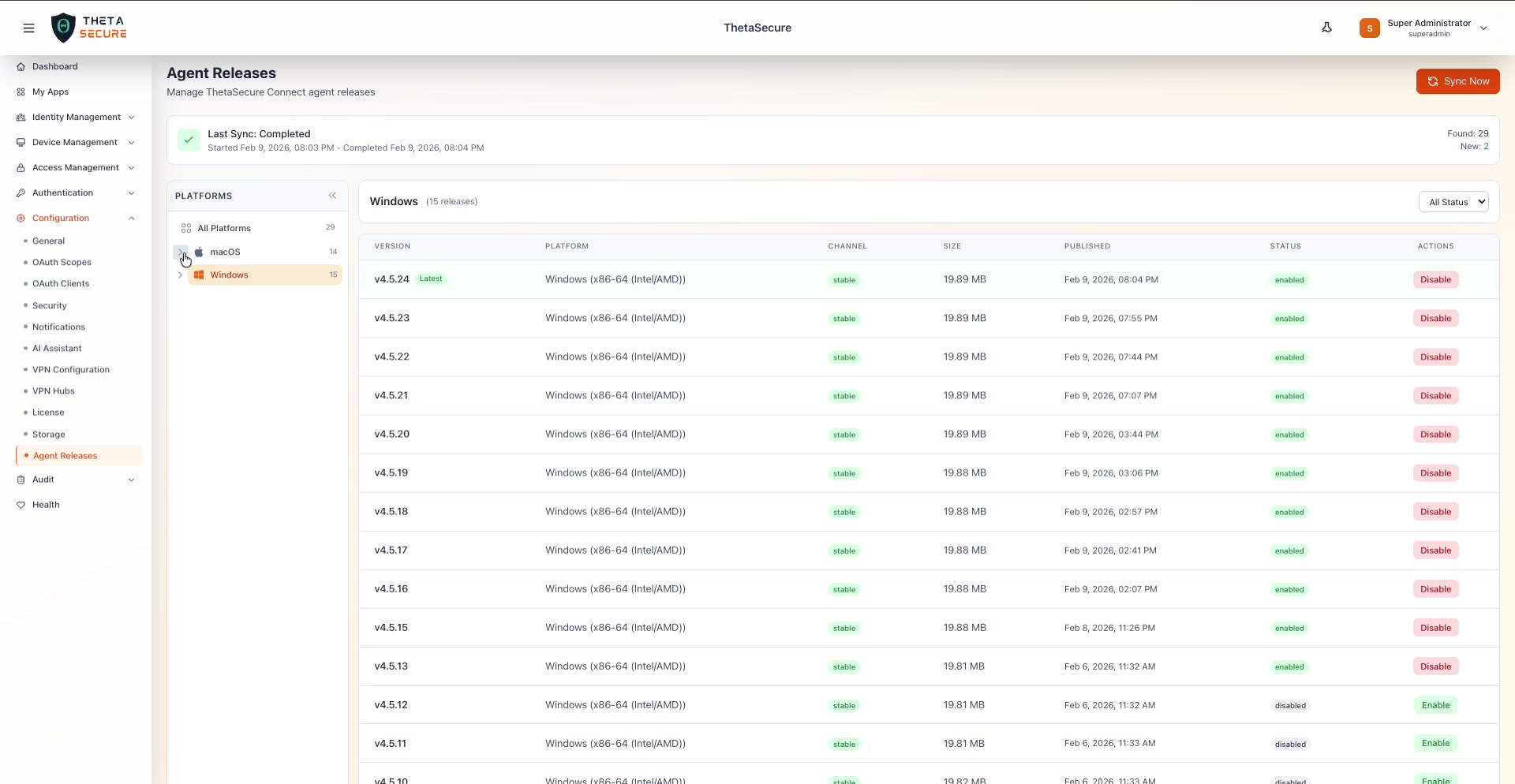 The release table filtered to Windows (15 releases). Each row shows the version number, platform description, release channel, package size, publish date, status, and an action button. The most recent version (v4.5.24) carries a green "Latest" badge. Older versions like v4.5.12 and v4.5.11 show "disabled" status with a green "Enable" button.
Table Columns
| Column | Description |
|---|---|
| Version | The semantic version number (e.g., v4.5.24). The most recent version carries a green Latest badge to help you identify it at a glance. |
| Platform | The target operating system and architecture, such as Windows (x86-64 (Intel/AMD)) or macOS (ARM64 (Apple Silicon)). |
| Channel | The release channel. All releases shown use the stable channel, indicated by a grey badge. |
| Size | The package size. Windows installers are approximately 19.8 MB and macOS packages approximately 22 MB. |
| Published | The date and time the release was published to the ThetaSecure repository. |
| Status | Either enabled (green text) or disabled (grey text). Enabled releases are available for download and deployment. Disabled releases are hidden from end users. |
| Actions | A Disable button (red) for enabled releases or an Enable button (green) for disabled releases. |
Enabling and Disabling Releases
The enable/disable toggle is your primary tool for controlling which agent versions are available to your organization. Click Disable on any enabled release to immediately prevent it from being offered to users. Click Enable on a disabled release to make it available again.
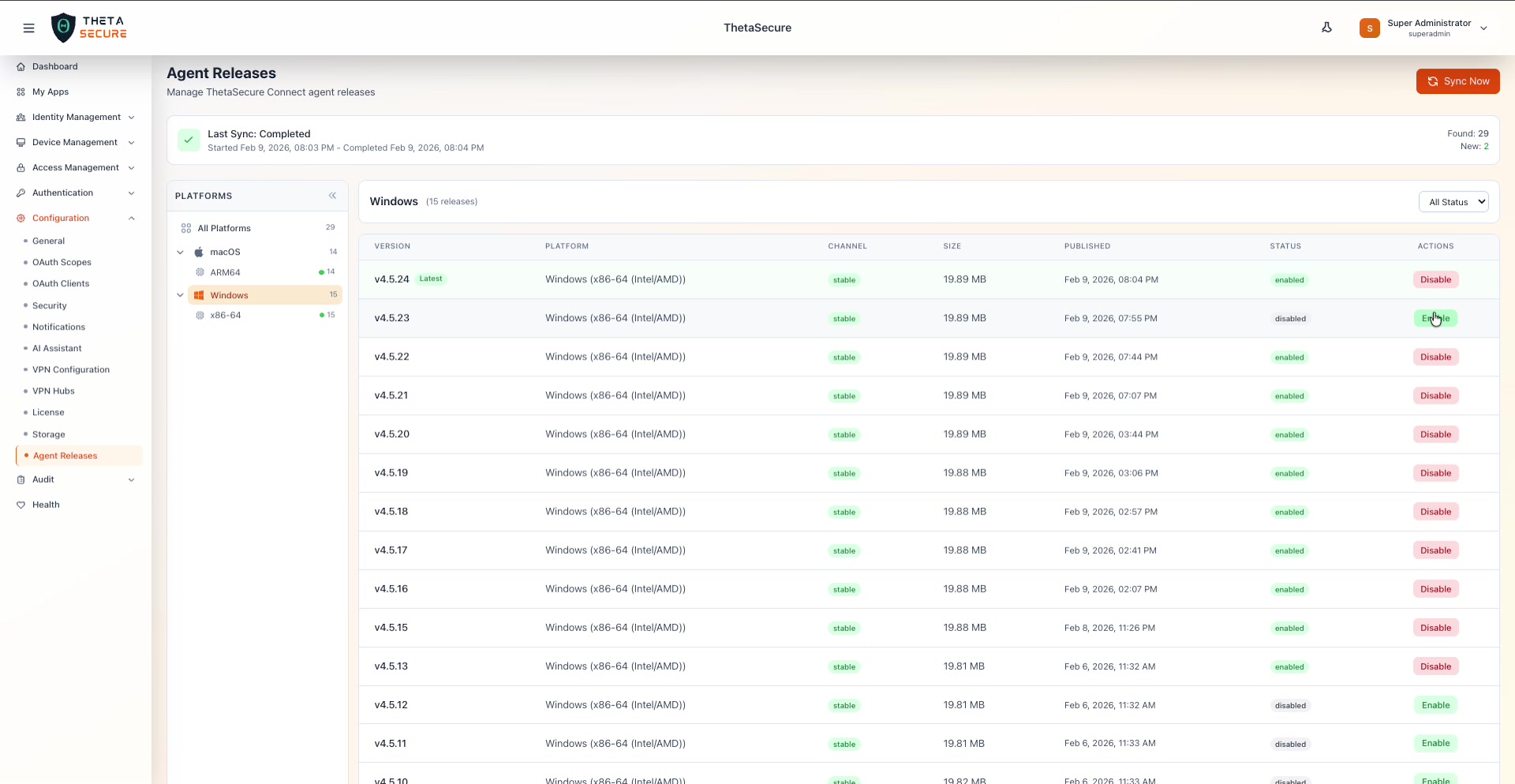 After clicking Disable on v4.5.23, the status changes to "disabled" and the action button switches to "Enable." The change takes effect immediately.
This mechanism supports several common workflows:
Staged rollouts. When a new version arrives after a sync, it defaults to enabled. If you prefer to test before broad deployment, disable it first, validate it on a test group, then enable it for the entire organization.
Version pinning. If your environment requires a specific agent version for compatibility reasons, disable all newer versions to prevent automatic updates from picking them up.
Rollback. If a new agent version causes issues in the field, disable it immediately. Devices that have not yet updated will remain on the previous version, and devices that request a fresh install will receive the latest enabled version instead.
End-of-life cleanup. Disable old versions that you no longer want in circulation to keep the available release list clean and prevent users from installing outdated software.
Status Filtering
The All Status dropdown in the upper right corner of the table lets you filter the release list by status.
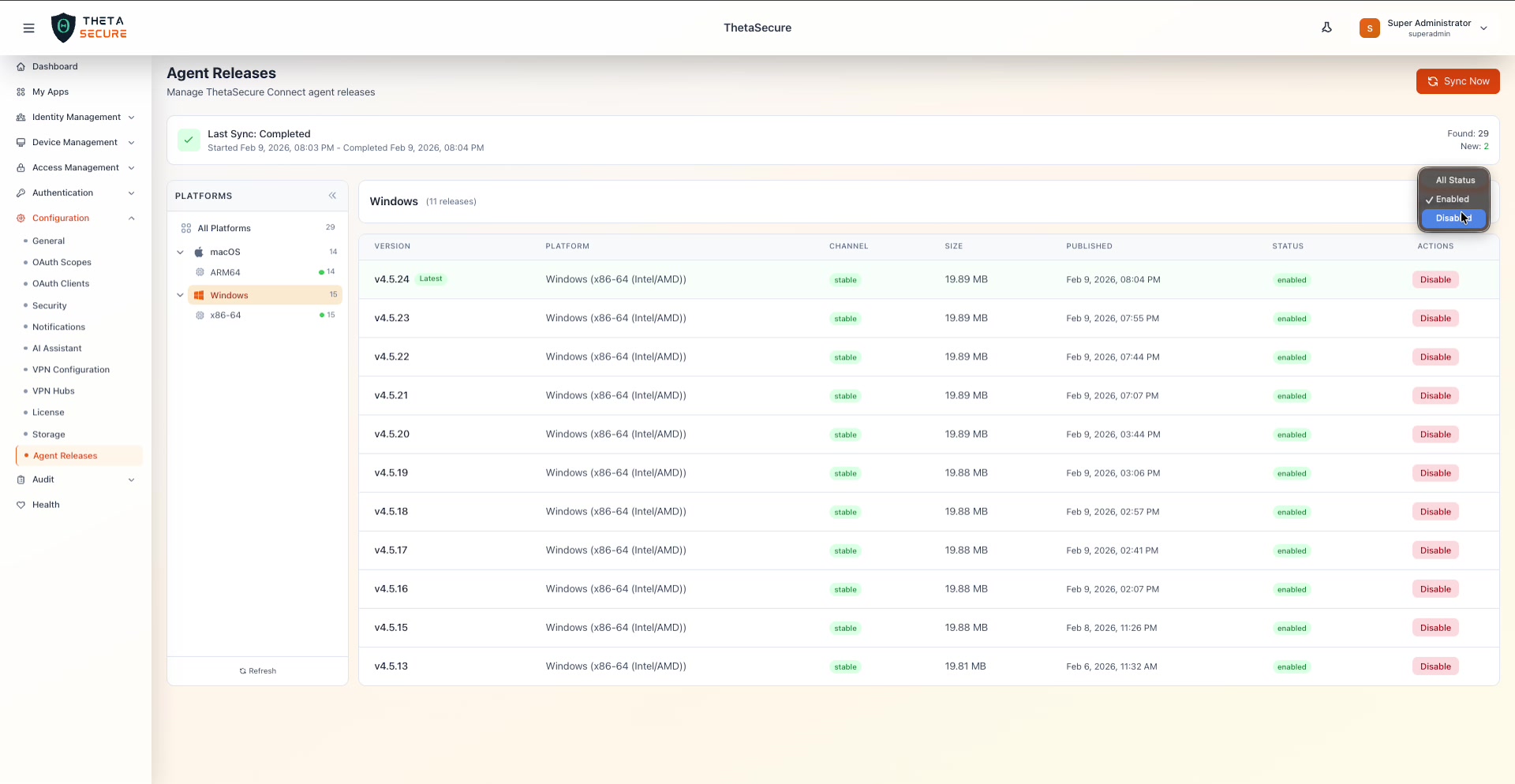 The status filter dropdown with three options: All Status (shows everything), Enabled (shows only releases available for deployment), and Disabled (shows only releases that have been taken out of circulation).
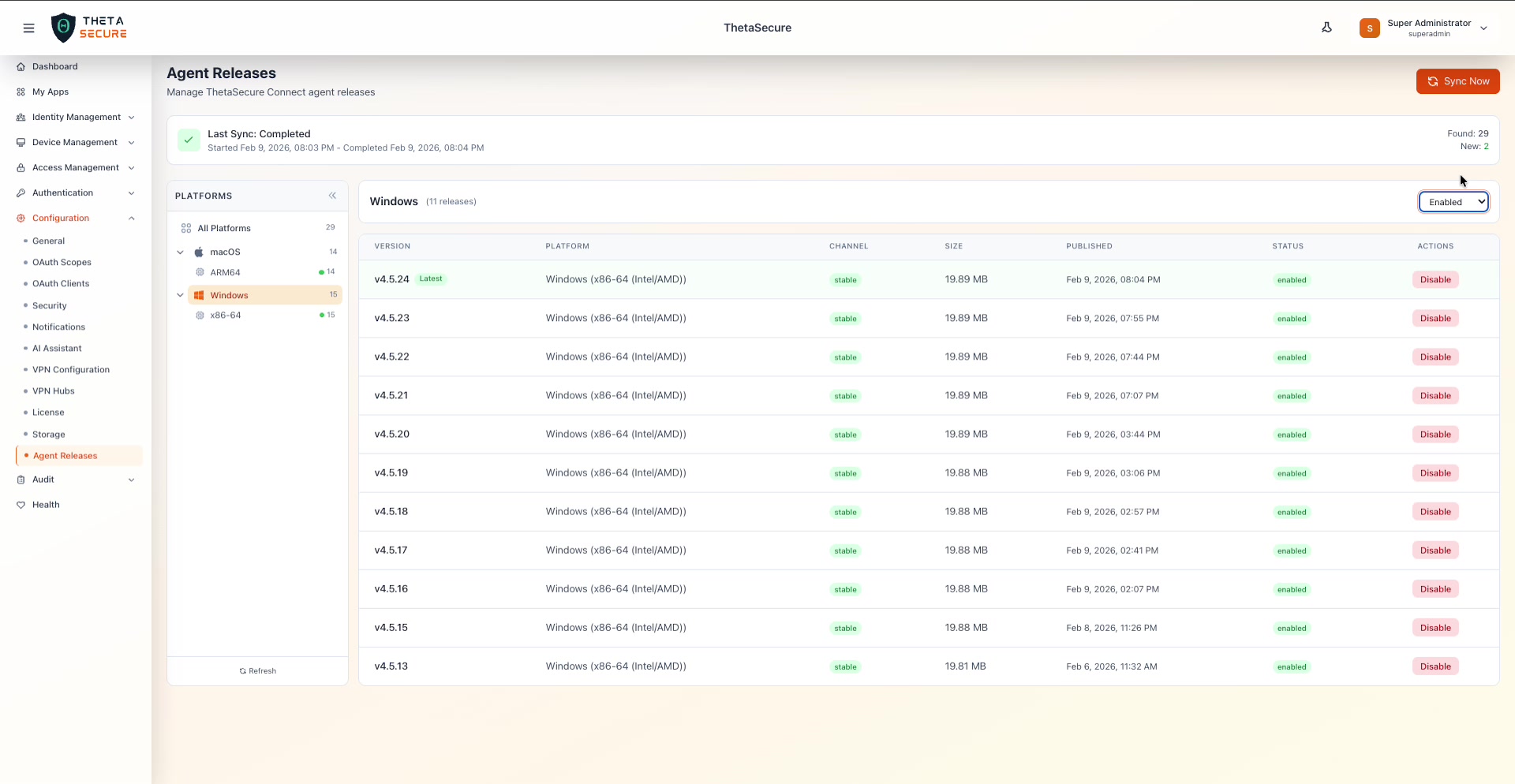 Filtering by Enabled on the Windows platform shows 11 active releases. The disabled releases (v4.5.12, v4.5.11, v4.5.10, v4.5.9) are hidden from this view.
Combine platform filtering with status filtering to get precise views. For example, select macOS > ARM64 in the platform tree and Disabled in the status dropdown to see exactly which macOS versions have been taken out of circulation.
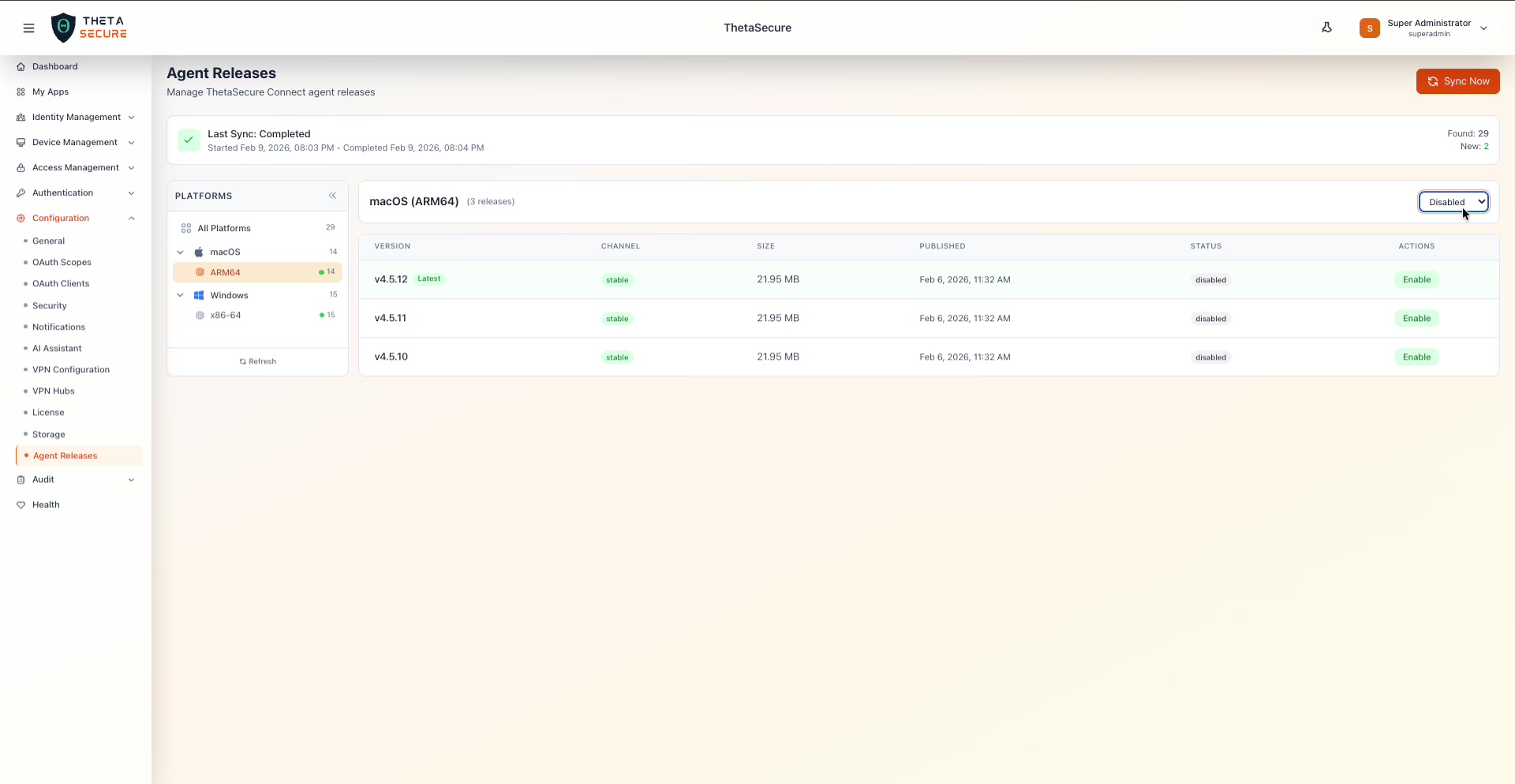 macOS ARM64 filtered by Disabled status, revealing three deactivated releases: v4.5.12, v4.5.11, and v4.5.10. All three are 21.95 MB stable channel packages published on Feb 6, 2026. Each has a green Enable button to reactivate it.
Sync Workflow
The sync process connects to the ThetaSecure release repository and performs the following steps:
- Queries the repository for all available agent versions across all platforms.
- Compares the results against the local release inventory.
- Downloads metadata for any new versions (the New count in the sync banner).
- Adds new releases to the table with their default status.
- Updates the Found count to reflect the total number of releases in the repository.
The sync does not automatically download the full agent binaries to your local storage. The binaries are stored in the Storage backend (see the Storage section) and are pulled when needed for deployment.
Click Sync Now to trigger this process on demand. Automatic syncs may also be configured at the system level depending on your deployment.
After a sync that reports new releases, review the new versions before enabling them for your organization. Check the release notes in the ThetaSecure changelog, test on a small group of devices, and then enable broadly once you are confident in the update.
Disabling the Latest version does not automatically promote the previous version to Latest. It simply removes the newest version from availability. Make sure at least one version per platform remains enabled so that new device enrollments and agent reinstalls can proceed.