SignIn Profiles
SignIn profiles define the authentication methods available in your environment. Each profile represents a specific authentication backend, such as the built-in local directory or an external Active Directory server. When you create sign-in policies later, you will reference these profiles to control which authentication method applies to different user populations.
ThetaSecure includes a Default Local Authentication profile out of the box, which handles standard username and password authentication against the local user directory. You can create additional profiles to integrate corporate Active Directory servers, enabling users to sign in with their existing AD credentials.
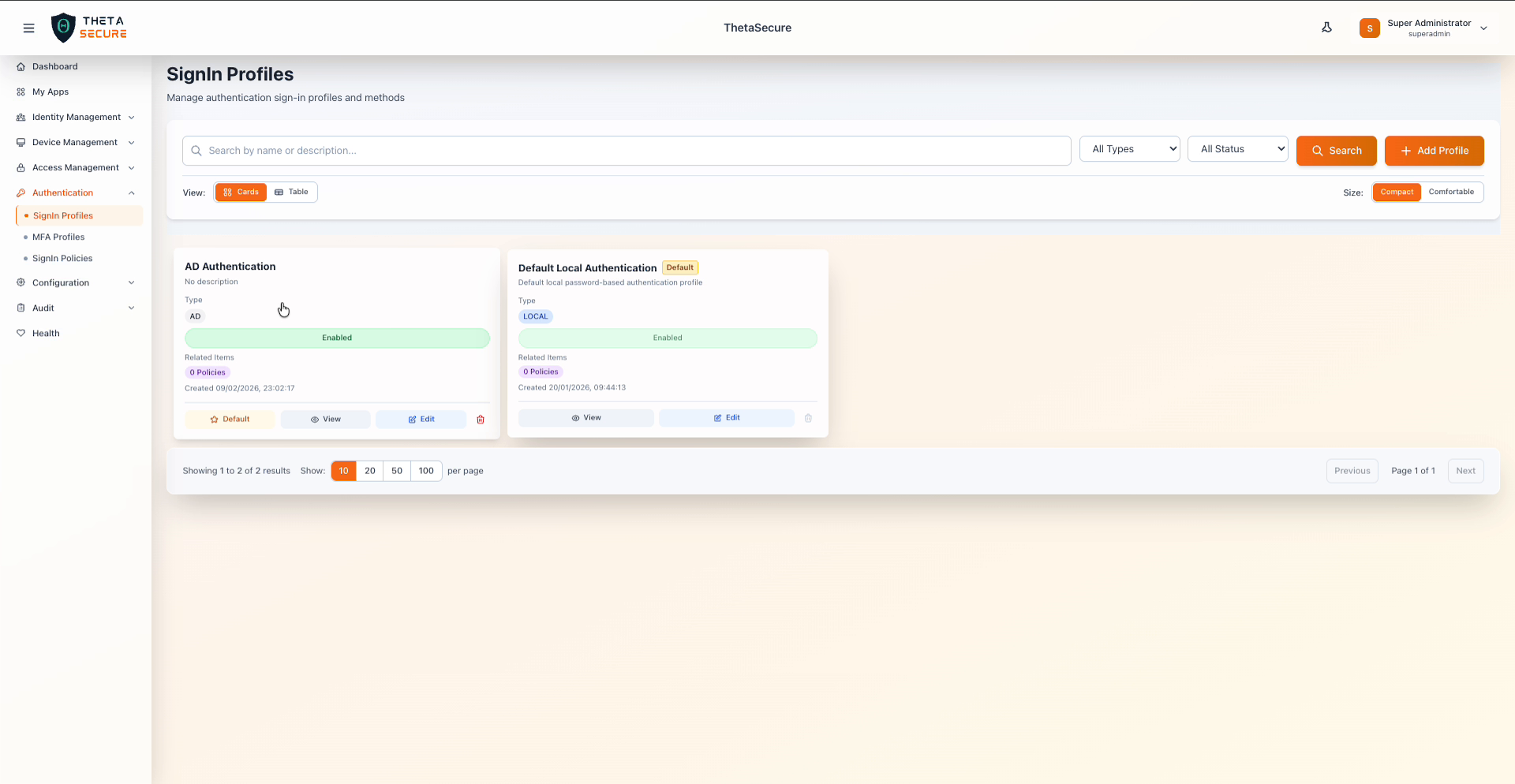 The SignIn Profiles page showing two profiles: the default local authentication profile and a custom Active Directory profile.
Profile Types
ThetaSecure supports the following profile types, each corresponding to a different authentication backend:
| Profile Type | Description | Use Case |
|---|---|---|
| Local Authentication | Standard username and password authentication against ThetaSecure's built-in user directory | Standalone deployments or organizations without centralized directory services |
| Active Directory (AD) | Authentication against a corporate AD/LDAP server | Organizations with existing AD infrastructure who want users to sign in with their corporate credentials |
The profile type is selected at creation time and cannot be changed afterward. If you need to switch authentication backends, create a new profile with the desired type and update your sign-in policies to reference it.
Creating a SignIn Profile
Navigate to Authentication > SignIn Profiles and click + Add Profile. The creation form collects basic profile information and, depending on the selected type, additional configuration for the authentication backend.
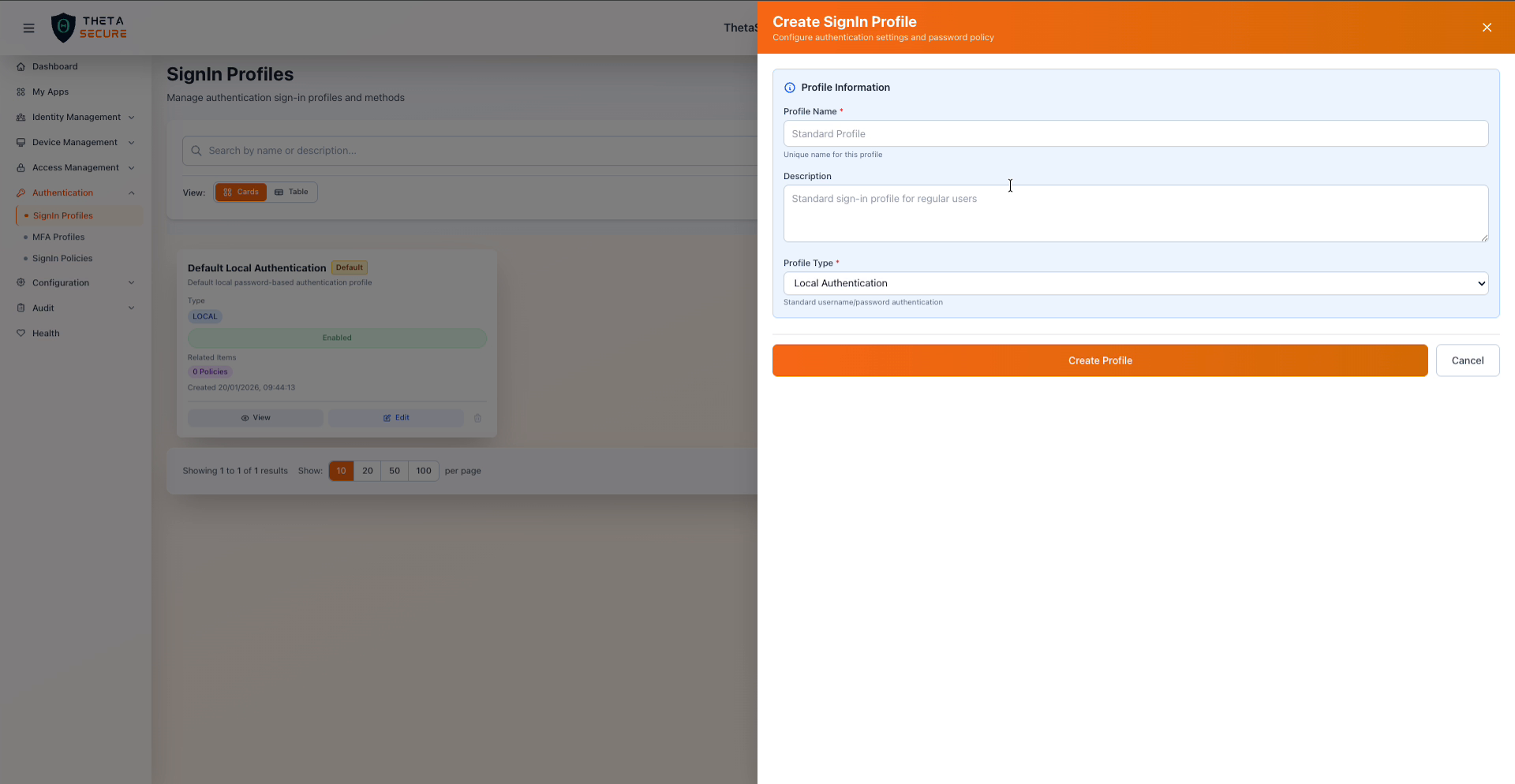 The Create SignIn Profile form with the Profile Information section.
Profile Information
| Field | Required | Description |
|---|---|---|
| Profile Name | Yes | A unique name that identifies this profile. This name appears in sign-in policy configuration when selecting which authentication method to apply. |
| Description | No | An optional description to help administrators understand the purpose of this profile. |
| Profile Type | Yes | The authentication backend type. Choose Local Authentication for the built-in directory or Active Directory (AD) for corporate LDAP integration. |
Active Directory Configuration
When you select Active Directory (AD) as the profile type, an additional configuration section appears for the LDAP connection details.
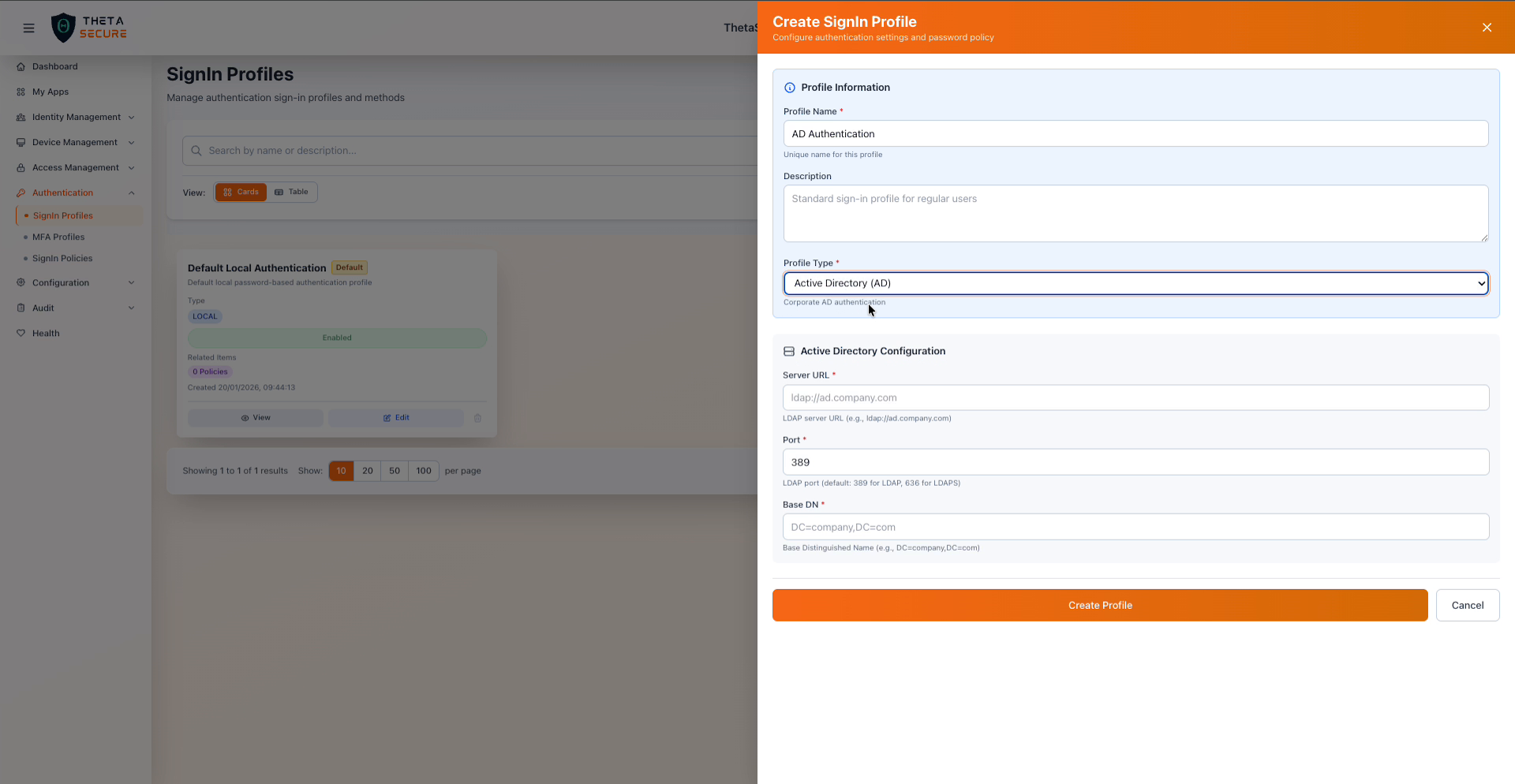 The Active Directory Configuration section that appears when the AD profile type is selected.
| Field | Required | Description | Example |
|---|---|---|---|
| Server URL | Yes | The LDAP server URL for your Active Directory instance. Use ldap:// for standard connections or ldaps:// for TLS encrypted connections. | ldap://ad.company.com or ldaps://10.20.0.1 |
| Port | Yes | The LDAP port number. The standard port is 389 for LDAP and 636 for LDAPS. | 389 |
| Base DN | Yes | The Base Distinguished Name that defines the starting point for user searches in your AD tree. | DC=company,DC=com |
Use LDAPS (port 636) with a TLS encrypted connection whenever possible, especially when the AD server is reached over untrusted networks. Plain LDAP transmits credentials in cleartext, which poses a significant risk if traffic is intercepted between ThetaSecure and your directory server.
Viewing Profile Details
Click the View button on any profile card to open the profile details panel. This panel displays the full configuration including the profile name, description, type, and a system generated Profile ID (UUID) that uniquely identifies the profile internally. For AD profiles, the panel also shows the server URL, port, and Base DN. Metadata at the bottom includes the creation timestamp, last update timestamp, and the user who created the profile.
 The View SignIn Profile panel for an Active Directory profile, displaying configuration details and metadata.
Editing and Deleting Profiles
Each profile card provides action buttons for management. Click Edit to modify the profile name, description, or connection settings. For AD profiles, you can update the server URL, port, and Base DN without recreating the profile.
The Delete action permanently removes the profile. Before deleting, ensure no sign-in policies reference this profile, as removing a profile that is actively in use will break the authentication flow for affected users.
The Default Local Authentication profile cannot be deleted. It serves as the fallback authentication method and ensures administrators always have a way to sign in, even if external directory integrations become unavailable.
Default Profile Designation
You can designate any profile as the default by clicking the Default action on the profile card. The default profile is used when a sign-in policy does not explicitly specify an authentication method. Only one profile can be the default at any time. The current default is indicated by a Default badge on the profile card.
Best Practices
Keep a local authentication profile active alongside AD profiles. If your Active Directory server becomes unreachable due to network issues or maintenance, having the local profile available as a fallback ensures administrators can still access ThetaSecure to diagnose and resolve the problem. This is especially important for break glass scenarios.
Use descriptive profile names that indicate the backend. Names like "Corporate AD (US East)" or "EMEA Active Directory" make it immediately clear which directory server the profile connects to, which is valuable when managing multiple AD integrations across regions or business units.
Test AD connectivity before assigning the profile to policies. Create the AD profile, verify the connection details are correct by examining the profile in the View panel, and confirm that users can authenticate against it before rolling it out broadly. Misconfigured Base DN or server URLs are the most common causes of AD authentication failures.