Web Apps
Web Apps is where you register the web applications your organization uses and configure ThetaSecure as their identity provider. Once an application is registered here, your users can access it through single sign on from the ThetaSecure portal, and you can enforce conditional access policies that control who gets in, from which devices, and under what circumstances.
ThetaSecure supports three types of web application integrations, each presented as a tab on this page:
| Tab | Protocol | Use Case |
|---|---|---|
| OIDC Apps | OpenID Connect | Modern web applications that support the OIDC/OAuth 2.0 protocol. This is the recommended approach for new integrations. |
| SAML Apps | SAML 2.0 | Enterprise applications that use SAML for federation (e.g., Salesforce, ServiceNow, AWS Console). |
| Bookmark Apps | None (link only) | Applications that do not support SSO protocols. Bookmarks provide a convenient launch point from the user portal without protocol level integration. |
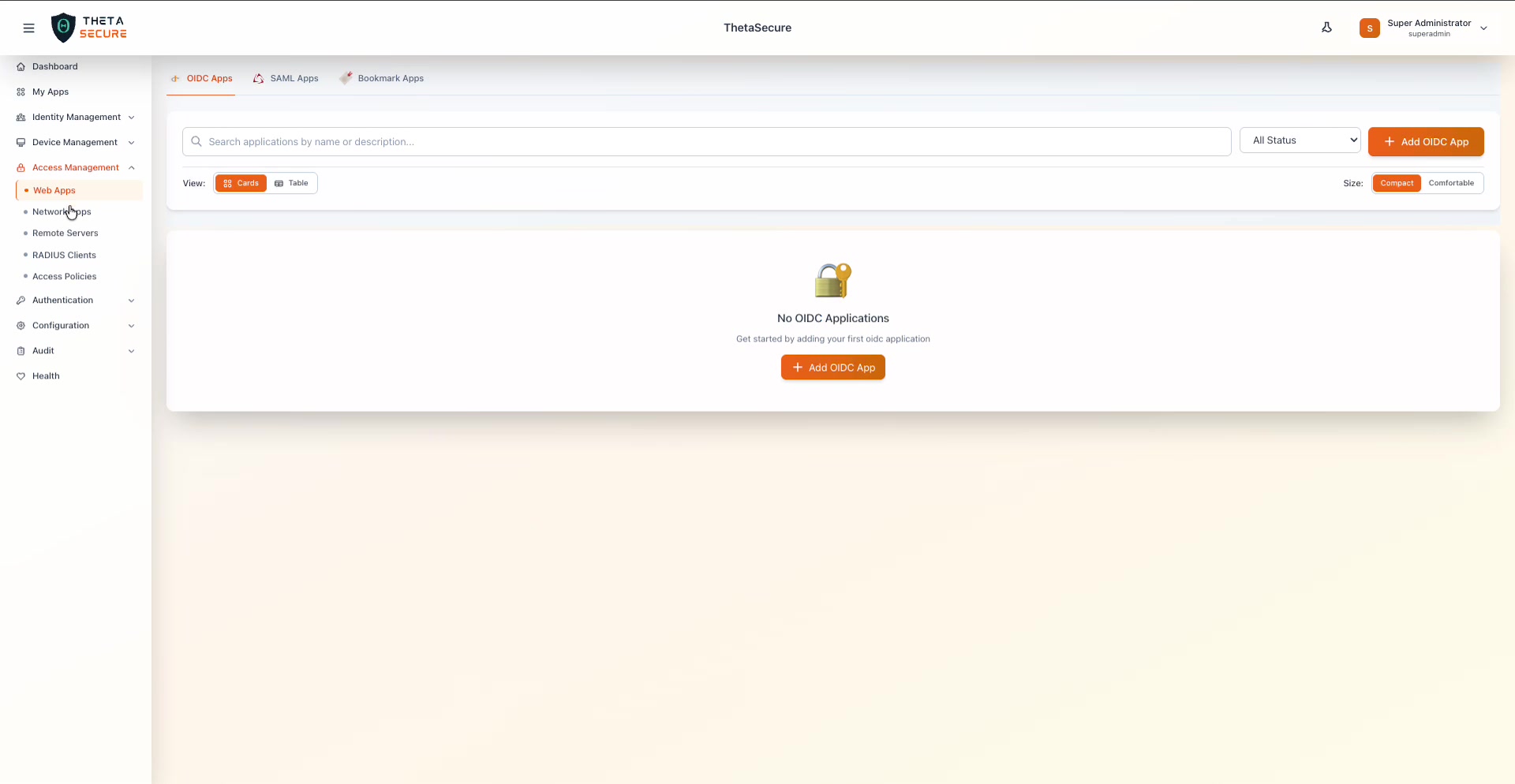 The Web Apps page with the OIDC Apps tab selected. The sidebar shows all five Access Management sections: Web Apps, Network Apps, Remote Servers, RADIUS Clients, and Access Policies.
Each tab provides a search bar to filter applications by name or description, a status dropdown to filter by active or inactive applications, and a toggle between Cards and Table views with Compact or Comfortable sizing.
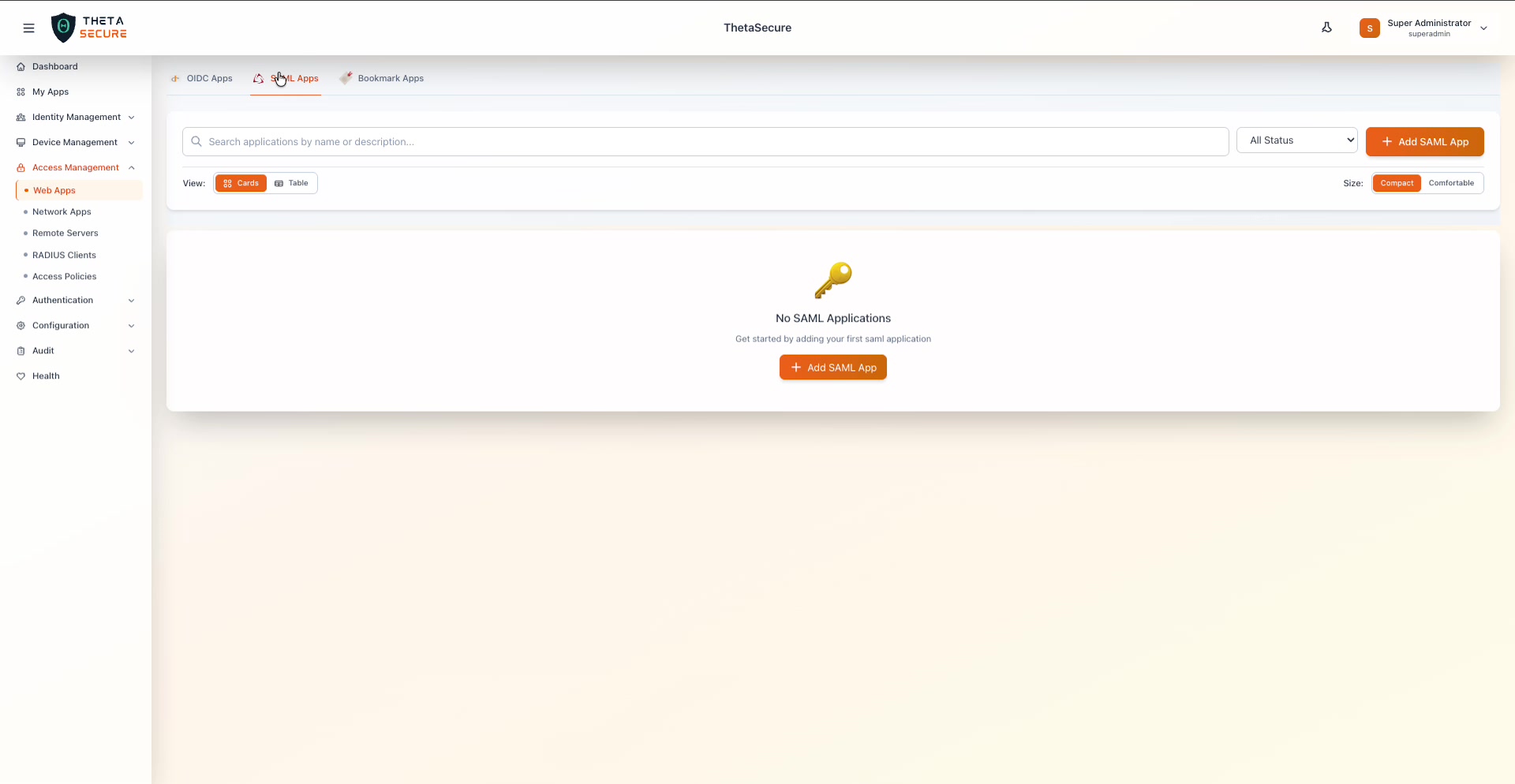 The SAML Apps tab. Each application type has its own dedicated add button and empty state prompt.
Adding an OIDC Application
OpenID Connect is the modern standard for web application SSO. When you configure an OIDC application in ThetaSecure, you are telling ThetaSecure how to issue identity tokens to that application so it can verify who the user is and what they are allowed to do.
Click + Add OIDC App to open the application creation panel. The form is organized into several sections that map directly to the OIDC specification.
Basic Information
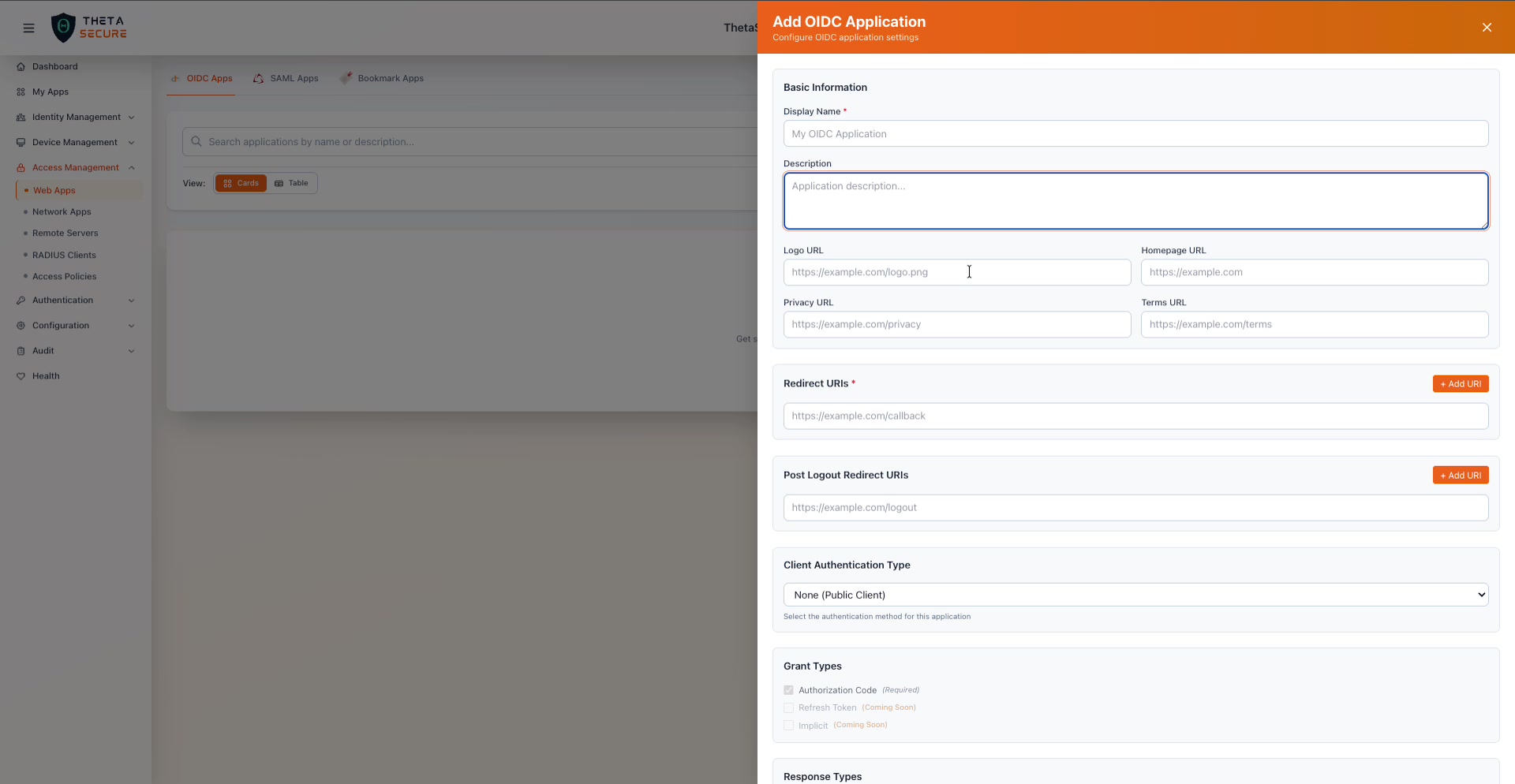 The Add OIDC Application panel. Start with the application name, then configure redirect URIs, authentication type, and protocol settings.
| Field | Required | Description |
|---|---|---|
| Display Name | Yes | The name users will see in the ThetaSecure portal and on the consent screen (e.g., "My OIDC Application"). |
| Description | No | An internal description to help administrators identify the application's purpose. |
| Logo URL | No | A URL to the application's logo image. This is displayed in the user portal. |
| Homepage URL | No | The application's main URL (e.g., https://example.com). |
| Privacy URL | No | A link to the application's privacy policy. Shown during user consent if consent is enabled. |
| Terms URL | No | A link to the application's terms of service. |
Redirect URIs
Redirect URIs are critical to the security of the OIDC flow. After ThetaSecure authenticates a user, it redirects the browser back to one of these URIs with an authorization code. If the URI is not in this list, ThetaSecure rejects the request.
| Field | Required | Description |
|---|---|---|
| Redirect URIs | Yes | The callback URL(s) where ThetaSecure sends the authorization code after authentication (e.g., https://example.com/callback). Click + Add URI to add multiple redirect URIs. |
| Post Logout Redirect URIs | No | The URL(s) where ThetaSecure redirects the user after they sign out (e.g., https://example.com/logout). Click + Add URI to add multiple. |
Always use HTTPS for redirect URIs in production. ThetaSecure will reject HTTP redirect URIs unless the application is configured for localhost development.
Client Authentication Type
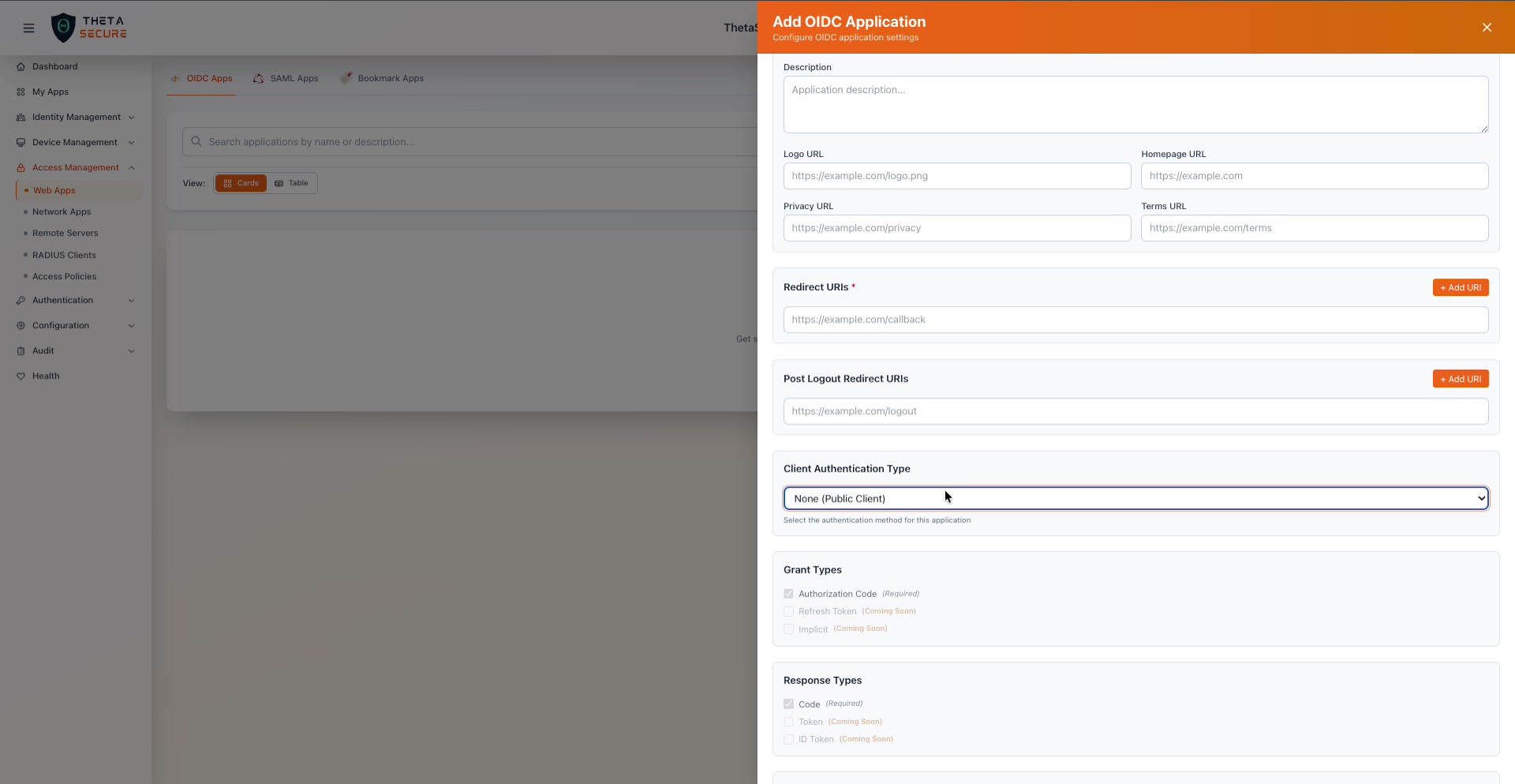 The Client Authentication Type dropdown, Grant Types, and Response Types sections. The Authorization Code grant and Code response type are required and pre-selected.
This setting determines how the application proves its identity to ThetaSecure when exchanging an authorization code for tokens.
| Option | Description |
|---|---|
| None (Public Client) | The application does not authenticate with a client secret. Use this for single page applications (SPAs) and mobile apps that cannot securely store a secret. When this is selected, PKCE is strongly recommended. |
| Client Secret Basic | The application sends its client ID and secret in the HTTP Authorization header using Basic authentication. This is the most common choice for server side web applications. |
| Client Secret Post | The application sends its client ID and secret in the request body. Use this when the application or framework does not support Basic authentication headers. |
Grant Types
Grant types define the OAuth 2.0 flow the application will use to obtain tokens.
| Grant Type | Status | Description |
|---|---|---|
| Authorization Code | Required | The standard and most secure flow. The user authenticates in the browser, ThetaSecure issues an authorization code, and the application exchanges it for tokens server side. This is always enabled. |
| Refresh Token | Coming Soon | Allows the application to obtain new access tokens without requiring the user to re-authenticate. |
| Implicit | Coming Soon | A legacy flow where tokens are returned directly in the browser redirect. Not recommended for new applications. |
Response Types
Response types control what ThetaSecure returns in the authorization response.
| Response Type | Status | Description |
|---|---|---|
| Code | Required | Returns an authorization code that the application exchanges for tokens. Always enabled with the Authorization Code grant. |
| Token | Coming Soon | Returns an access token directly. Used with the Implicit flow. |
| ID Token | Coming Soon | Returns an ID token directly. Used with the Implicit flow. |
Standard Scopes
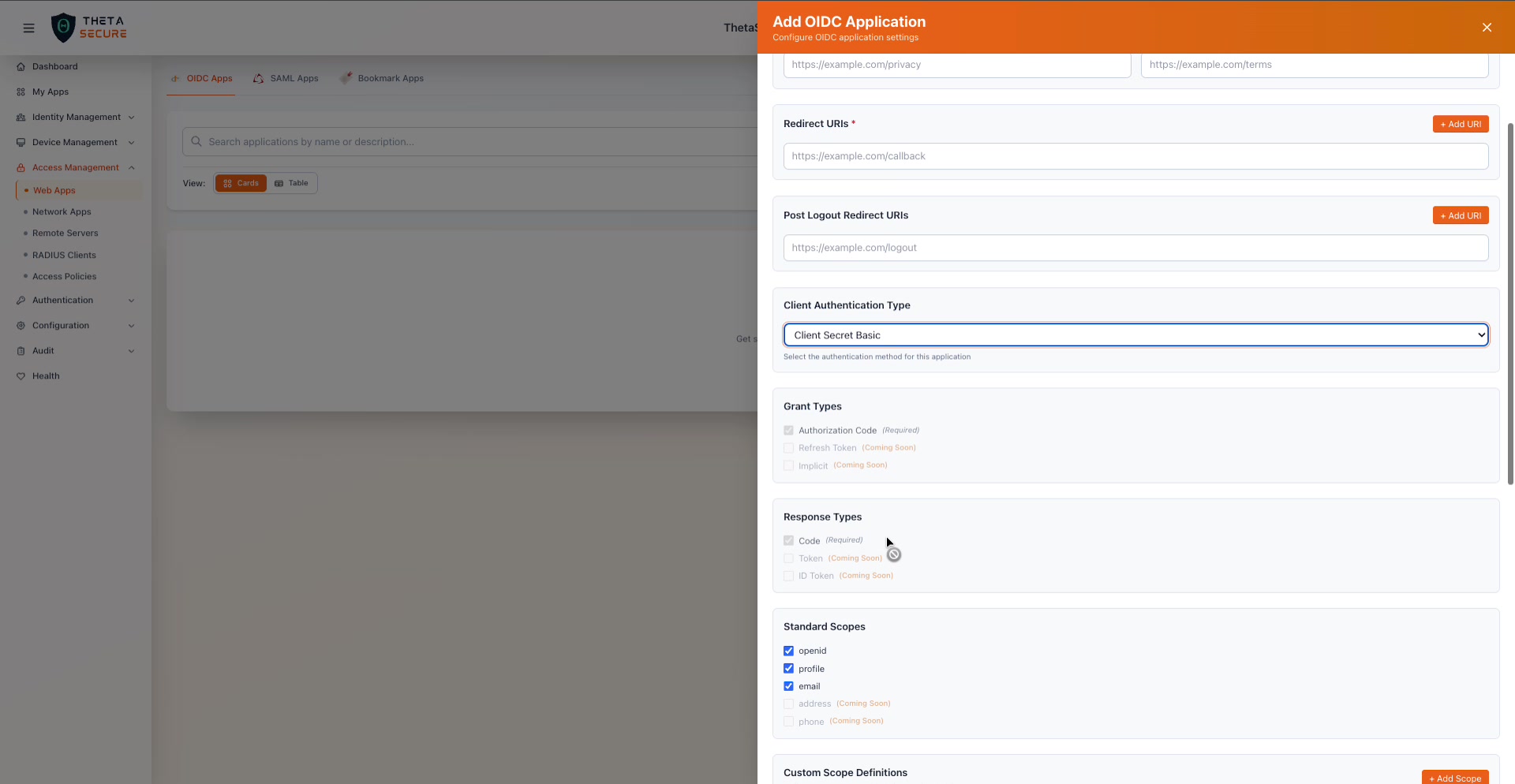 Standard Scopes, Custom Scope Definitions, and the beginning of the Claim Mappings section. The Client Authentication Type here shows "Client Secret Basic" selected.
Scopes determine what user information the application can request in ID tokens and from the userinfo endpoint.
| Scope | Status | What It Returns |
|---|---|---|
| openid | Available (enabled by default) | The user's unique subject identifier. Required for all OIDC flows. |
| profile | Available (enabled by default) | The user's display name, given name, family name, and other profile attributes. |
| Available (enabled by default) | The user's email address and email verification status. | |
| address | Coming Soon | The user's postal address. |
| phone | Coming Soon | The user's phone number. |
Custom Scope Definitions
Beyond the standard OIDC scopes, you can define custom scopes that bundle specific claims your application needs. This is useful when your application requires domain specific user attributes that go beyond basic profile information.
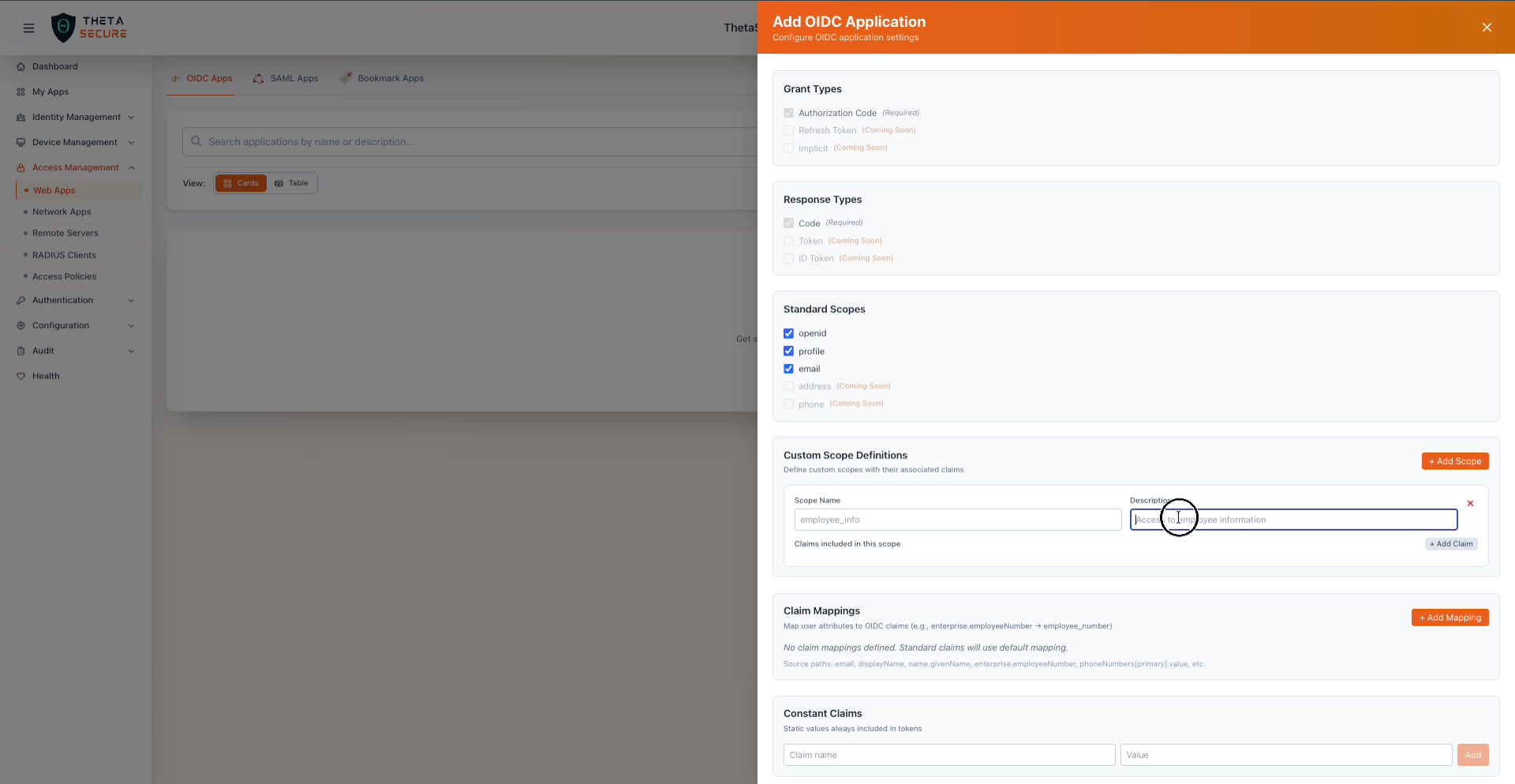 Creating a custom scope called "employee_info" with a description. Each custom scope can include multiple claims added via the "+ Add Claim" button.
Click + Add Scope to create a custom scope. Each custom scope has a name, a description, and a list of claims that are included when the application requests that scope. For example, you might create an employee_info scope that includes claims like department, employee_number, and cost_center.
Claim Mappings
Claim mappings let you control exactly what user attributes appear in the OIDC tokens your application receives. By default, ThetaSecure uses standard claim names (e.g., email, name, sub). Claim mappings allow you to map ThetaSecure user attributes to custom claim names that your application expects.
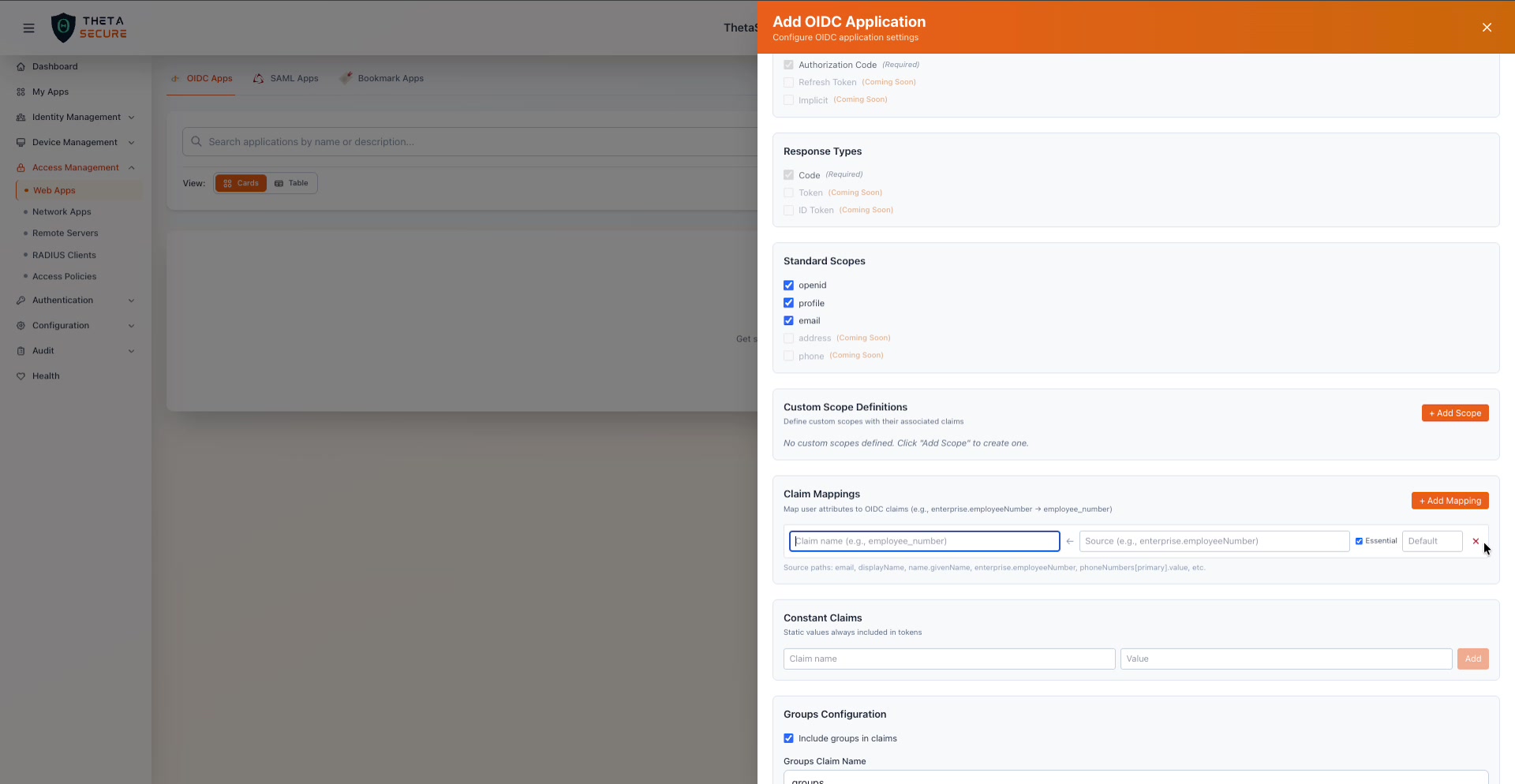 The Claim Mappings section with the "+ Add Mapping" form expanded. Each mapping defines a claim name, a source attribute path, an Essential flag, and an optional default value.
Click + Add Mapping to create a mapping. Each mapping has:
| Field | Description |
|---|---|
| Claim name | The name of the claim as it will appear in the token (e.g., employee_number). |
| Source | The ThetaSecure user attribute path to pull the value from (e.g., enterprise.employeeNumber). Available source paths include: email, displayName, name.givenName, enterprise.employeeNumber, phoneNumbers(primary).value, and others. |
| Essential | When checked, this claim is marked as essential in the token, indicating that the relying party considers it required. |
| Default | A fallback value used when the source attribute is not available for a user. |
If no custom claim mappings are defined, ThetaSecure uses its default mapping, which includes the standard OIDC claims based on the selected scopes.
Constant Claims
Constant claims are static values that are always included in every token issued for this application, regardless of user attributes. This is useful for embedding application specific metadata like an environment identifier or tenant name.
Each constant claim has a Claim name and a Value. Click Add to include a constant claim.
Groups Configuration
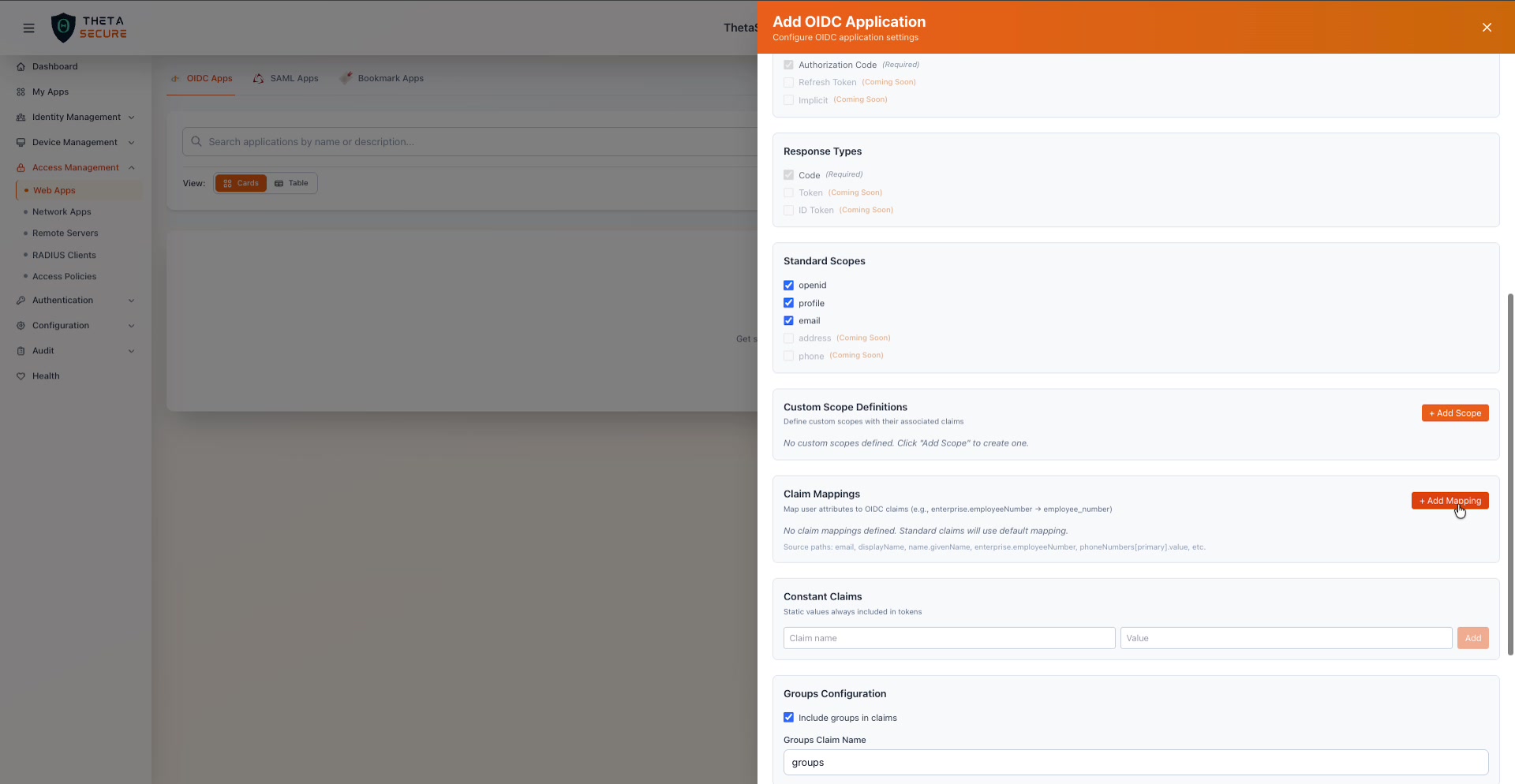 The Groups Configuration section with "Include groups in claims" enabled and the Groups Claim Name set to "groups".
| Field | Description |
|---|---|
| Include groups in claims | When enabled, the user's ThetaSecure group memberships are included in the ID token. This allows the application to make authorization decisions based on group membership without a separate API call. |
| Groups Claim Name | The name of the claim that will contain the user's groups (default: groups). Your application reads this claim to determine the user's group memberships. |
Token Validity
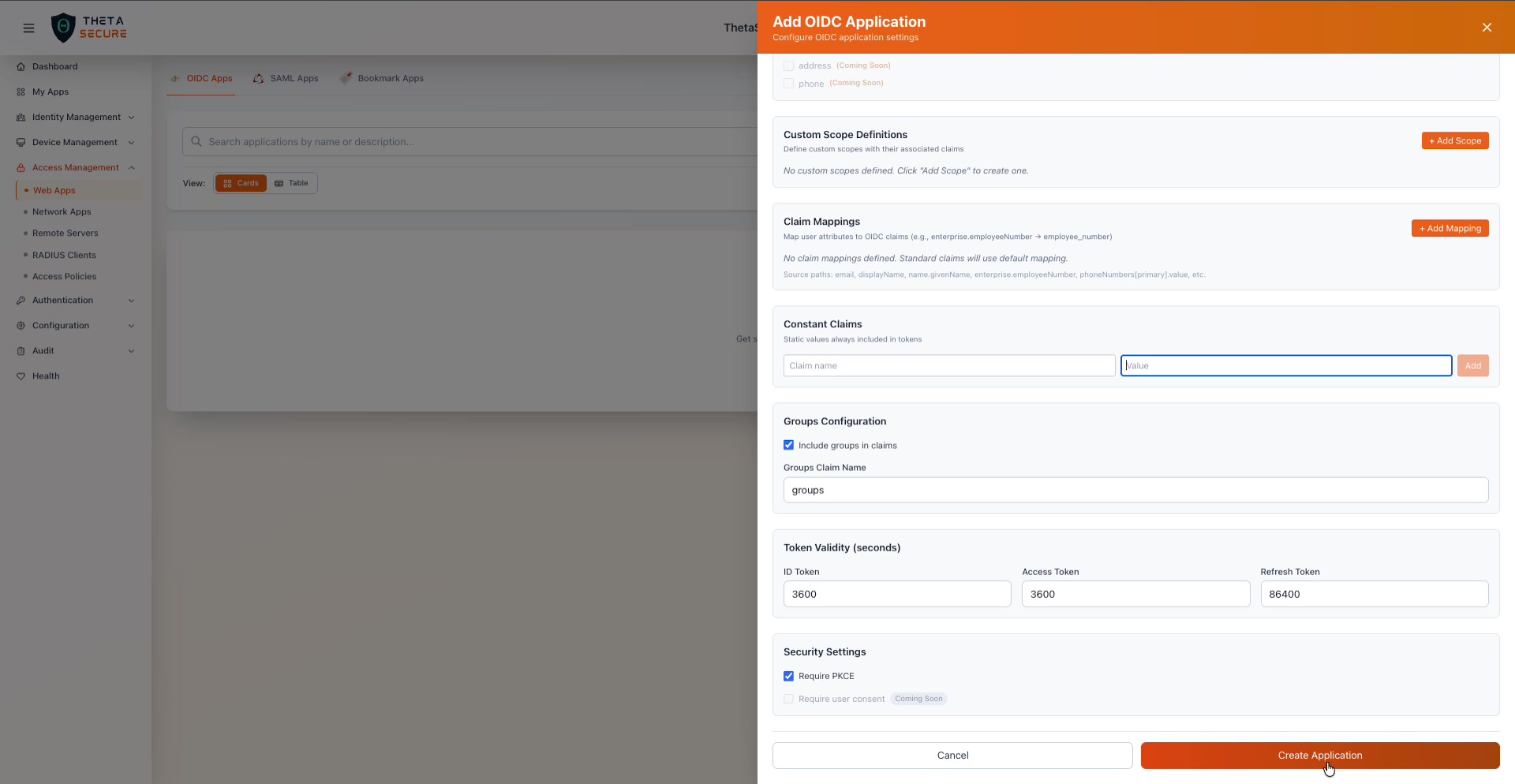 Token Validity settings, Security Settings, and the Create Application button at the bottom of the form.
Token validity controls how long each type of token remains valid before it expires.
| Token Type | Default (seconds) | Description |
|---|---|---|
| ID Token | 3600 (1 hour) | The identity token that contains user claims. Shorter values are more secure but require more frequent re-authentication. |
| Access Token | 3600 (1 hour) | The token used to call protected APIs on behalf of the user. |
| Refresh Token | 86400 (24 hours) | The long lived token used to obtain new access tokens without user interaction. |
Security Settings
| Setting | Default | Description |
|---|---|---|
| Require PKCE | Enabled | Proof Key for Code Exchange. When enabled, the application must use PKCE during the authorization code flow. This prevents authorization code interception attacks and is strongly recommended for all applications, especially public clients. |
| Require user consent | Coming Soon | When enabled, users are shown a consent screen before the application receives their information. |
Creating the Application
Once all fields are configured, click Create Application to register the OIDC application. ThetaSecure will generate a Client ID and, if the authentication type is Client Secret Basic or Client Secret Post, a Client Secret. You will need these values to configure the application's OIDC client library to point to ThetaSecure as its identity provider.
Adding a SAML Application
SAML 2.0 remains the dominant federation protocol in enterprise environments. Applications like Salesforce, AWS Console, Google Workspace, ServiceNow, and hundreds of others use SAML for single sign on. When you configure a SAML application in ThetaSecure, you are establishing a trust relationship where ThetaSecure (the Identity Provider) issues signed XML assertions that the application (the Service Provider) uses to authenticate users.
Click + Add SAML App to open the configuration panel.
Basic Information
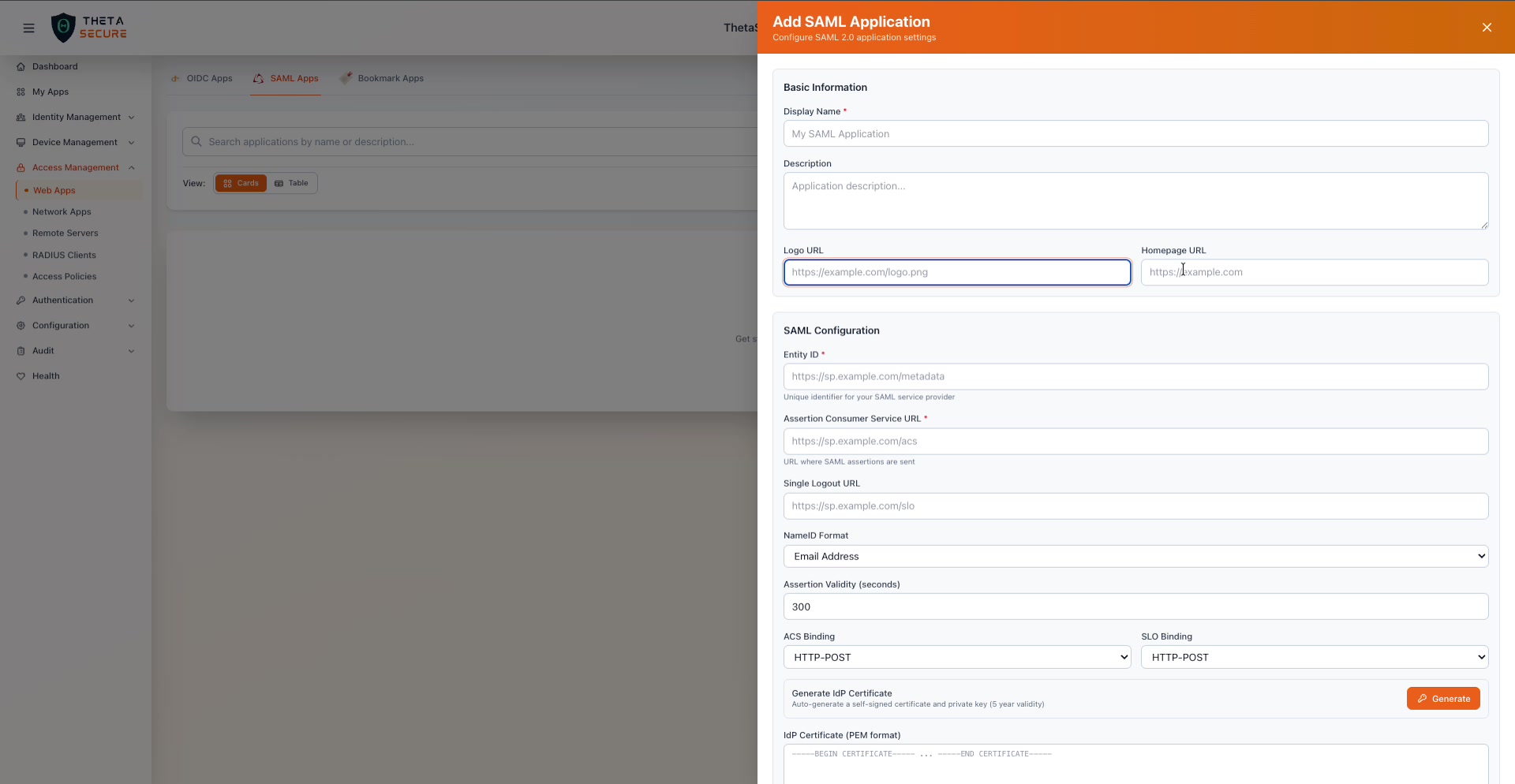 The Add SAML Application panel. The top section captures the application identity, while the SAML Configuration section below defines the protocol level settings that must match the Service Provider's configuration.
| Field | Required | Description |
|---|---|---|
| Display Name | Yes | The name shown to users in the ThetaSecure portal (e.g., "My SAML Application"). |
| Description | No | An internal description for administrators. |
| Logo URL | No | A URL to the application's logo for display in the portal. |
| Homepage URL | No | The application's primary URL. |
SAML Configuration
This is the core of the SAML integration. Every field here must align with what the Service Provider expects.
| Field | Required | Description |
|---|---|---|
| Entity ID | Yes | The unique identifier for the SAML Service Provider. This is typically a URL provided in the SP's metadata (e.g., https://sp.example.com/metadata). It does not need to be a reachable URL, but it must match exactly what the SP sends in authentication requests. |
| Assertion Consumer Service URL | Yes | The URL where ThetaSecure sends the SAML assertion after authentication (e.g., https://sp.example.com/acs). This is the SP's callback endpoint. |
| Single Logout URL | No | The URL where ThetaSecure sends logout requests when a user signs out (e.g., https://sp.example.com/slo). If configured, signing out of ThetaSecure also signs the user out of the application. |
NameID Format
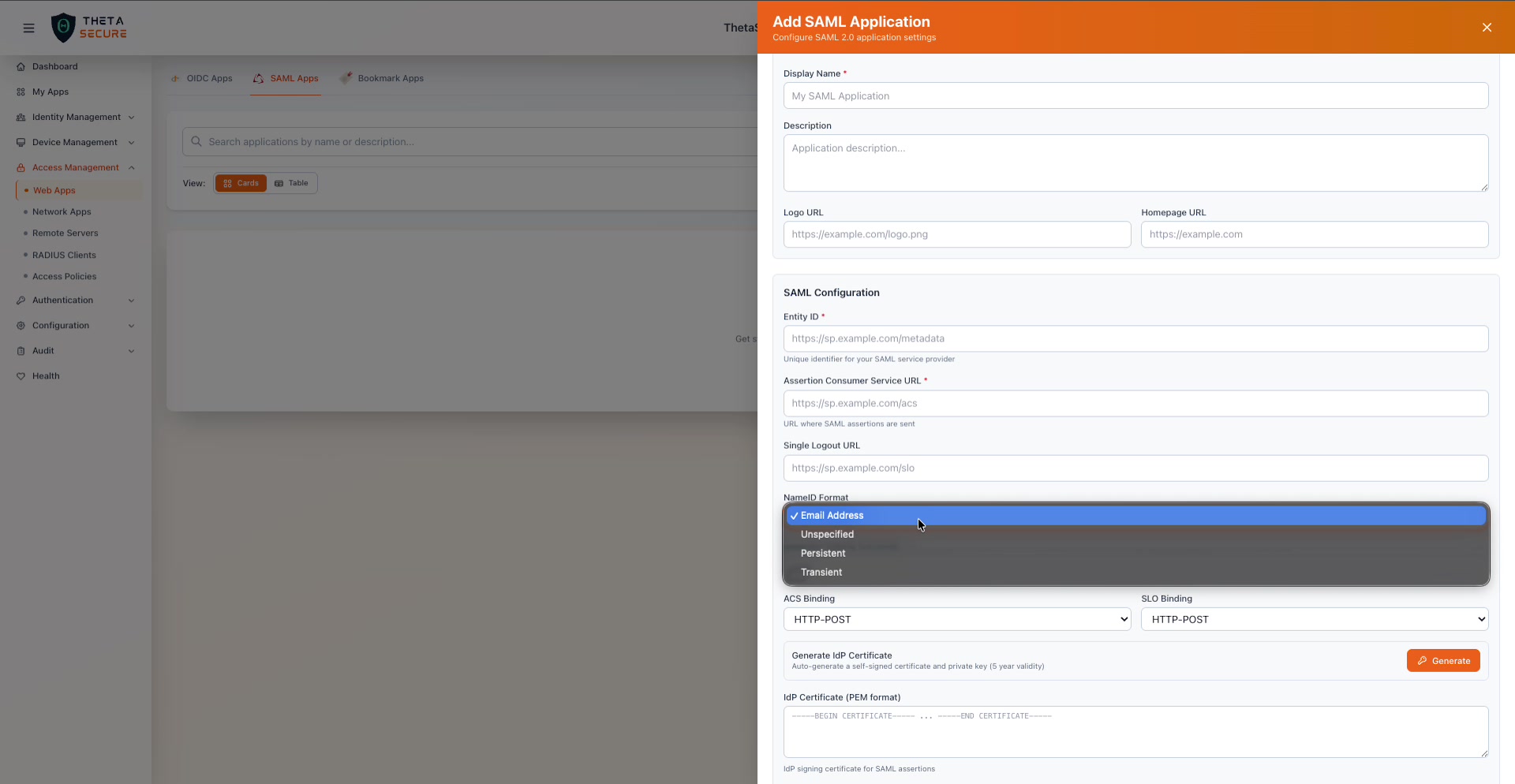 The NameID Format dropdown expanded, showing Email Address, Unspecified, Persistent, and Transient options.
The NameID is the primary identifier that ThetaSecure sends to the Service Provider to identify the user. Different applications expect different formats.
| Format | Description |
|---|---|
| Email Address | Sends the user's email address as the NameID. This is the most common format and works with the majority of enterprise applications. |
| Unspecified | Lets the SP interpret the NameID value however it chooses. Use this when the SP documentation does not specify a format. |
| Persistent | Sends a stable, opaque identifier that remains the same across sessions. Useful when the SP needs a consistent user identifier that is not tied to a mutable attribute like email. |
| Transient | Sends a temporary, one time identifier that changes with each authentication. Use this for privacy sensitive applications where the SP should not be able to correlate sessions. |
Assertion Validity and Bindings
| Field | Default | Description |
|---|---|---|
| Assertion Validity (seconds) | 300 (5 minutes) | How long the SAML assertion remains valid after it is issued. A short window prevents replay attacks. Increase this if users experience timeout errors during login due to network latency. |
| ACS Binding | HTTP-POST | The transport method for sending the assertion to the SP. HTTP-POST sends the assertion in a form POST (most common). HTTP-Redirect sends it as a URL parameter (used by some legacy SPs). |
| SLO Binding | HTTP-POST | The transport method for logout requests. Same options as ACS Binding. |
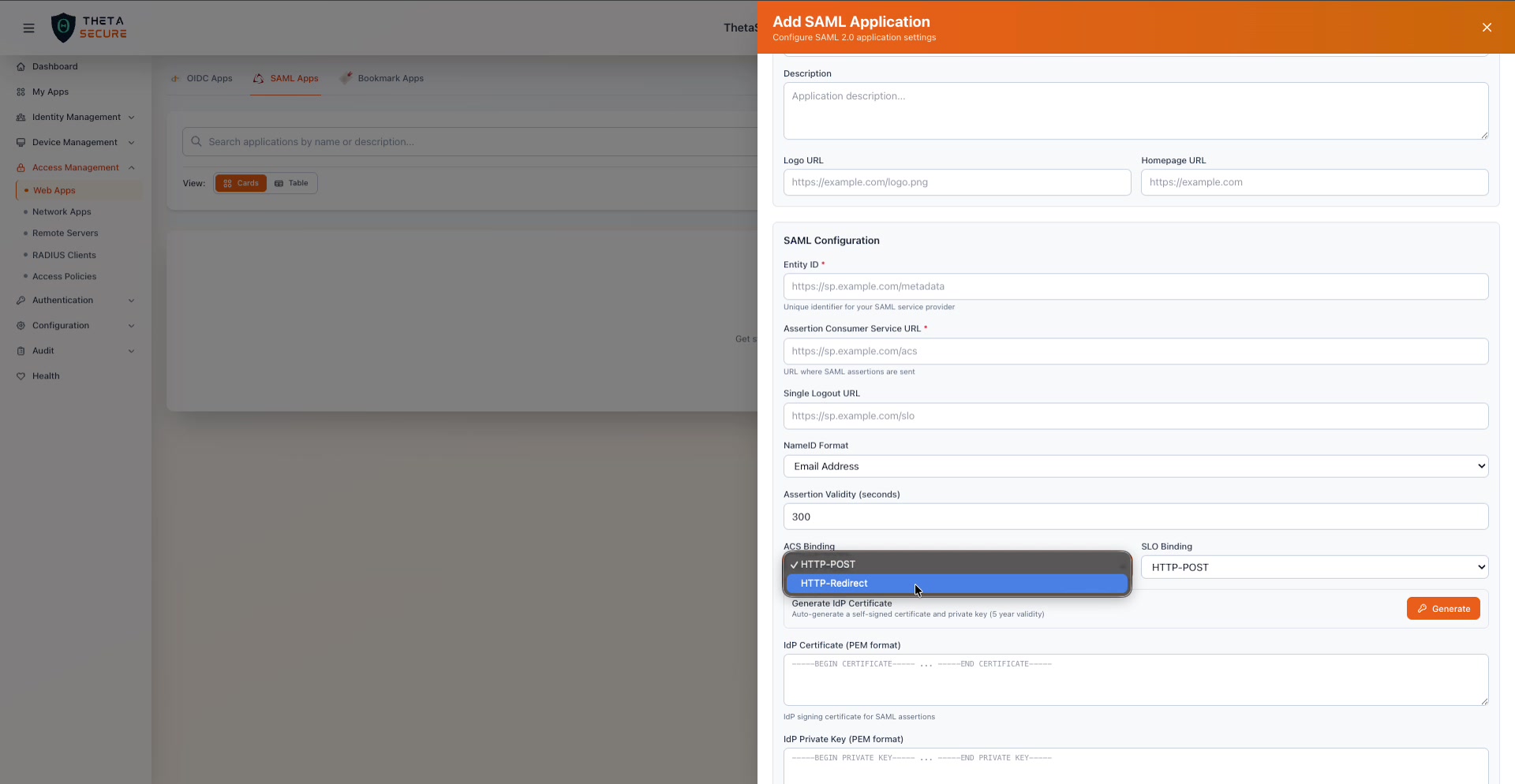 The ACS Binding dropdown offers HTTP-POST (default) and HTTP-Redirect. The SLO Binding dropdown provides the same two options.
Certificates
SAML relies on X.509 certificates for signing and encrypting assertions. ThetaSecure provides both an IdP certificate (used to sign assertions) and accepts an SP certificate (used to encrypt assertions when required by the SP).
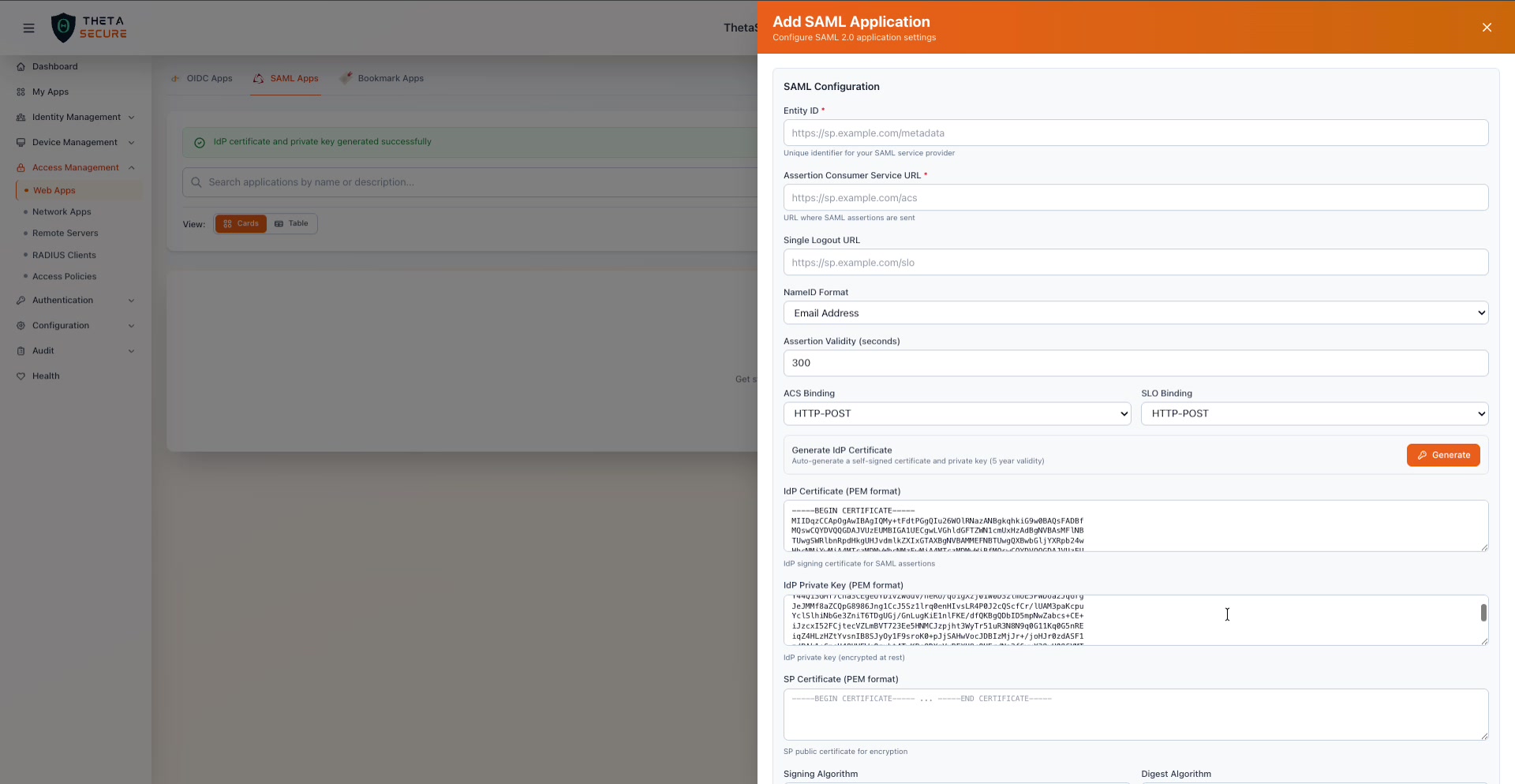 After clicking Generate, ThetaSecure creates a self-signed certificate and private key with 5 year validity. The green toast confirms "IdP certificate and private key generated successfully." The SP Certificate field below accepts the SP's public certificate for encryption.
| Field | Description |
|---|---|
| Generate IdP Certificate | Click the Generate button to auto-generate a self-signed X.509 certificate and private key with a 5 year validity period. This is the quickest way to get started. |
| IdP Certificate (PEM format) | The signing certificate that ThetaSecure uses to sign SAML assertions. You will need to provide this certificate to the Service Provider so it can verify assertion signatures. Paste your own certificate here or use the Generate button. |
| IdP Private Key (PEM format) | The private key corresponding to the IdP certificate. This is stored encrypted at rest and is never shared with the Service Provider. |
| SP Certificate (PEM format) | The Service Provider's public certificate. When provided, ThetaSecure uses this to encrypt assertions so that only the SP can decrypt them. Required when the SP demands encrypted assertions. |
When you generate the IdP certificate, copy the PEM content from the IdP Certificate field and provide it to your Service Provider. Most SPs have a field labeled "Identity Provider Certificate" or "Signing Certificate" in their SSO configuration.
Signing and Encryption Algorithms
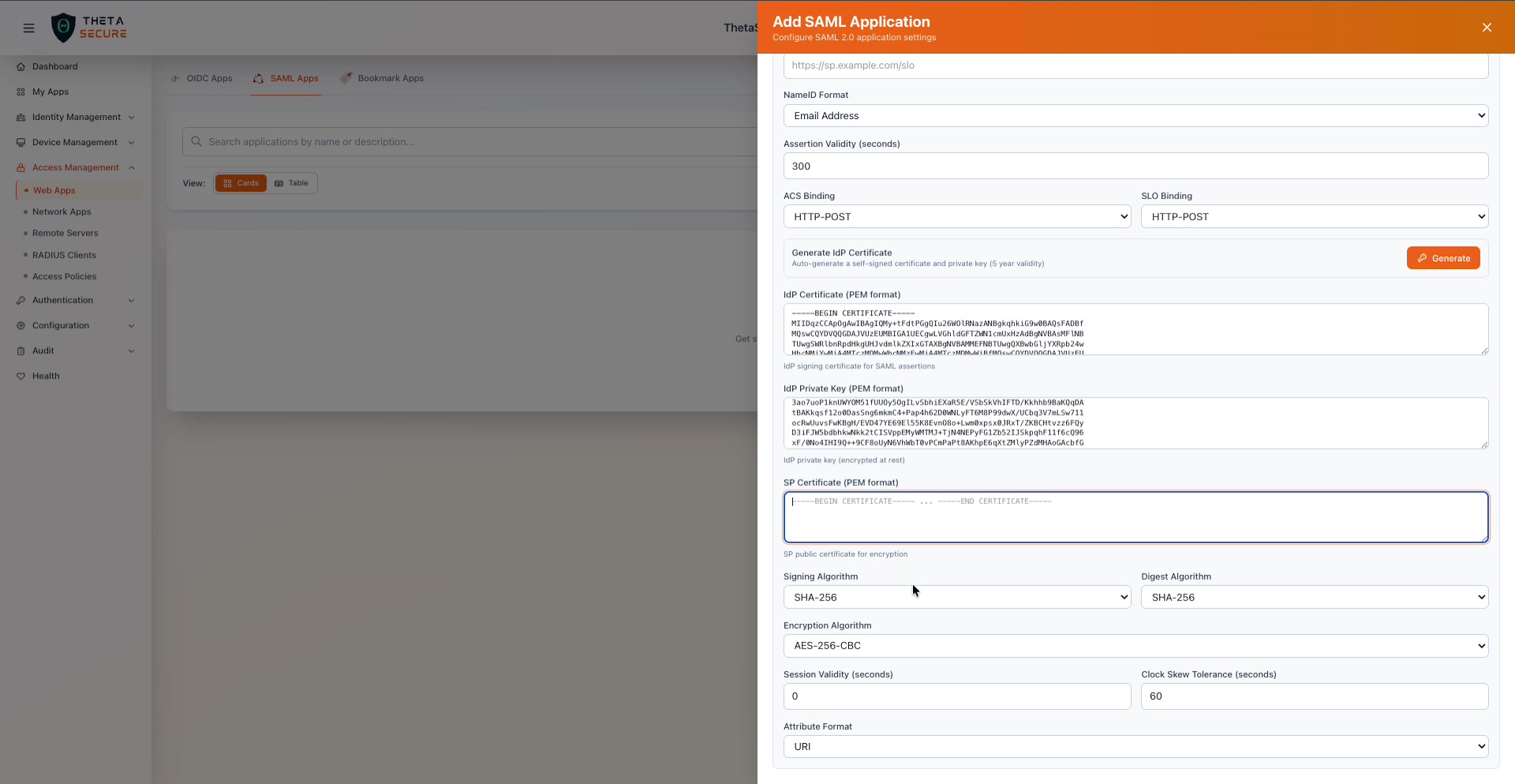 The cryptographic settings section. SHA-256 is the default for both signing and digest. AES-256-CBC is the default encryption algorithm. Session Validity and Clock Skew Tolerance control timing behavior.
| Field | Default | Description |
|---|---|---|
| Signing Algorithm | SHA-256 | The algorithm used to sign the SAML assertion. SHA-256 is the industry standard. Some legacy SPs may require SHA-1, but this is not recommended. |
| Digest Algorithm | SHA-256 | The hash algorithm used in the assertion's digest value. Should match the signing algorithm in most configurations. |
| Encryption Algorithm | AES-256-CBC | The symmetric encryption algorithm used to encrypt assertions when an SP certificate is provided. AES-256-CBC provides strong encryption and broad compatibility. |
| Session Validity (seconds) | 0 | How long the SSO session remains valid. A value of 0 means the session validity is controlled by ThetaSecure's global session settings rather than a per-application override. |
| Clock Skew Tolerance (seconds) | 60 | The number of seconds of clock drift allowed between ThetaSecure and the Service Provider. If the SP's server clock is slightly out of sync, this tolerance prevents assertion rejection. Increase this value if you see "assertion not yet valid" or "assertion expired" errors. |
| Attribute Format | URI | The format used for attribute names in the assertion. URI format (e.g., urn:oid:0.9.2342.19200300.100.1.3) is the standard for SAML 2.0. Some SPs may expect Basic format with simple string names. |
Attribute Mappings
Attribute mappings control which user attributes are included in the SAML assertion and what names they use. By default, ThetaSecure sends standard SCIM attributes. If the Service Provider expects custom attribute names, you can define explicit mappings here.
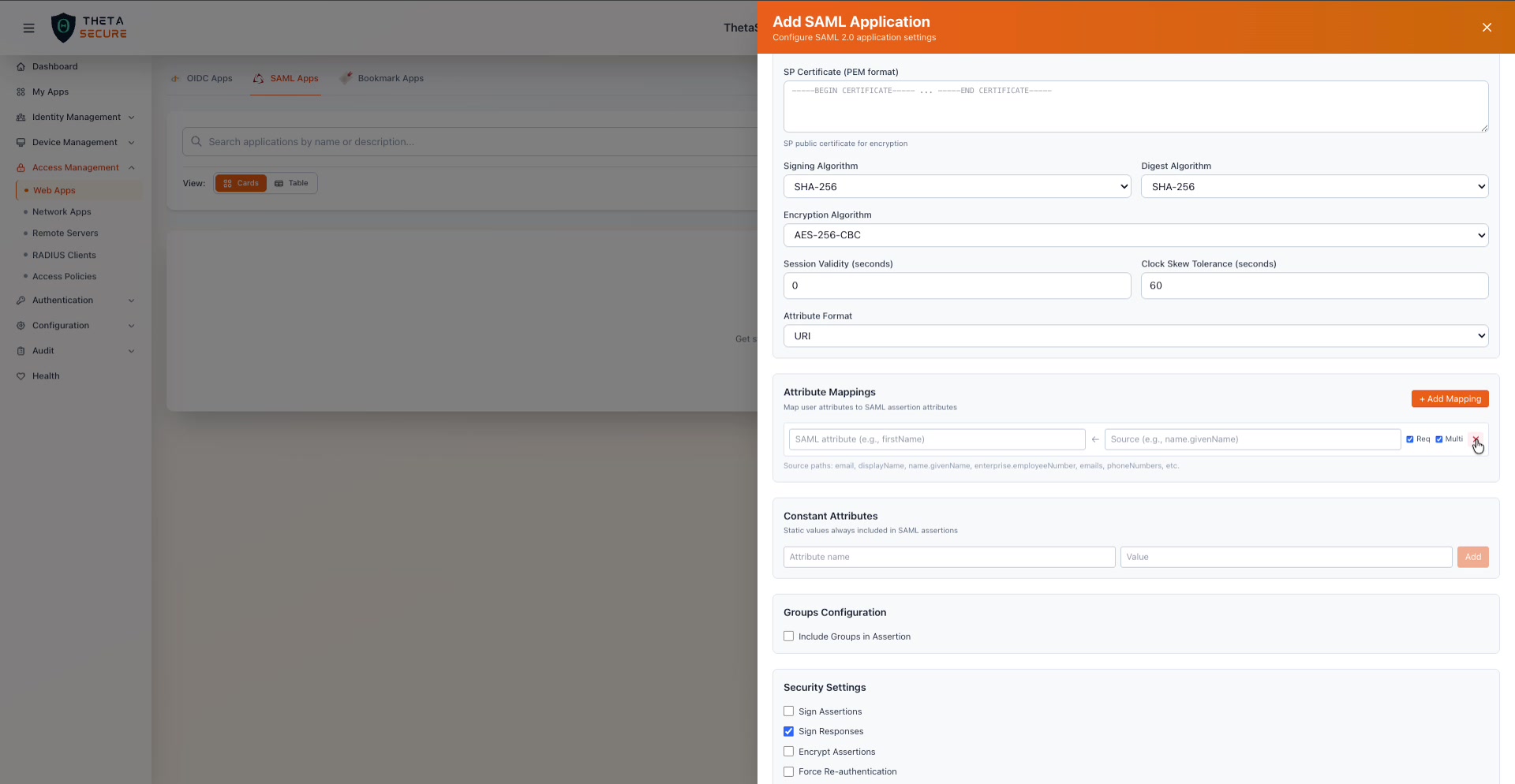 The Attribute Mappings section with the "+ Add Mapping" form expanded. Each mapping defines a SAML attribute name, a source path from ThetaSecure user attributes, and Req (required) and Multi (multi-valued) flags.
Click + Add Mapping to create a custom mapping. Each mapping has:
| Field | Description |
|---|---|
| SAML attribute | The attribute name as it will appear in the SAML assertion (e.g., firstName, employeeId, department). |
| Source | The ThetaSecure user attribute path to pull the value from (e.g., name.givenName, enterprise.employeeNumber). Available source paths include: email, displayName, name.givenName, enterprise.employeeNumber, emails, phoneNumbers, and others. |
| Req | When checked, this attribute is marked as required. |
| Multi | When checked, the attribute can contain multiple values (useful for attributes like email addresses or phone numbers). |
If no custom mappings are defined, ThetaSecure uses its default SCIM attribute mapping.
Constant Attributes
Constant attributes work the same way as constant claims in OIDC. They are static values that are always included in every SAML assertion for this application, regardless of user attributes. Each constant attribute has an Attribute name and a Value.
Groups Configuration
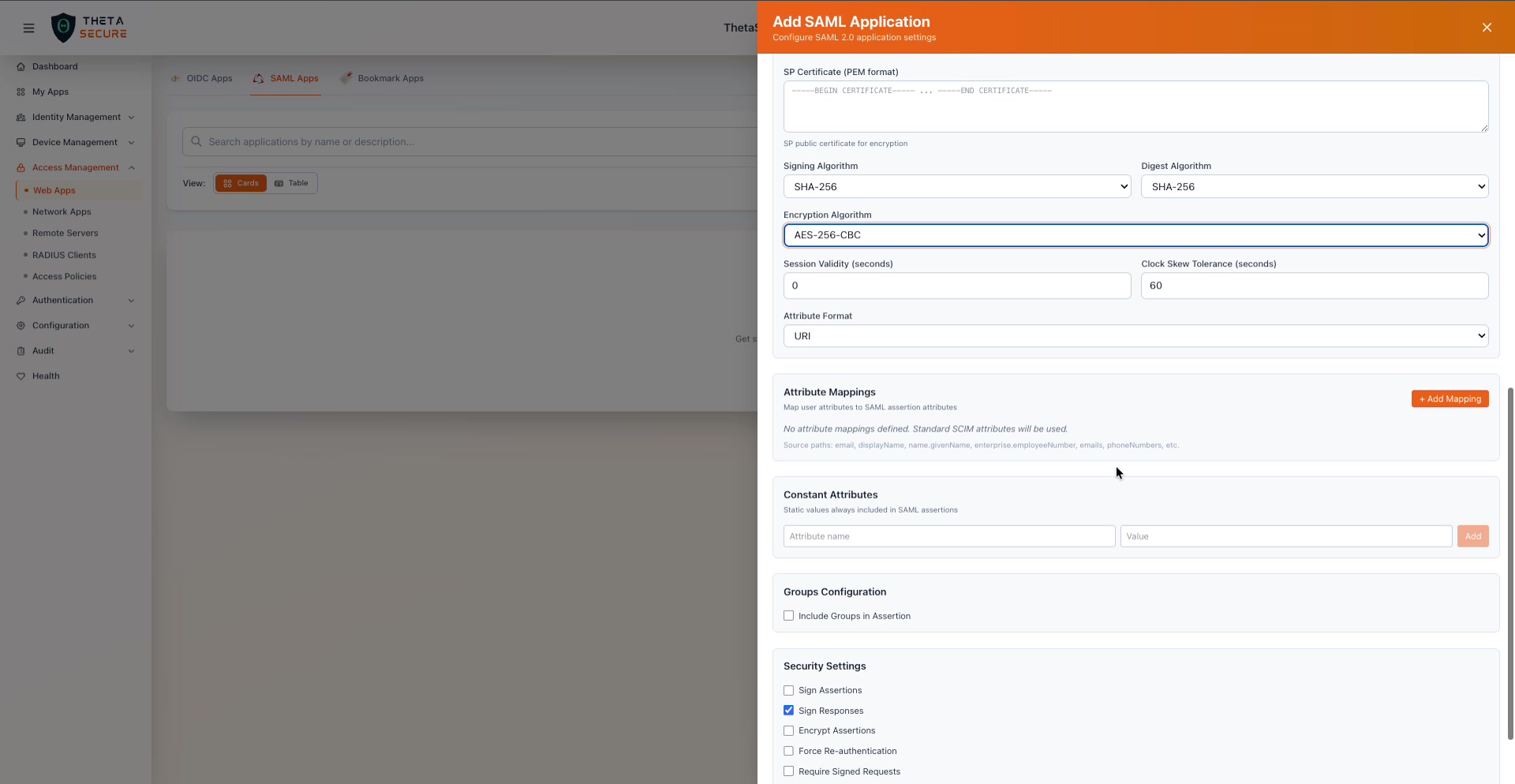 The Groups Configuration section and Security Settings. When "Include Groups in Assertion" is enabled, the Group Attribute Name field appears (default: "groups").
| Field | Description |
|---|---|
| Include Groups in Assertion | When enabled, the user's ThetaSecure group memberships are included as an attribute in the SAML assertion. |
| Group Attribute Name | The name of the attribute that carries group memberships (default: groups). The SP reads this attribute to make authorization decisions based on group membership. |
Security Settings
The Security Settings section provides granular control over SAML signing, encryption, and authentication behavior.
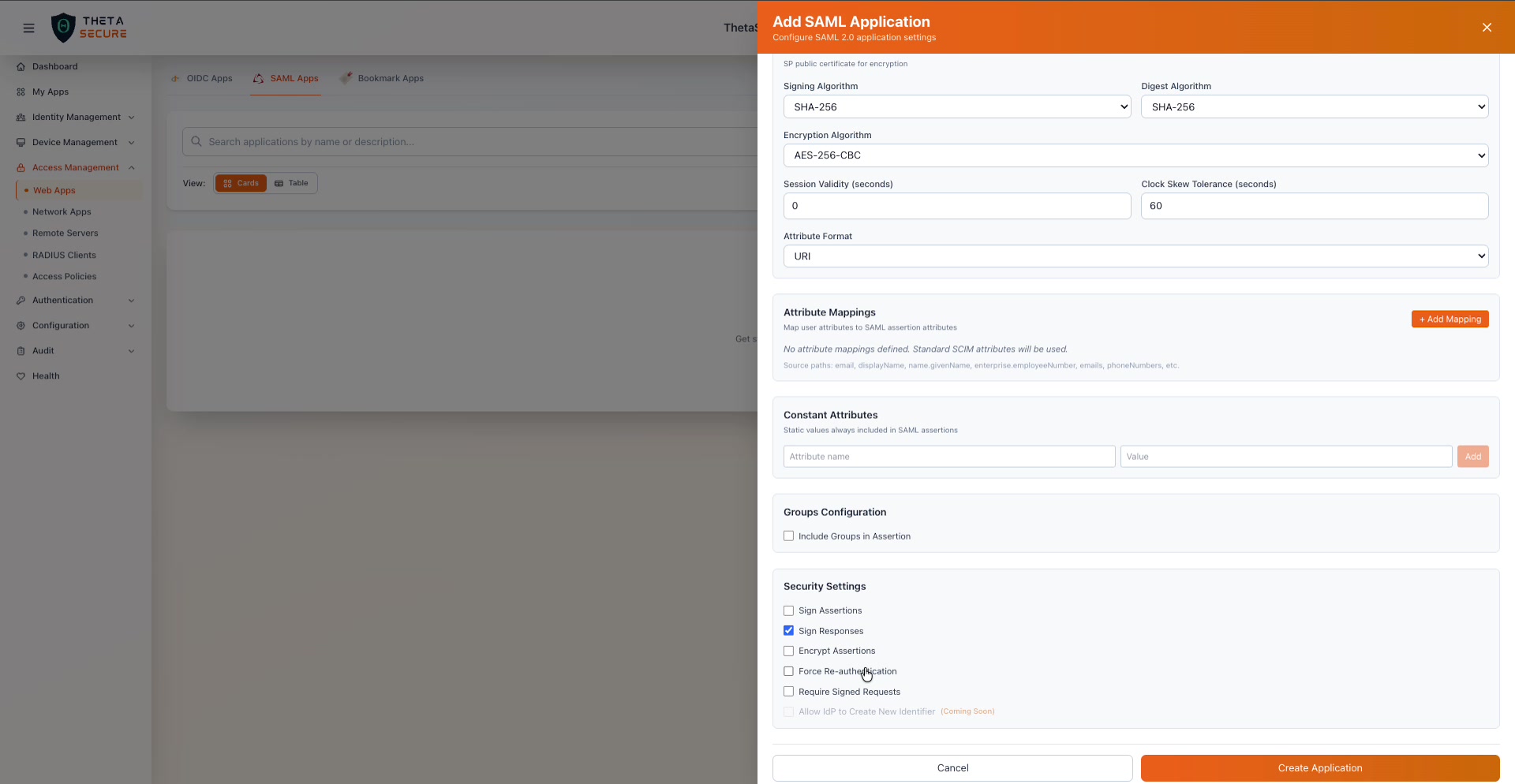 All Security Settings options with Sign Responses enabled by default. The Create Application button at the bottom completes the setup.
| Setting | Default | Description |
|---|---|---|
| Sign Assertions | Disabled | Signs the individual assertion element within the SAML response. Some SPs require the assertion itself to be signed rather than (or in addition to) the outer response. |
| Sign Responses | Enabled | Signs the entire SAML response envelope. This is the most common configuration and is enabled by default. Most SPs validate the response signature to ensure it came from a trusted IdP. |
| Encrypt Assertions | Disabled | Encrypts the assertion using the SP's public certificate. Enable this when the SP requires encrypted assertions or when assertions traverse untrusted networks. Requires an SP Certificate to be configured. |
| Force Re-authentication | Disabled | When enabled, ThetaSecure requires the user to re-authenticate every time they access this application, even if they have an active SSO session. Use this for high security applications like admin consoles or financial systems. |
| Require Signed Requests | Disabled | When enabled, ThetaSecure only accepts authentication requests that are signed by the SP. This prevents unauthorized parties from initiating authentication flows. |
| Allow IdP to Create New Identifier | Coming Soon | When enabled, ThetaSecure can create new user identifiers on the fly during federation. |
Creating the Application
Click Create Application to register the SAML Service Provider. After creation, ThetaSecure provides the IdP Metadata URL and SSO URL that you will need to configure in the Service Provider's SAML settings. You will also need to download or copy the IdP certificate and provide it to the SP.
Bookmark Applications
The Bookmark Apps tab is for applications that do not support SSO protocols. A bookmark is simply a link that appears in the user's ThetaSecure portal. When the user clicks it, they are taken directly to the application's URL. No authentication handshake occurs between ThetaSecure and the application, but the bookmark gives users a single launch point for all their tools.
Bookmarks are useful for internal tools, documentation sites, or any application where the convenience of a centralized portal is valuable even without protocol level SSO.