ZTNA Devices
Every device that connects to your organization through ThetaSecure starts here. When a user installs the ThetaSecure agent on their laptop, desktop, or mobile device, it automatically registers with your ThetaSecure tenant and begins reporting its identity, hardware profile, operating system, and security posture. The ZTNA Devices page gives you a single place to see every registered endpoint, drill into its details, and take action when something looks wrong.
This is a core part of ThetaSecure's Zero Trust Network Access model. Unlike traditional VPNs that grant broad network access to any device that authenticates, ZTNA ties access decisions to the identity and health of each individual device. A device that fails a posture check or gets revoked by an administrator loses access to protected resources immediately.
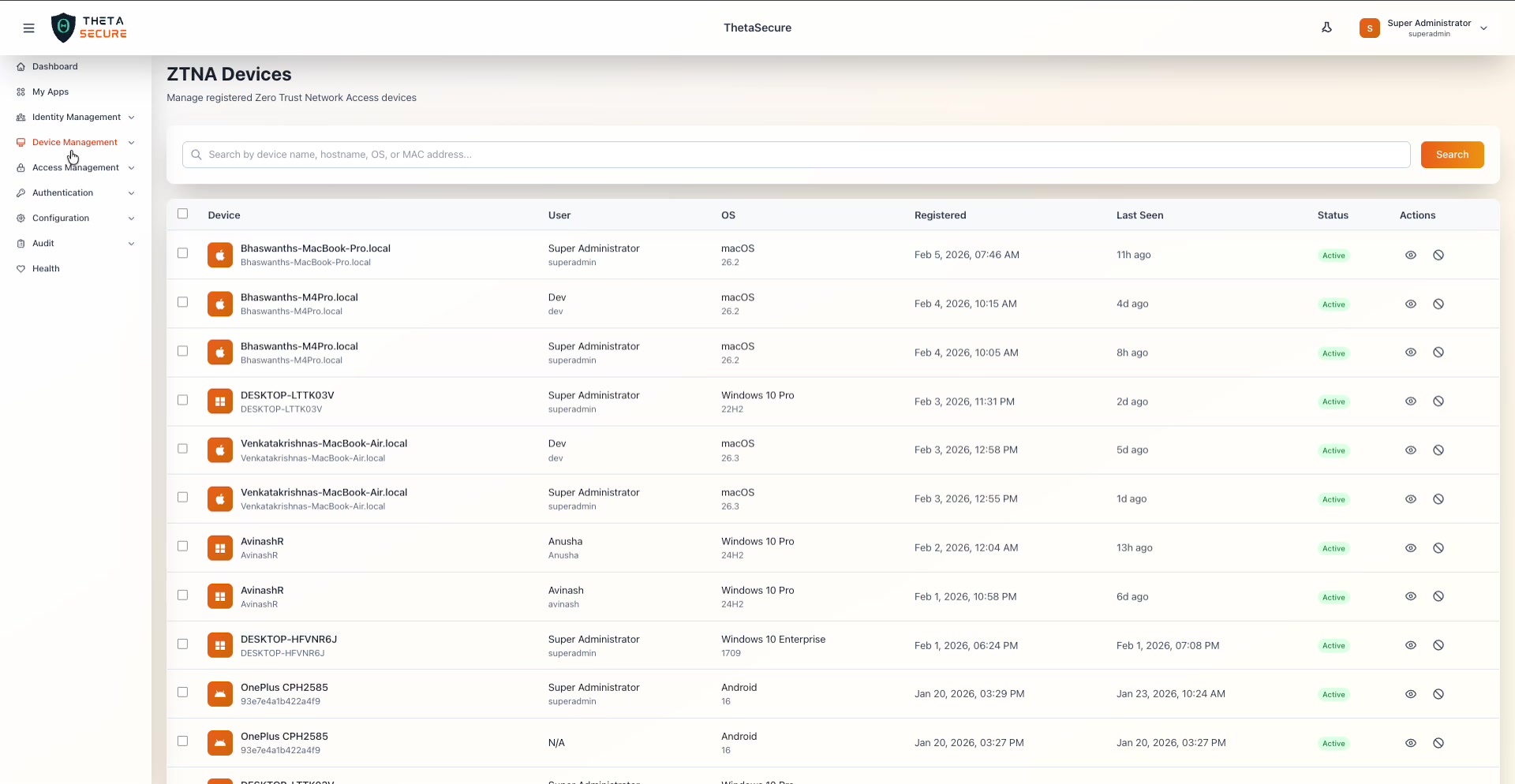 The ZTNA Devices page showing all registered endpoints. Each row reveals the device name, assigned user, operating system, registration date, last seen timestamp, and current status.
How Devices Get Registered
Devices do not appear in this list manually. Registration happens automatically the moment a user installs the ThetaSecure agent and signs in with their ThetaSecure credentials. The agent collects device information during enrollment and continues to report its status on an ongoing basis. This means the device inventory here is always a reflection of what is actually deployed in your environment.
The same physical machine can appear more than once if multiple users sign into the agent on that device. Each user session creates a separate device entry, so you can track which users have accessed which endpoints independently.
Understanding the Device List
The device table presents the following columns:
| Column | What It Shows |
|---|---|
| Device | The device name and hostname as reported by the operating system. macOS devices typically report their Bonjour name (e.g., Bhaswanths-MacBook-Pro.local), while Windows devices report their computer name (e.g., DESKTOP-LTTK03V). |
| User | The ThetaSecure user who registered this device. Shows both the display name and username. Devices registered outside a user session display N/A. |
| OS | The operating system and version. ThetaSecure supports macOS, Windows, and Android. The version number is shown below the OS name (e.g., macOS 26.2, Windows 10 Pro 22H2, Android 16). |
| Registered | The exact date and time the device was first enrolled with ThetaSecure. |
| Last Seen | A relative timestamp showing when the agent last checked in. Active devices typically show values like "11h ago" or "1d ago." Devices that have been offline for extended periods show the full date. |
| Status | Either Active (green) or Revoked. Active means the device is currently authorized to access ZTNA resources. |
| Actions | Two icons per row: the eye icon opens Device Details, and the block icon initiates device revocation. |
Searching and Filtering
The search bar at the top accepts device names, hostnames, operating systems, and MAC addresses. Type a query and click Search to filter the list. This is especially useful in larger environments where the device inventory can grow to hundreds or thousands of entries.
The table also supports pagination. The bottom of the page shows the total device count (e.g., "Showing 1 to 12 of 12 devices") along with page navigation controls.
Device Details Panel
Clicking the eye icon on any device row opens the Device Details panel on the right side of the screen. This panel gives you a complete picture of the endpoint, organized into several sections.
macOS Device Example
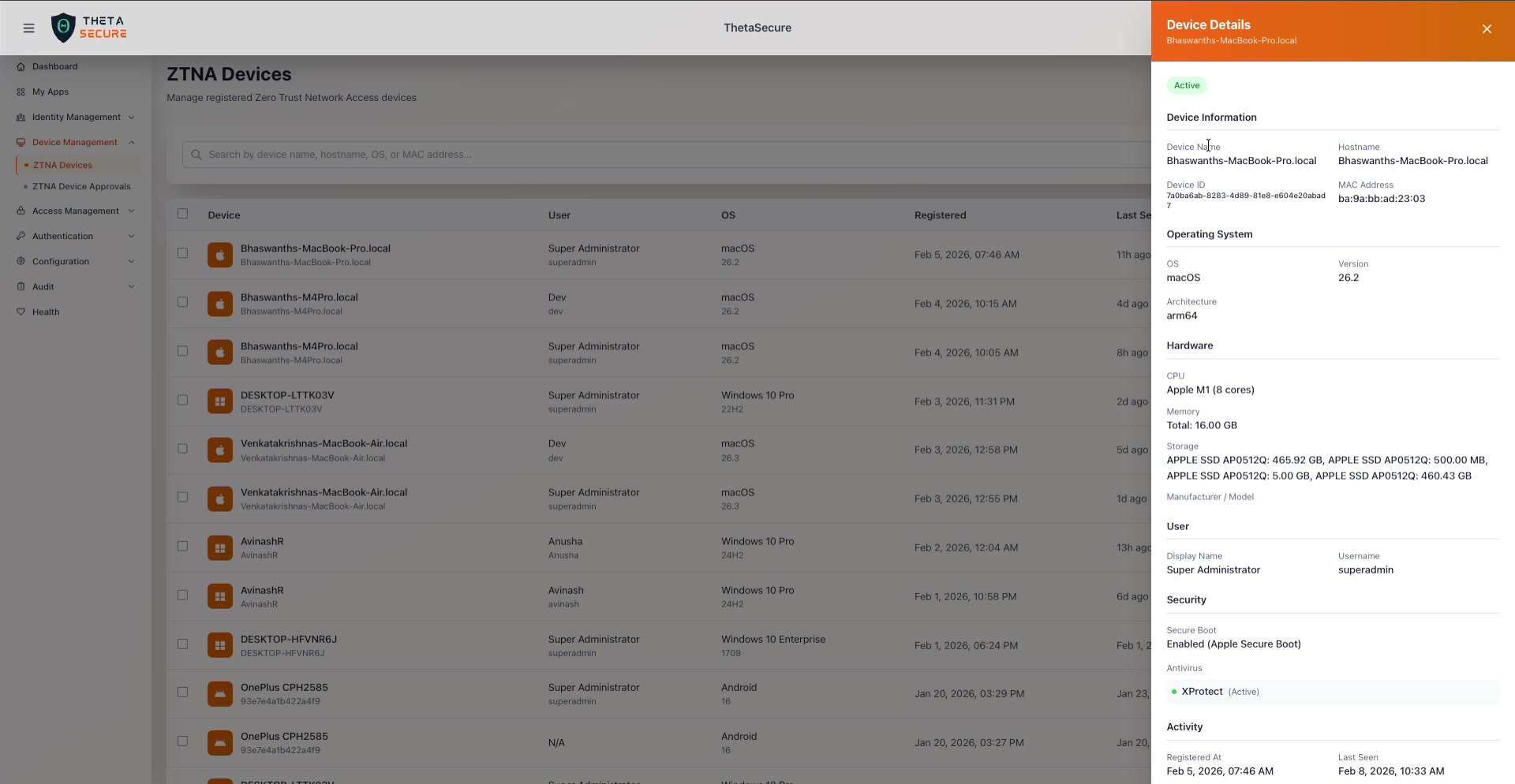 The Device Details panel for a macOS device. The header shows the device name against an orange background, with the Active status badge below it.
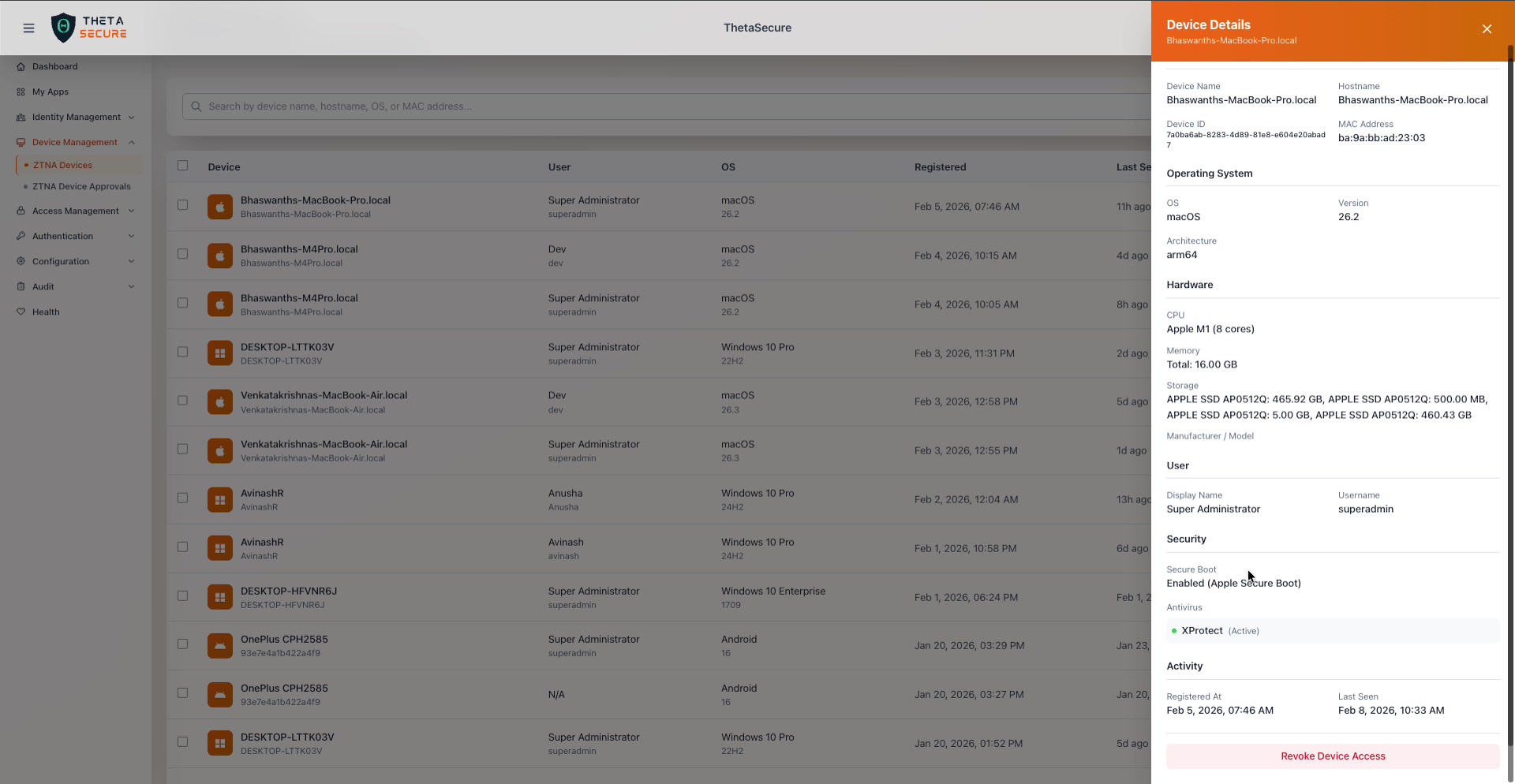 Scrolling down reveals the complete device profile: hardware specs, user assignment, security posture, and activity timestamps, with the Revoke Device Access button at the bottom.
Windows Device Example
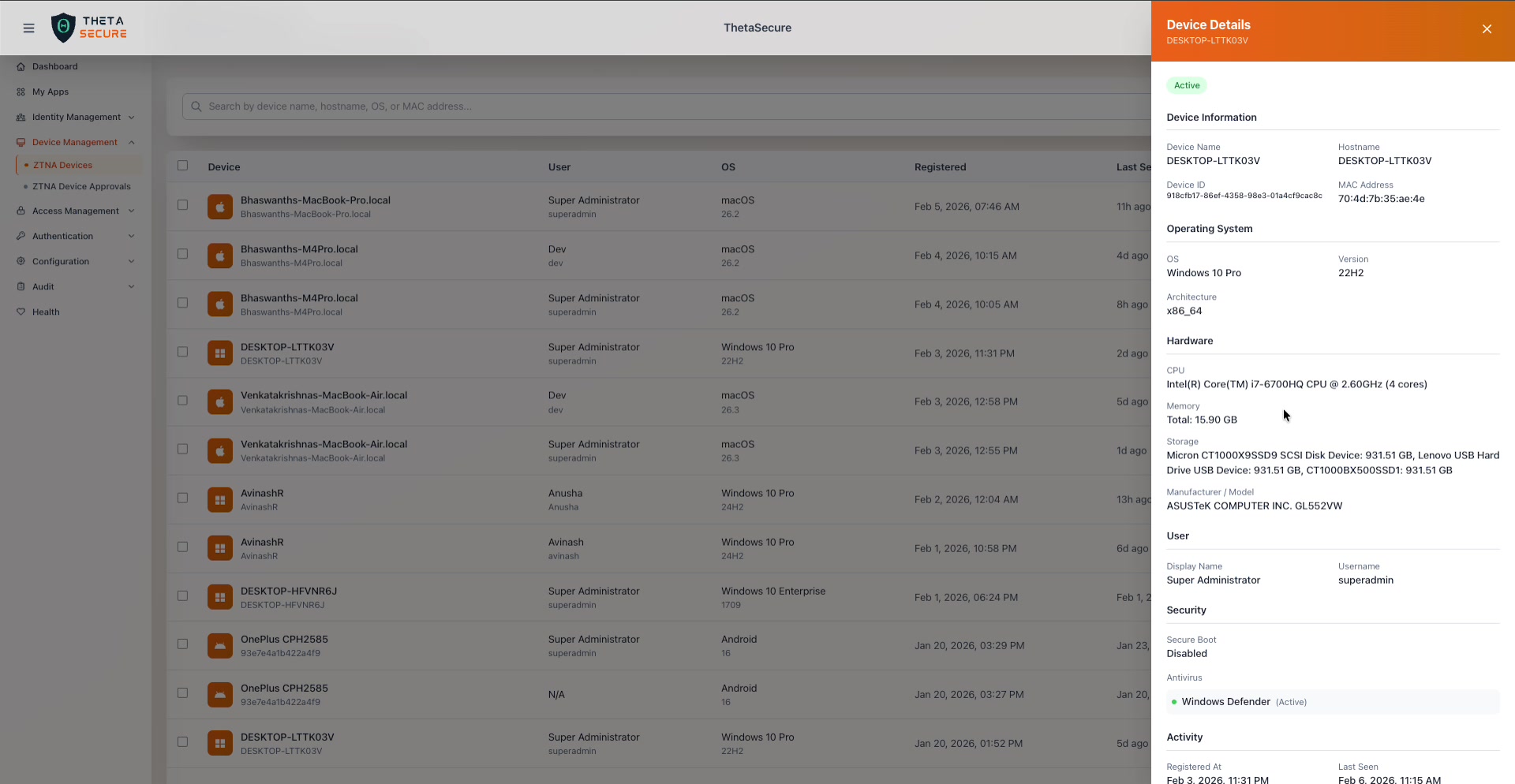 A Windows device showing different hardware characteristics, including the manufacturer and model information, x86_64 architecture, and Windows Defender as the active antivirus.
What the Details Panel Contains
Device Information captures the core identifiers that ThetaSecure uses to track the endpoint.
| Field | Description |
|---|---|
| Device Name | The friendly name of the device as reported by the OS. |
| Hostname | The network hostname, which may differ from the device name on some platforms. |
| Device ID | A unique identifier assigned by ThetaSecure during enrollment. This is an internal GUID used for device tracking and policy evaluation. |
| MAC Address | The hardware MAC address of the primary network interface. |
Operating System provides platform details that feed into device posture policies.
| Field | Description |
|---|---|
| OS | The operating system family: macOS, Windows, or Android. |
| Version | The specific OS version (e.g., 26.2 for macOS, 22H2 for Windows 10 Pro). |
| Architecture | The CPU architecture: arm64 for Apple Silicon Macs, x86_64 for Intel based Windows machines. |
Hardware reports the physical characteristics of the device. This information is useful for asset tracking and for identifying devices that may not meet your organization's minimum hardware requirements.
| Field | Description |
|---|---|
| CPU | The processor model and core count (e.g., Apple M1 (8 cores) or Intel(R) Core(TM) i7-6700HQ CPU @ 2.60GHz (4 cores)). |
| Memory | Total installed RAM. |
| Storage | A list of all detected storage devices with their capacities. |
| Manufacturer / Model | The hardware vendor and model identifier. Populated on Windows devices (e.g., ASUSTeK COMPUTER INC. GL552VW), typically unavailable on macOS. |
User identifies who registered this device.
| Field | Description |
|---|---|
| Display Name | The full name of the ThetaSecure user. |
| Username | The login username associated with this device enrollment. |
Security is where ThetaSecure reports on the device's security posture. These fields are critical for Zero Trust policy decisions.
| Field | Description |
|---|---|
| Secure Boot | Whether Secure Boot is enabled. macOS devices report Enabled (Apple Secure Boot). Windows devices may show Disabled if Secure Boot is not configured in BIOS/UEFI. |
| Antivirus | The detected antivirus product and its status. macOS devices report XProtect (Active). Windows devices report Windows Defender (Active) or whichever third party antivirus is installed. A green indicator means the antivirus is actively running. |
Activity shows when this device was first seen and when it last communicated with ThetaSecure.
| Field | Description |
|---|---|
| Registered At | The exact date and time of initial enrollment. |
| Last Seen | The most recent check in timestamp. |
Revoking a Device
When a device is compromised, lost, or simply no longer authorized, you can revoke its access to all ZTNA resources. Revocation is immediate. The moment you confirm, the device loses its ability to connect through ThetaSecure tunnels.
There are two ways to revoke a device. You can click the block icon (the circle with a line through it) in the Actions column of the device list. Alternatively, you can open the Device Details panel and click the Revoke Device Access button at the bottom.
Either action opens a confirmation dialog.
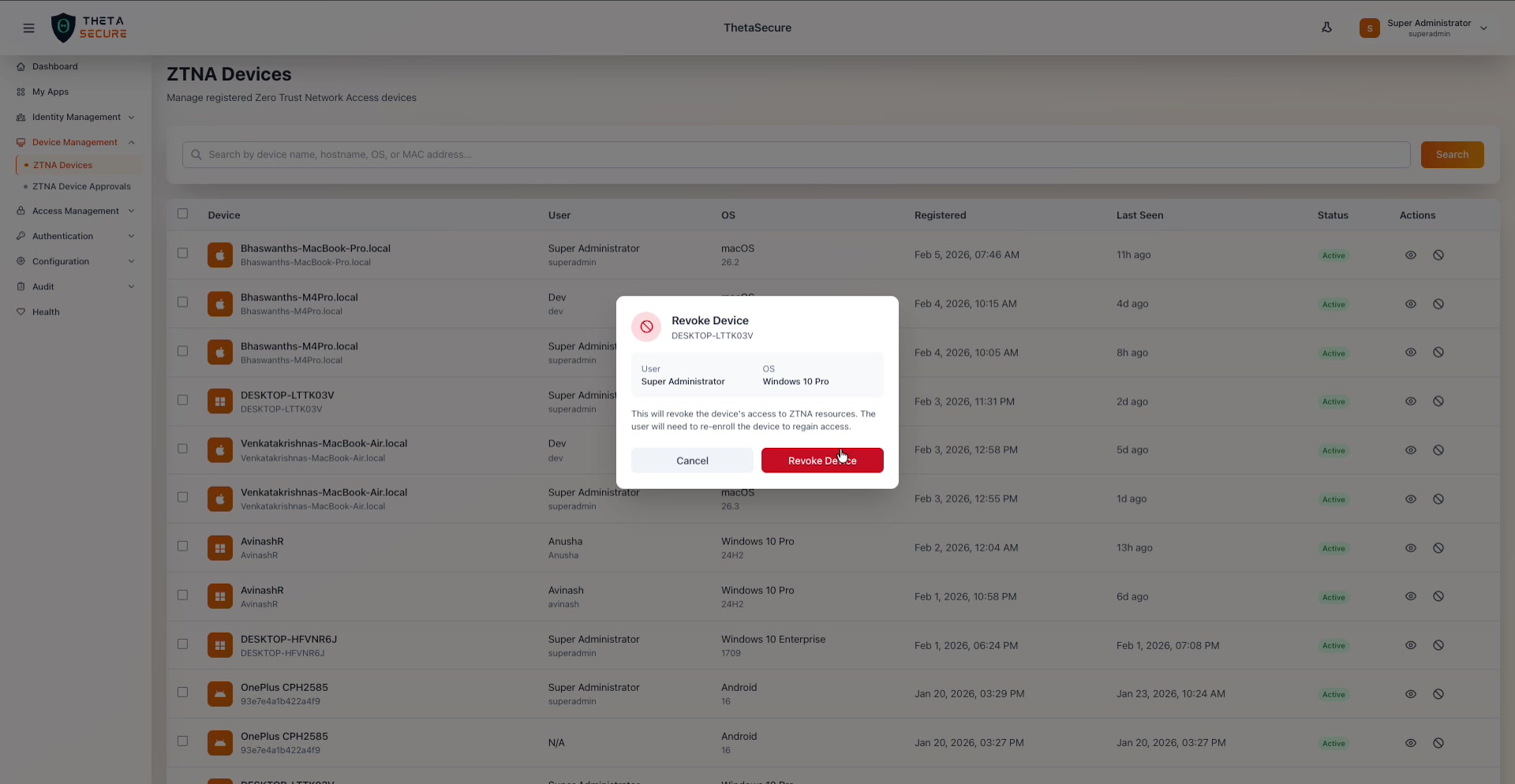 The revocation confirmation dialog shows the device name, the assigned user, and the operating system. The warning text makes clear that the user will need to re-enroll the device to regain access.
The dialog displays the device name, the user it belongs to, and the operating system so you can verify you are revoking the correct endpoint. The message is clear about the consequences: the device's access to ZTNA resources is cut off, and the user will need to re-enroll the device to restore connectivity.
Click Revoke Device to proceed or Cancel to back out. After revocation, the device is removed from the active list. If the device was the last registration associated with that user on a particular machine, the user immediately loses ZTNA access from that endpoint.
ZTNA Device Approvals
The second section under Device Management is ZTNA Device Approvals. This page is available in the sidebar directly below ZTNA Devices.
Device Approvals gives administrators the ability to review and approve new device registrations before they are granted access to ZTNA resources. This is particularly useful in high security environments where you want to ensure that only explicitly approved devices can connect. When device approval is enabled, newly registered devices enter a pending state and do not receive ZTNA access until an administrator reviews and approves them.
Supported Platforms
ThetaSecure's ZTNA agent is available across multiple platforms. The device list in your environment will reflect whichever platforms your organization has deployed.
| Platform | Agent Support | Posture Data Collected |
|---|---|---|
| macOS | Full support | Secure Boot, XProtect status, CPU, memory, storage, architecture |
| Windows | Full support | Secure Boot, Windows Defender / third party AV, CPU, memory, storage, manufacturer/model |
| Android | Supported | OS version, device model |
Best Practices
Monitor the Last Seen column regularly. Devices that have not checked in for extended periods may indicate inactive endpoints, users who have left the organization, or agents that have been uninstalled. Consider revoking devices that have been dormant for more than 30 days.
Use revocation during incident response. If you suspect a device has been compromised, revoke it immediately from this page. The revocation takes effect in real time and cuts the device off from all ZTNA protected resources without affecting other users or devices.
Review devices by user when offboarding employees. Search for the departing user's name to find all devices registered under their account, then revoke each one. This ensures no orphaned device retains access to your network after the user's identity is deactivated.
Pay attention to Security posture fields. Devices with Secure Boot disabled or without an active antivirus product may represent elevated risk. Use this information alongside your access policies to enforce minimum device health requirements.