ZTNA Device Approvals
Not every device that enrolls with ThetaSecure should be trusted automatically. When a user installs the agent on a new machine that has not been seen before or that fails posture checks during registration, ThetaSecure holds the device in a pending state rather than granting immediate access. The device shows up here, on the ZTNA Device Approvals page, where an administrator can inspect its full hardware profile, security posture, and network configuration before making a decision.
This approval gate is what separates a Zero Trust enrollment model from a traditional VPN setup where any authenticated device gets in. With ThetaSecure, authentication alone is not enough. The device itself has to be verified.
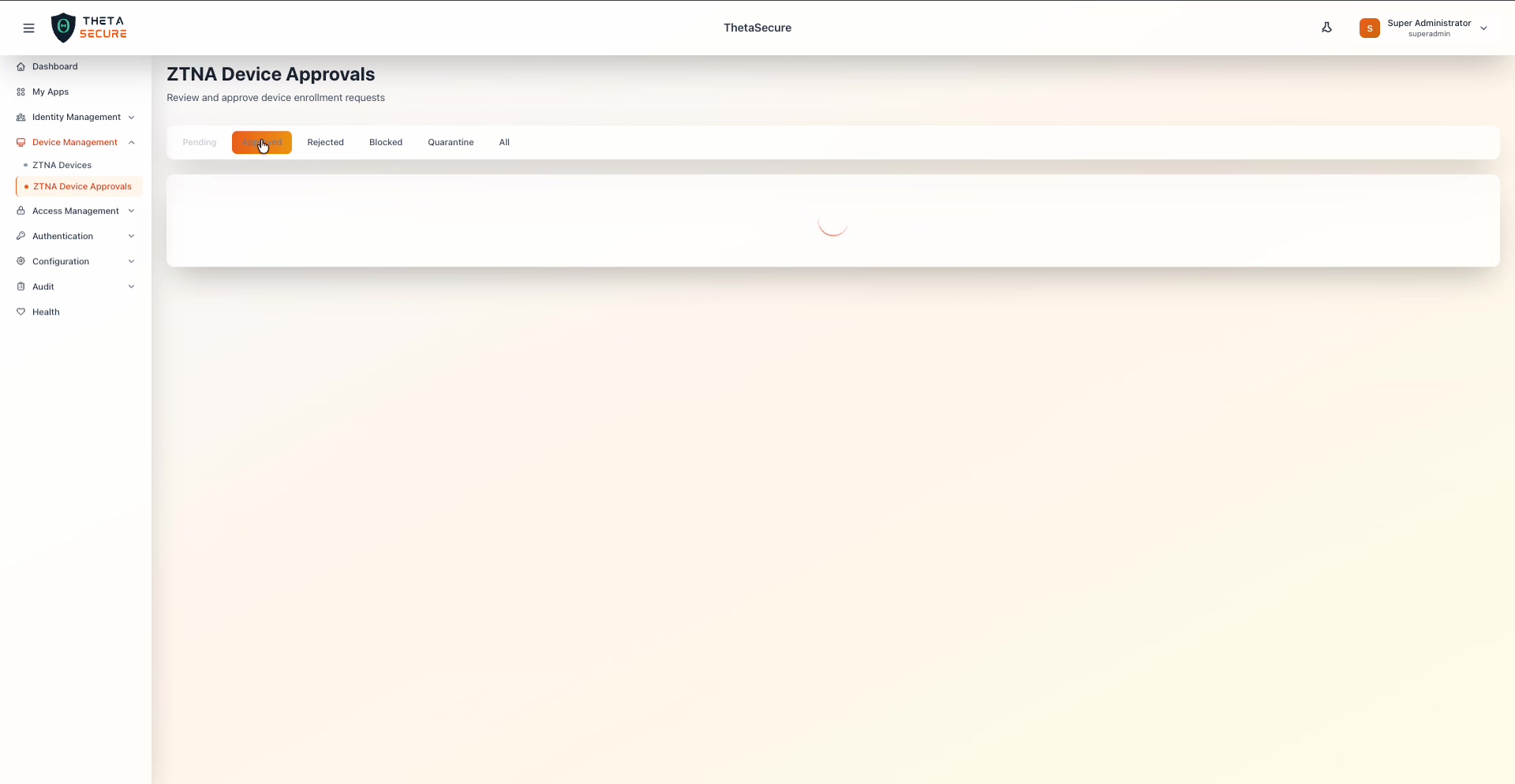 The ZTNA Device Approvals page. The tab bar across the top lets you filter by device state: Pending, Approved, Rejected, Blocked, Quarantine, or All.
How Devices End Up Here
When a user installs the ThetaSecure agent and signs in for the first time, the agent collects a full inventory of the device and sends it to ThetaSecure for evaluation. If the device is new to the system and does not pass the configured posture checks, it enters a Pending state and appears on this page. The user's agent will show a waiting state until an administrator takes action.
Devices that pass all checks may be auto-approved depending on your tenant's configuration. Devices that land here are the ones that need a human decision.
Understanding the Status Tabs
The page is organized into six tabs, each representing a different stage in the device lifecycle.
| Tab | What It Contains |
|---|---|
| Pending | Devices awaiting administrator review. These have enrolled but have not yet been approved or rejected. This is your primary action queue. |
| Approved | Devices that an administrator has approved. These devices have active ZTNA access and also appear on the ZTNA Devices page. |
| Rejected | Devices that were reviewed and explicitly denied access. The user is notified and must contact their administrator to resolve the issue. |
| Blocked | Devices that have been blocked from accessing ZTNA resources. This differs from rejection in that blocking is typically applied to devices that were previously approved but need to be suspended. |
| Quarantine | Devices placed in a restricted state. Quarantined devices may have limited or no access while an investigation is underway. This is useful during incident response when you need to isolate an endpoint without fully revoking it. |
| All | A combined view of every device that has ever gone through the approval process, regardless of its current state. |
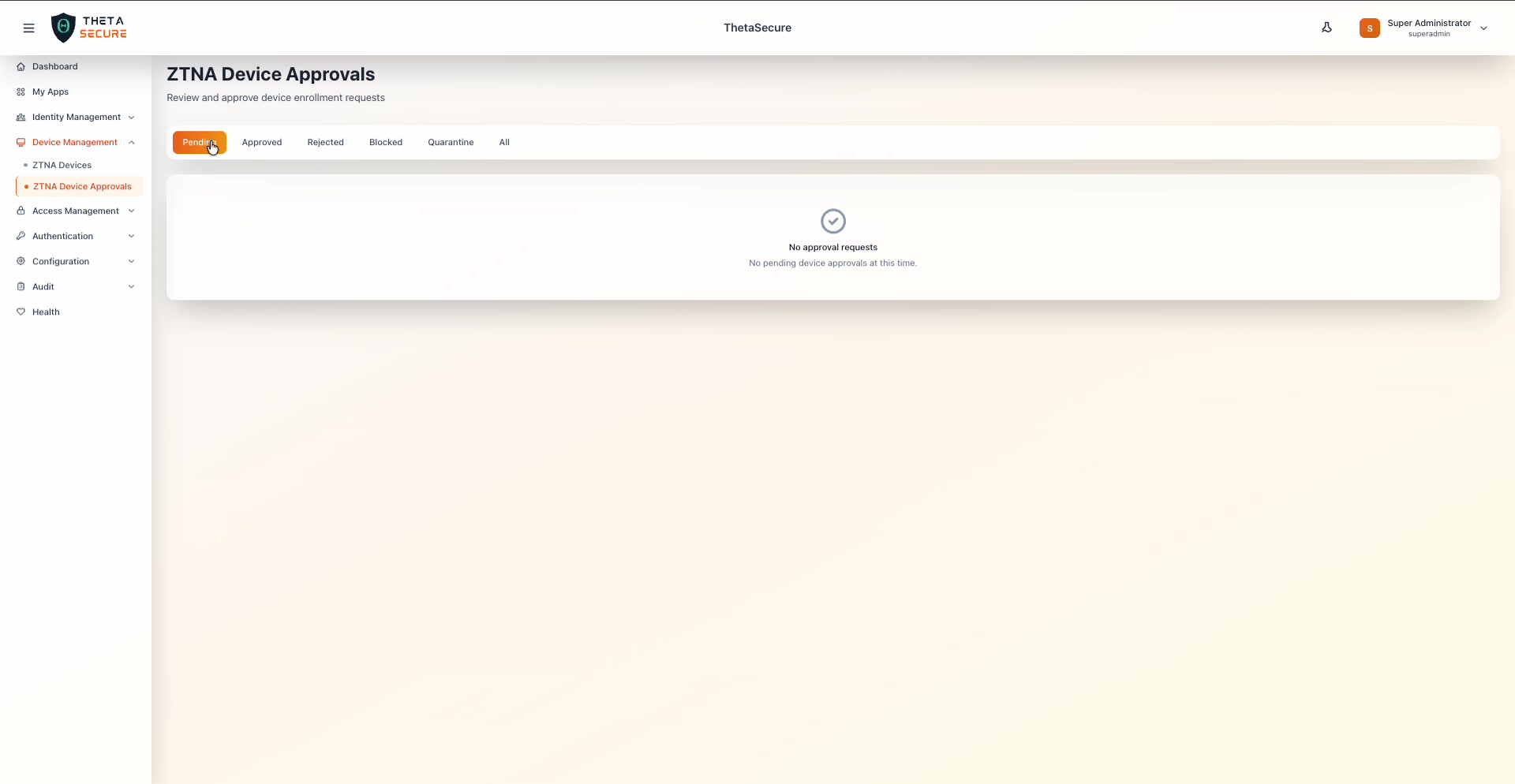 The Pending tab showing no pending approvals. When new devices enroll and fail posture checks, they will appear here for review.
Each tab shows an empty state message when there are no devices in that category. For example, the Blocked tab displays "No blocked device approvals found" and the Quarantine tab shows "No quarantine device approvals found."
The Approval Request Table
When devices are present in any tab, they appear in a table with the following columns:
| Column | Description |
|---|---|
| Device | The device name and hostname as reported by the agent. |
| OS | The operating system and version (e.g., macOS 26.2, Windows 10 Pro 22H2). |
| Status | The current approval state displayed as a color coded badge: approved, pending, rejected, blocked, or quarantine. |
| Requested | The date and time the device submitted its enrollment request. |
| Processed | The date and time an administrator acted on the request. For pending devices, this column is empty. |
| Actions | The eye icon opens the Approval Request Details panel for in depth inspection. |
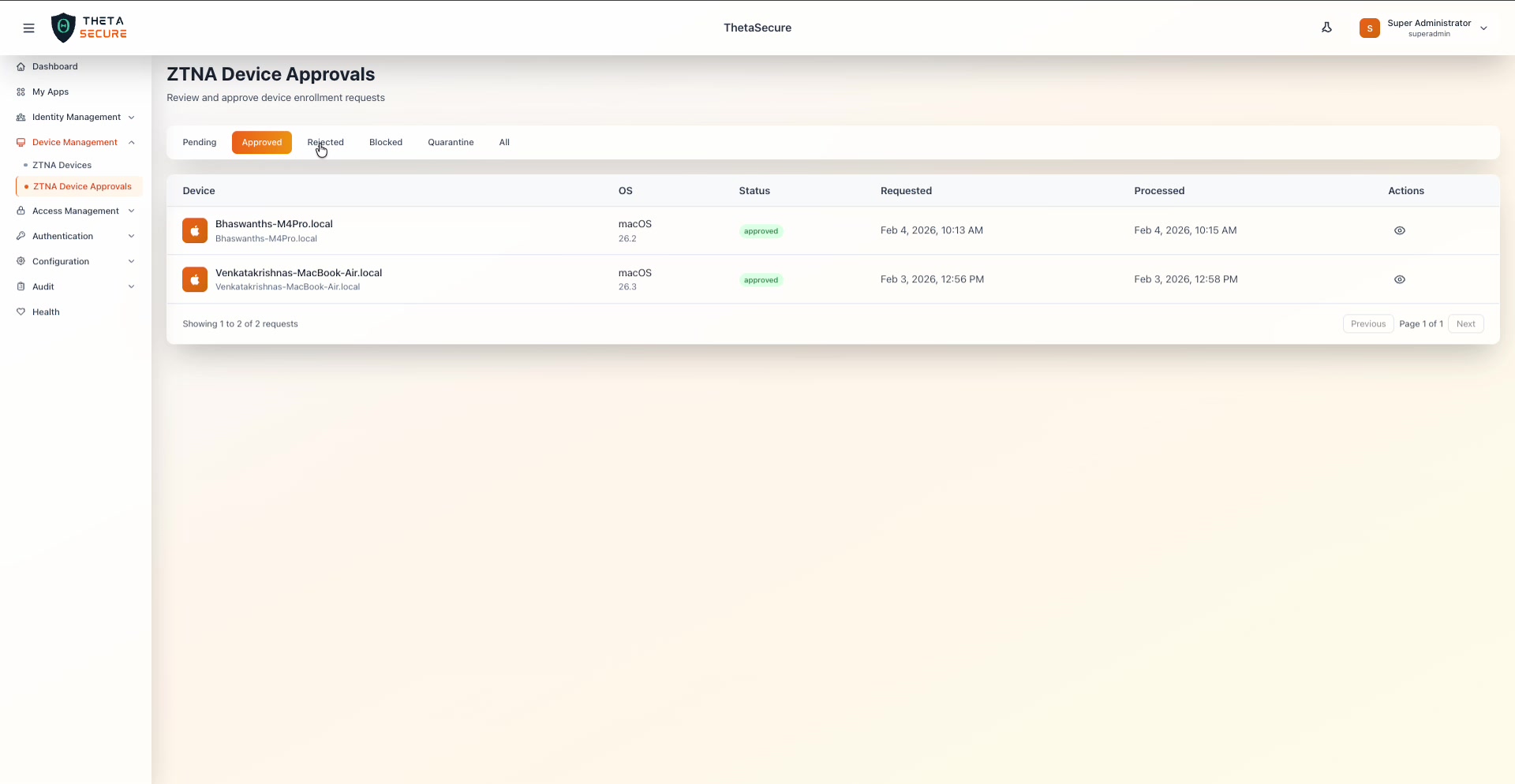 The Approved tab showing two macOS devices that have been reviewed and approved. Note the Requested and Processed timestamps showing when each request came in and when it was acted on.
The table supports pagination, with the total count displayed at the bottom (e.g., "Showing 1 to 2 of 2 requests").
Approval Request Details
Clicking the eye icon on any row opens the Approval Request Details panel. This is the most important view on the page because it contains everything you need to make an informed approval decision. The panel is titled "Approval Request Details" with an orange header and contains significantly more information than the ZTNA Devices detail panel.
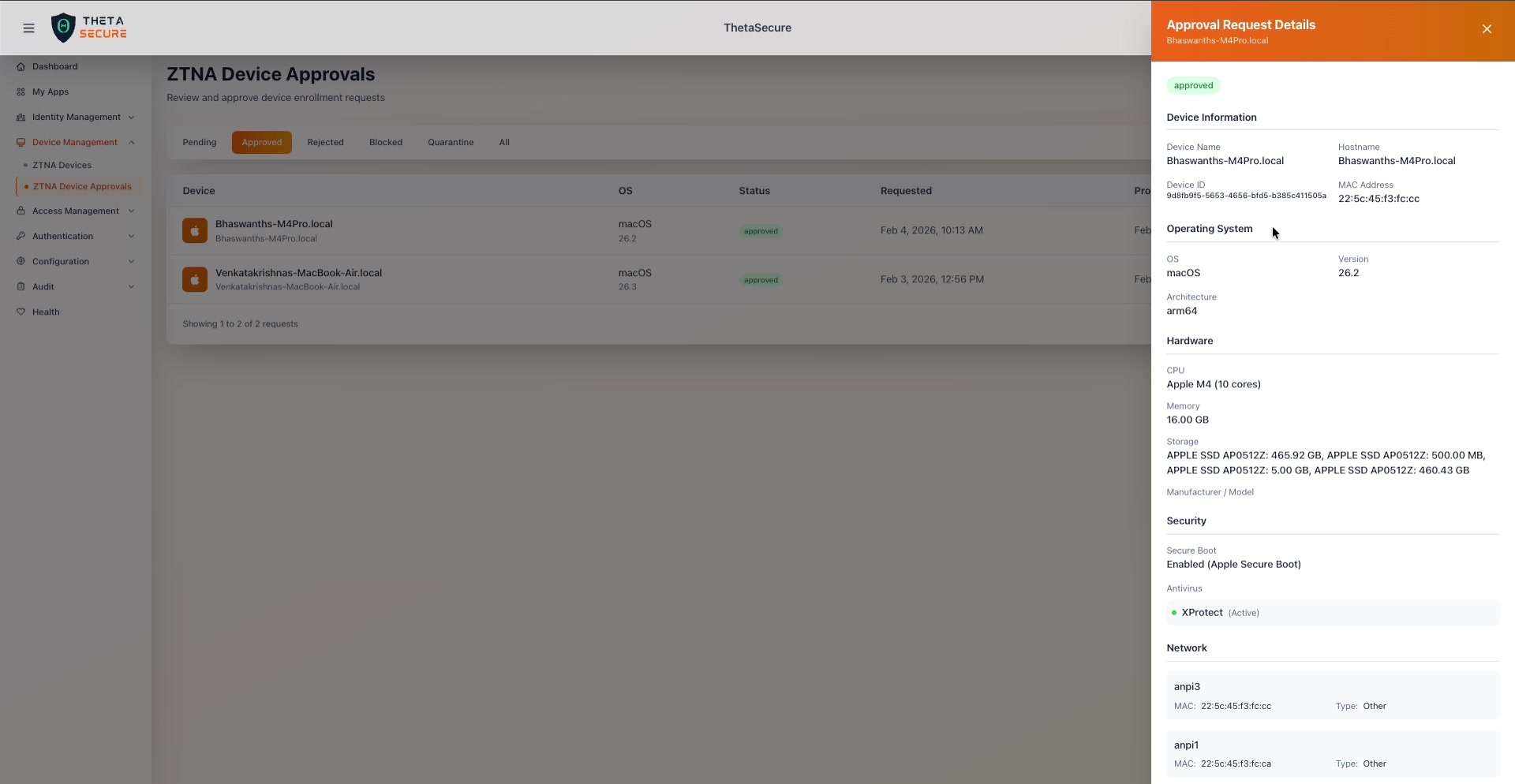 The Approval Request Details panel for an approved macOS device. The top section shows Device Information, Operating System, Hardware, and Security posture.
Device Information
The identity fields tell you exactly which endpoint you are evaluating.
| Field | Description |
|---|---|
| Device Name | The name reported by the operating system. |
| Hostname | The network hostname of the device. |
| Device ID | The unique ThetaSecure identifier assigned during enrollment. |
| MAC Address | The primary network adapter's hardware address. |
Operating System
| Field | Description |
|---|---|
| OS | The operating system family (macOS, Windows, Android). |
| Version | The specific version number. |
| Architecture | The CPU architecture (arm64 for Apple Silicon, x86_64 for Intel). |
Hardware
The hardware section reveals the physical capabilities of the device. This helps you verify that the device meets your organization's minimum requirements and is consistent with what you would expect from the requesting user.
| Field | Description |
|---|---|
| CPU | Processor model and core count (e.g., Apple M4 (10 cores)). |
| Memory | Total installed RAM (e.g., 16.00 GB). |
| Storage | All detected storage devices with their individual capacities. |
| Manufacturer / Model | Hardware vendor and model identifier, populated on Windows devices. |
Security
The security section is where you assess whether the device meets your organization's posture requirements. A device with Secure Boot disabled and no active antivirus is a very different risk profile from one with both enabled.
| Field | Description |
|---|---|
| Secure Boot | Whether Secure Boot is active. macOS reports "Enabled (Apple Secure Boot)." Windows devices may show "Disabled" if UEFI Secure Boot is not configured. |
| Antivirus | The detected endpoint protection product and its running status. A green dot indicates the antivirus is actively running (e.g., XProtect (Active) on macOS, Windows Defender (Active) on Windows). |
Network
The Approval Request Details panel includes a Network section that is not present on the standard ZTNA Devices detail panel. This provides a complete inventory of every network interface on the device, which is valuable for understanding the device's network footprint and identifying any unusual configurations.
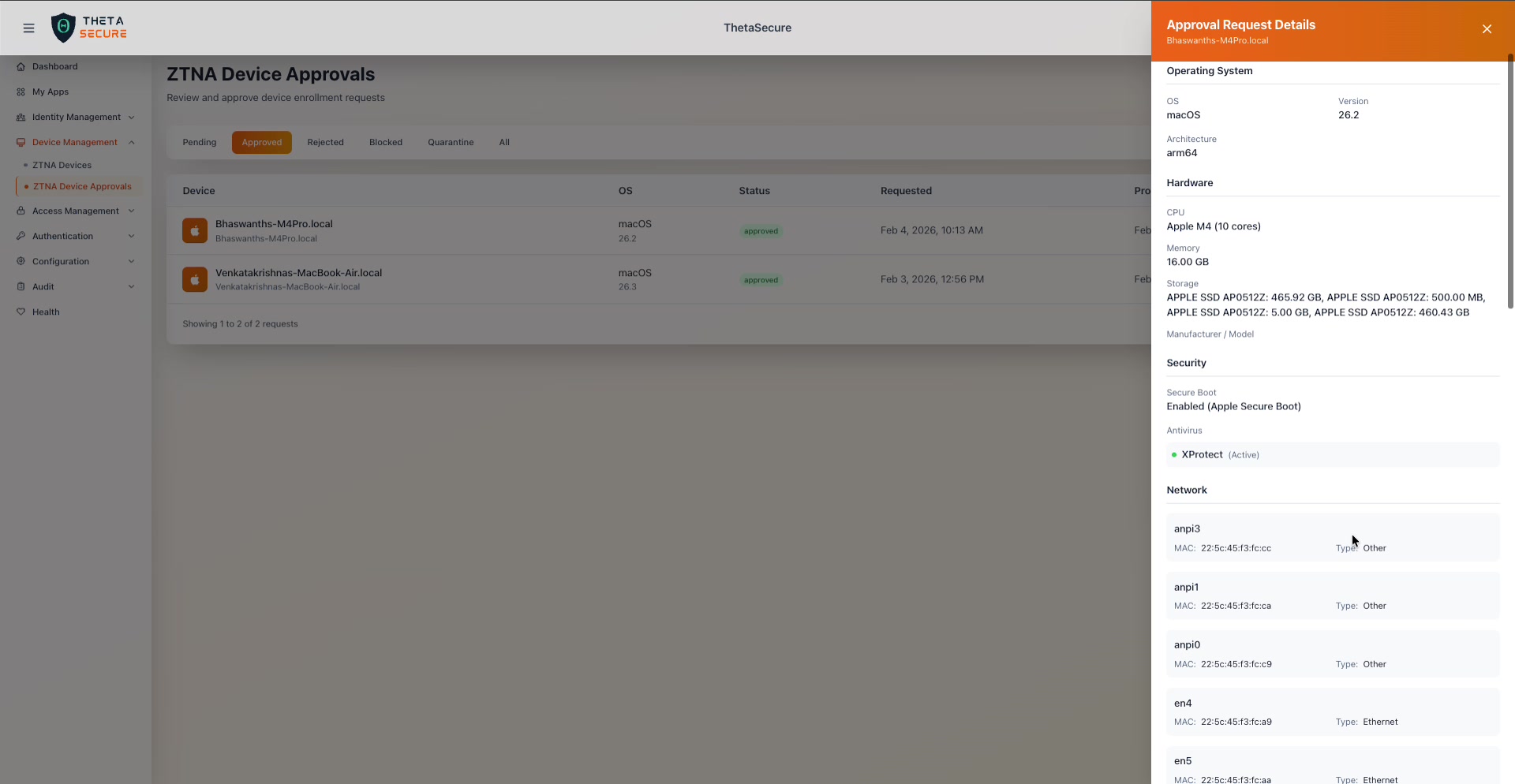 The Network section lists every network interface detected on the device, including Ethernet adapters, VPN tunnels, and other interface types.
Each network interface entry shows:
| Field | Description |
|---|---|
| Interface Name | The OS level identifier (e.g., en0, en1, utun0, anpi3, bridge0, ap1). |
| MAC | The MAC address of the interface. |
| Type | The interface category: Ethernet for wired/Wi-Fi adapters, VPN for tunnel interfaces, or Other for bridge, AWDL, and auxiliary interfaces. |
| IP | The assigned IP addresses, including both IPv6 link local addresses and IPv4 addresses where available. |
The interface list can be long on modern machines. A macOS device, for example, may show a dozen or more interfaces including physical Ethernet ports (en0 through en5), Apple Networking Private Interfaces (anpi), bridge and AirPlay interfaces (bridge0, ap1), Apple Wireless Direct Link (awdl0), Low Latency WLAN (llw0), and multiple VPN tunnel interfaces (utun0 through utun8). The VPN tunnel interfaces are created by the ThetaSecure agent itself during ZTNA connection setup.
Timeline
At the bottom of the details panel, the Timeline section provides an auditable record of every state change for this approval request.
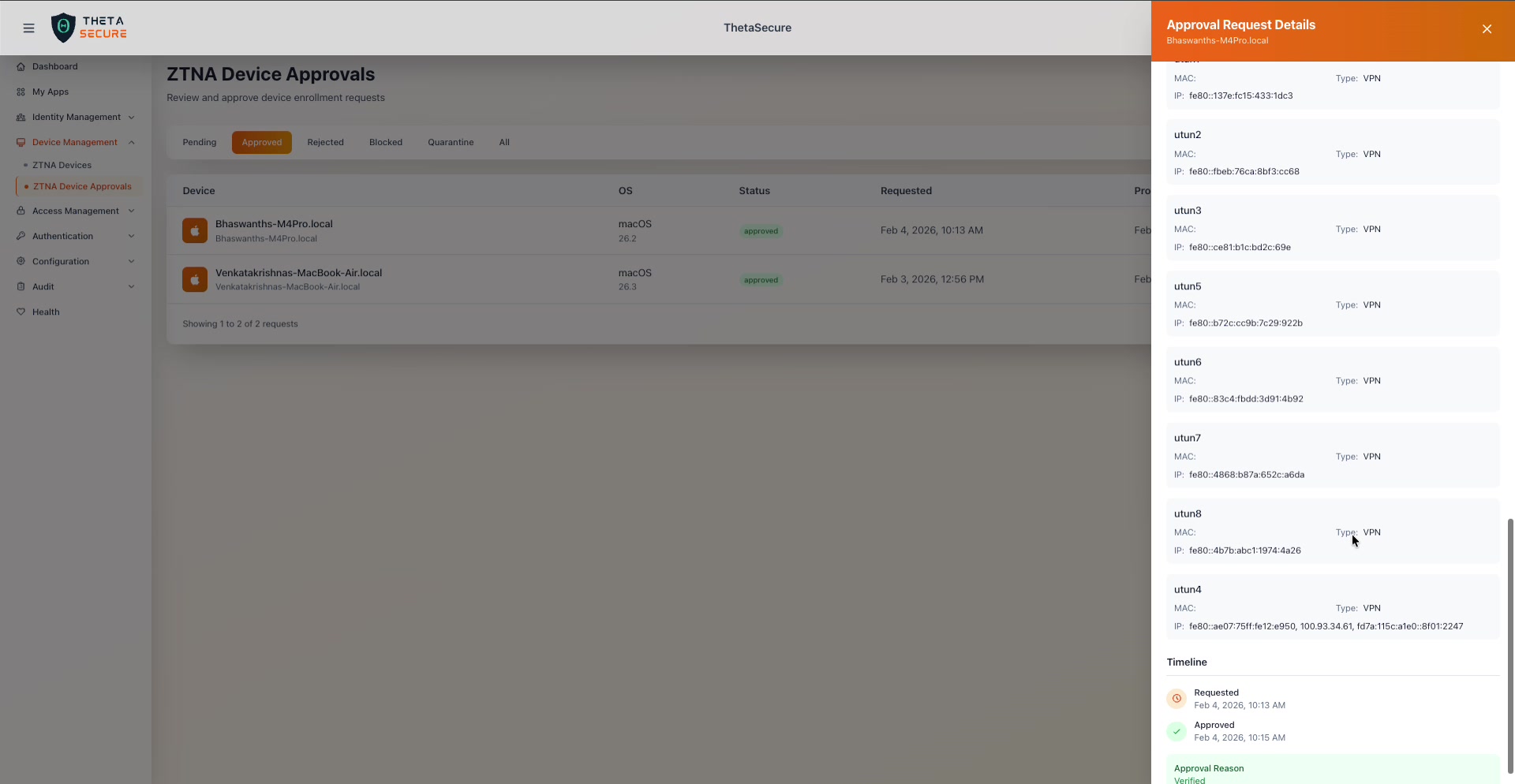 The Timeline at the bottom of the panel shows an orange "Requested" event followed by a green "Approved" event, with exact timestamps and an Approval Reason.
The timeline displays events in chronological order with color coded icons:
| Event | Icon | Description |
|---|---|---|
| Requested | Orange clock icon | The moment the device submitted its enrollment request. |
| Approved | Green checkmark | When the administrator approved the request. |
| Rejected | Red icon | When the administrator denied the request. |
Below the timeline, the Approval Reason field shows the rationale recorded when the administrator made their decision (e.g., "Verified"). This provides accountability and an audit trail for compliance purposes.
Making Approval Decisions
When you open a pending device's details, you are looking at a comprehensive snapshot of the endpoint at the time of enrollment. Here is a practical checklist for evaluating a request.
Check the Security section first. Is Secure Boot enabled? Is the antivirus running? A device with both fields green is a much lower risk than one with Secure Boot disabled and no antivirus detected.
Verify the OS version. Outdated operating systems with known vulnerabilities should raise a flag. If your organization requires a minimum OS version, check this against the version number in the Operating System section.
Look at the hardware. Does the device match what you would expect? If the request comes from an engineer who should be on a company issued laptop, but the hardware shows an unexpected consumer device, that warrants a conversation.
Review the network interfaces. An unusual number of VPN tunnel interfaces or unexpected network configurations could indicate the device is running other VPN software that may conflict with ZTNA tunneling.
Consider the user. Is the user authorized for ZTNA access? Do they have a business need to connect remotely? This is not shown directly in the approval panel, but cross referencing the device name and hostname with your user directory will confirm who is requesting access.
Lifecycle After Approval
Once a device is approved, it moves to the Approved tab on this page and simultaneously appears as an Active device on the ZTNA Devices page. From that point forward, ongoing device management (viewing details, revoking access) happens on the ZTNA Devices page.
If you need to change a device's state after initial approval, the flow is:
| Scenario | Where to Act |
|---|---|
| Revoke a previously approved device | ZTNA Devices page |
| Block a device that was approved but is now suspect | ZTNA Device Approvals, move to Blocked |
| Quarantine a device during an investigation | ZTNA Device Approvals, move to Quarantine |
| Re-evaluate a rejected device after the user fixes issues | The user must re-enroll, creating a new Pending request |
Best Practices
Process pending requests promptly. Users are blocked from ZTNA access until their device is approved. Delays in processing create friction and may lead to users finding insecure workarounds.
Always document your approval reason. The Approval Reason field exists for a reason. Writing "Verified" or "Confirmed with IT asset inventory" creates a compliance audit trail that is much more useful than leaving it blank.
Use Quarantine for incidents, not Rejection. If you suspect a device is compromised but are not sure, quarantine it rather than rejecting it. Quarantine preserves the enrollment record and allows you to investigate without forcing the user to re-enroll from scratch.
Review the Approved tab periodically. Devices that were approved months ago may no longer meet your current posture requirements. Cross reference the Approved list with your current security policies to identify devices that may need re-evaluation.