Users
The Users module is the central hub for managing all user accounts in ThetaSecure — from provisioning and profile management to search, filtering, and deprovisioning.
Navigation: Sidebar → Identity Management → Users
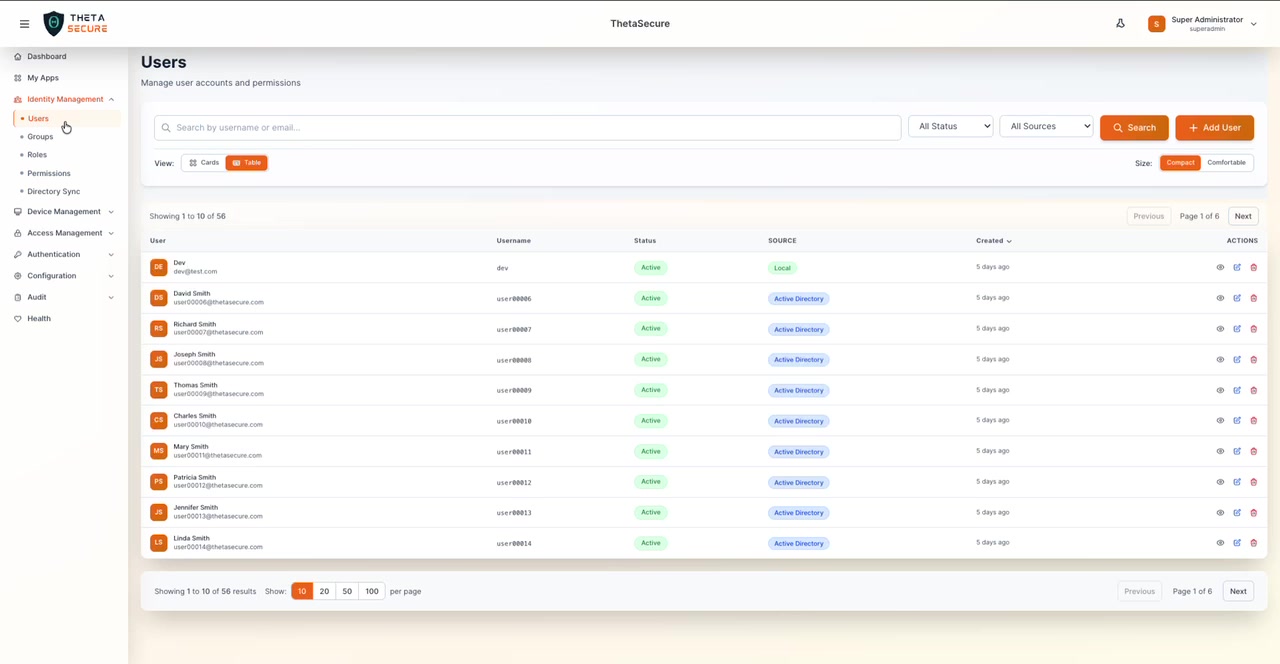
User List
The Users page displays a paginated table of all user accounts in ThetaSecure. The header shows the total count (e.g., "Showing 1 to 10 of 56") with page navigation.
Table Columns
| Column | Description |
|---|---|
| User | Avatar (initials), full name, and email address |
| Username | Unique login identifier (e.g., dev, user00006) |
| Status | Account status displayed as a colored badge |
| Source | Origin of the account — Local (orange) or Active Directory (blue) |
| Created | When the account was created (e.g., "5 days ago") |
| Actions | Quick action icons for View, Edit, and Delete |
Action Icons
Each user row has three action buttons on the right:
| Icon | Action | Description |
|---|---|---|
| 👁 | View | Opens the user detail side panel |
| ✏️ | Edit | Opens the user edit form |
| 🗑 | Delete | Deletes/deprovisions the user account |
View Modes
Toggle between two display modes using the View switcher in the toolbar:
- Table (default) — Compact tabular list with sortable columns, ideal for managing large user sets
- Cards — Visual card layout showing user profiles
Additional display controls:
- Compact / Comfortable — Adjust row density in table view
Searching & Filtering
Use the search bar and filter dropdowns to quickly find users:
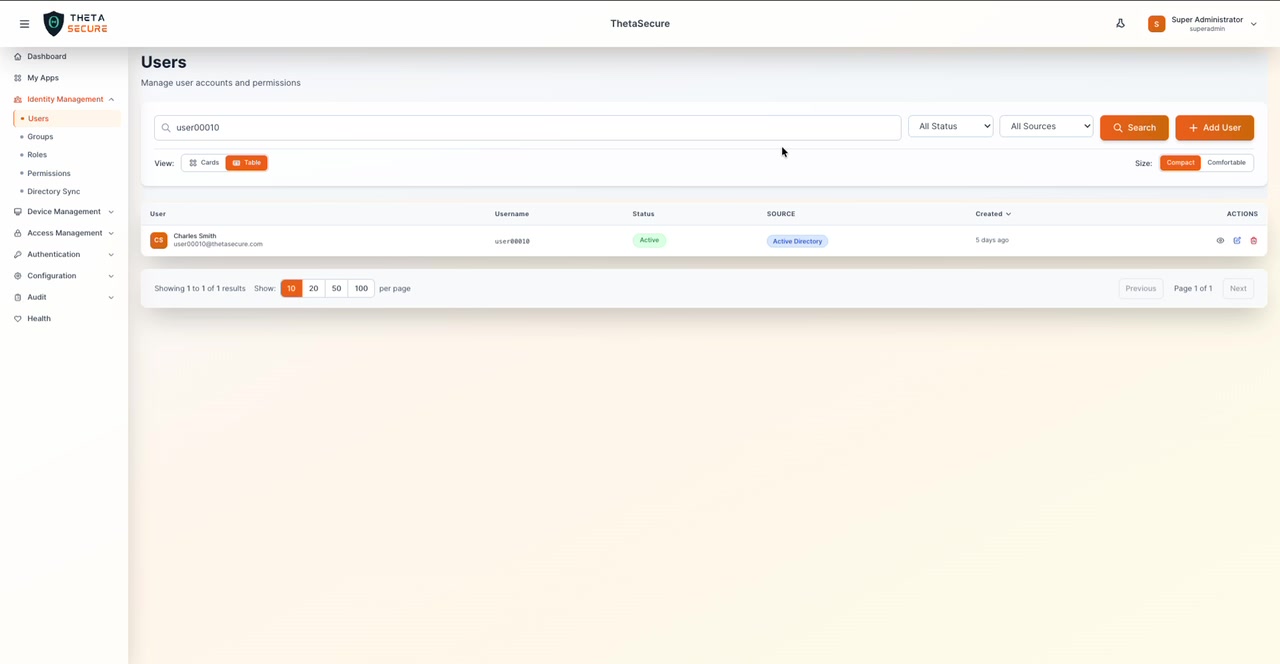
| Control | Options | Description |
|---|---|---|
| Search bar | Free text | Search by username or email address |
| Status filter | All Status | Filter by account status (Active, Inactive, Locked, etc.) |
| Source filter | All Sources | Filter by account origin (Local, Active Directory) |
| Search button | — | Execute the search with current filters |
The search supports partial matching — for example, searching user00010 returns only "Charles Smith" with username user00010.
Pagination
Control how many users appear per page using the pagination bar at the bottom:
| Option | Description |
|---|---|
| 10 (default) | Show 10 users per page |
| 20 | Show 20 users per page |
| 50 | Show 50 users per page |
| 100 | Show 100 users per page |
| Previous / Next | Navigate between pages |
The current position is displayed as "Page X of Y" (e.g., "Page 1 of 6").
User Detail Panel
Click the View (👁) action or click on a user row to open the detail side panel:
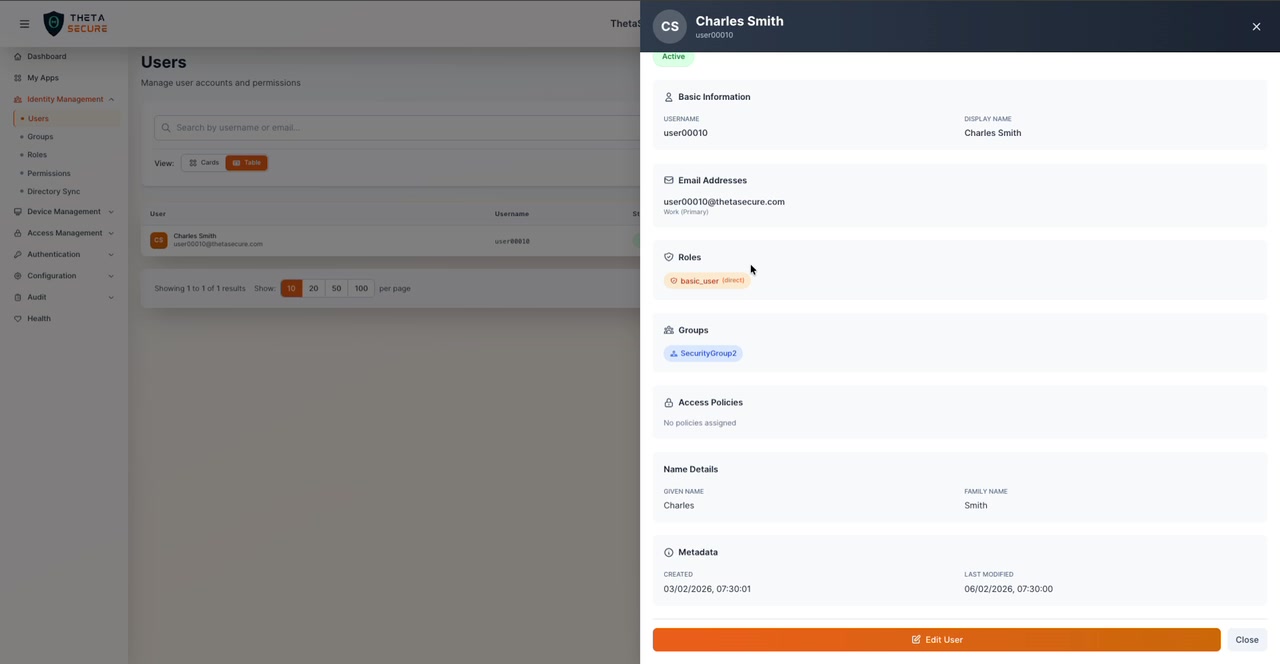
The detail panel displays:
Basic Information
| Field | Description |
|---|---|
| Username | Unique identifier (e.g., user00010) |
| Display Name | Full name (e.g., "Charles Smith") |
| Status | Active status badge |
Email Addresses
Shows the user's email address with type label (e.g., user00010@thetasecure.com — Work, Primary).
Roles
Displays assigned roles as tags. Example: basic_user (direct) — the "(direct)" label indicates the role was assigned directly to the user rather than inherited through a group.
Groups
Shows group memberships as tags (e.g., SecurityGroup2).
Access Policies
Lists any access policies applied to the user. If none are assigned, it shows "No policies assigned."
Name Details
| Field | Value |
|---|---|
| Given Name | First name (e.g., "Charles") |
| Family Name | Last name (e.g., "Smith") |
Metadata
| Field | Value |
|---|---|
| Created | Account creation timestamp (e.g., 03/02/2026, 07:30:01) |
| Last Modified | Last update timestamp (e.g., 06/02/2026, 07:30:00) |
The panel provides two actions at the bottom:
- Edit User — Opens the full edit form
- Close — Closes the side panel
Adding a New User
Click the + Add User button in the top-right corner to open the Add New User form:
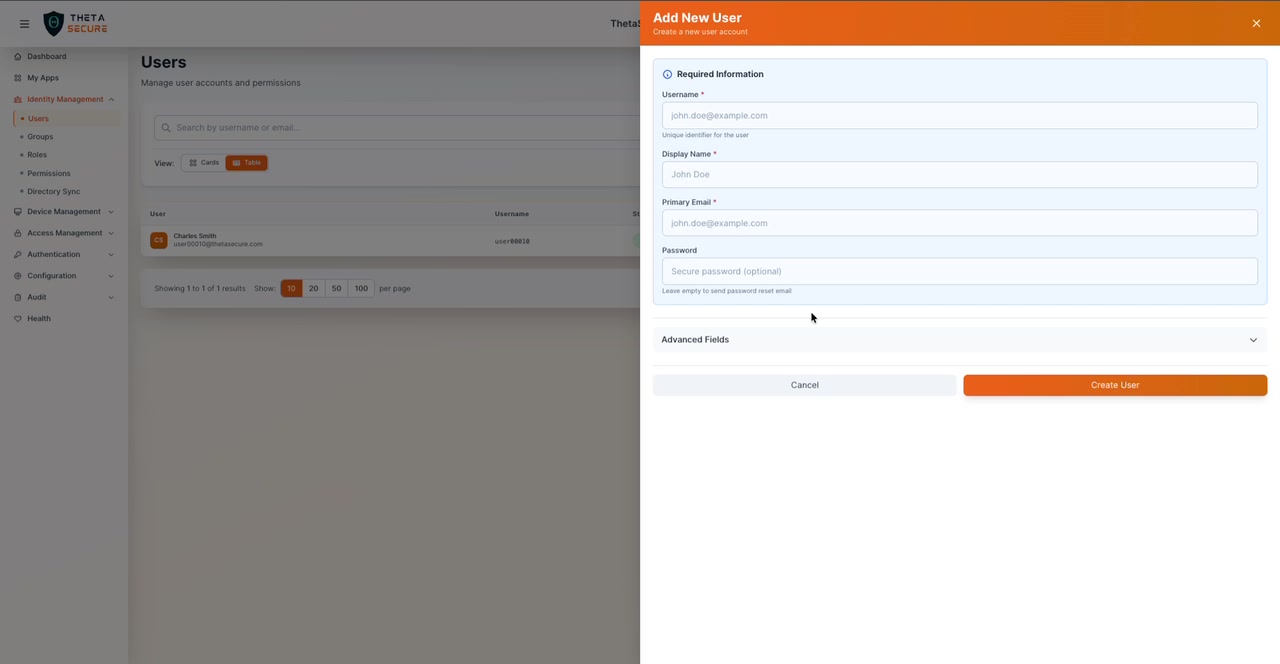
Required Information
| Field | Placeholder | Description |
|---|---|---|
| Username* | john.doe@example.com | Unique identifier for the user |
| Display Name* | John Doe | Full display name |
| Primary Email* | john.doe@example.com | Primary email address |
| Password | Secure password (optional) | Set a password, or leave empty to send a password reset email |
Leave the password field empty to automatically send the user a password reset email. This is the recommended approach for security, as it ensures the user sets their own password.
Advanced Fields
Click the Advanced Fields section to expand additional profile options:
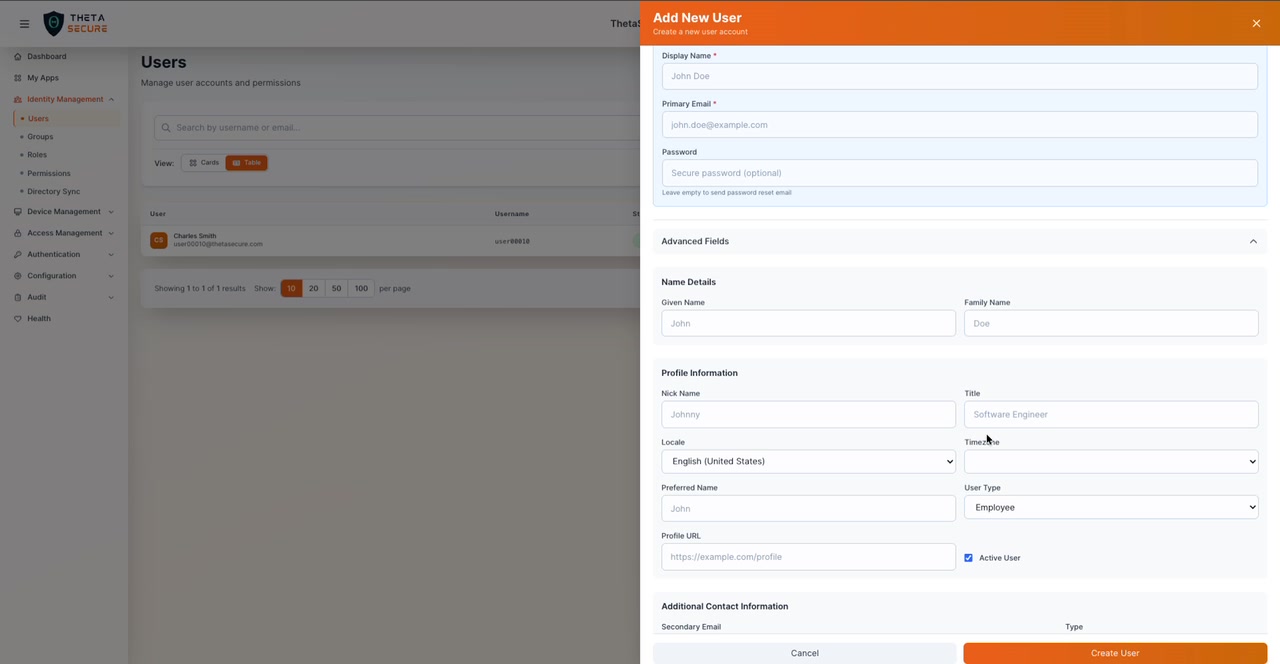
Name Details
| Field | Placeholder |
|---|---|
| Given Name | John |
| Family Name | Doe |
Profile Information
| Field | Placeholder / Default |
|---|---|
| Nick Name | Johnny |
| Title | Software Engineer |
| Locale | English (United States) — dropdown |
| Timezone | — dropdown |
| Preferred Name | John |
| User Type | Employee — dropdown |
| Profile URL | https://example.com/profile |
| Active User | ✅ Checkbox (checked by default) |
Additional Contact Information
| Field | Placeholder | Type |
|---|---|---|
| Secondary Email | john.personal@example.com | Home |
| Primary Phone | +1-555-123-4567 | Work |
| Secondary Phone | +1-555-987-6543 | Mobile |
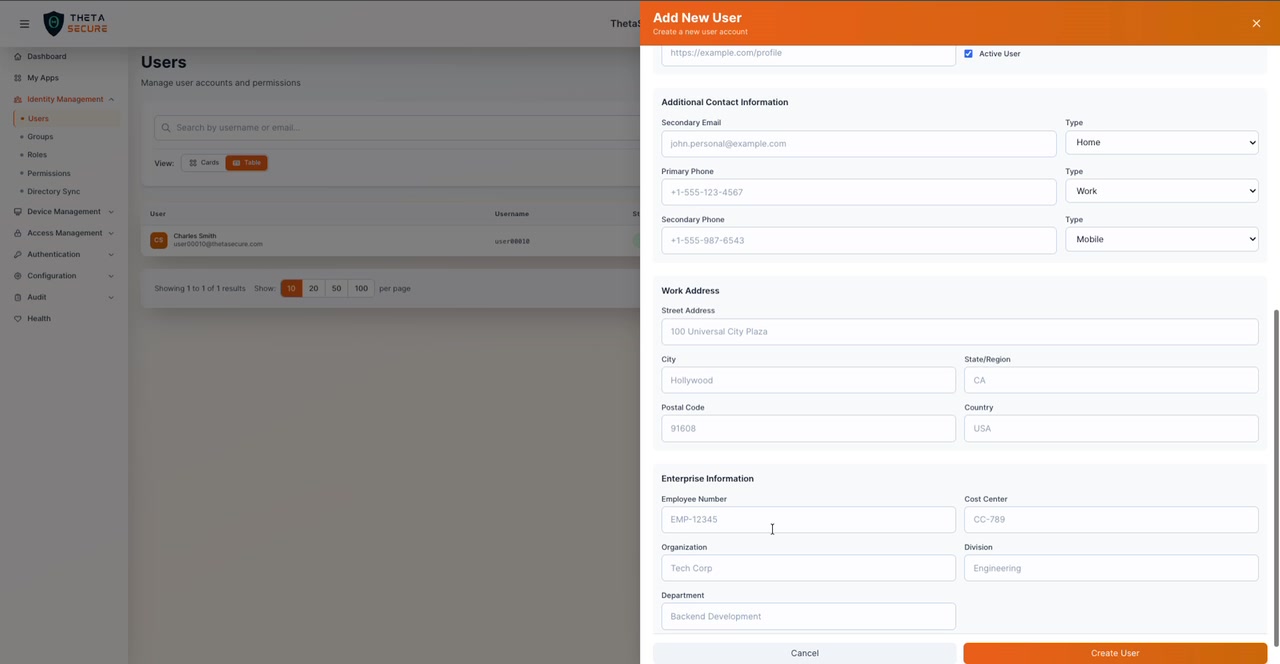
Work Address
| Field | Placeholder |
|---|---|
| Street Address | 100 Universal City Plaza |
| City | Hollywood |
| State/Region | CA |
| Postal Code | 91608 |
| Country | USA |
Enterprise Information
| Field | Placeholder |
|---|---|
| Employee Number | EMP-12345 |
| Cost Center | CC-789 |
| Organization | Tech Corp |
| Division | Engineering |
| Department | Backend Development |
Click Create User to provision the account, or Cancel to discard.
User Sources
Users in ThetaSecure can originate from two sources:
| Source | Badge Color | Description |
|---|---|---|
| Local | Orange | Manually created within ThetaSecure |
| Active Directory | Blue | Synchronized via Directory Sync from an external directory |
Users imported from Active Directory are managed by the directory sync process. Changes to these users' core attributes (name, email, groups) should be made in the source directory, not directly in ThetaSecure, to avoid sync conflicts.
Best Practices
- Review user accounts regularly — Use the status filter to identify inactive or locked accounts that may need attention
- Use Directory Sync for large organizations — Rather than creating users manually, sync from Active Directory for automatic lifecycle management
- Audit privileged accounts — Sort by roles to verify that only authorized users hold administrative roles
- Monitor the Created column — Recently created accounts should be verified, especially local accounts that were not provisioned through directory sync
- Leverage groups — Instead of managing users individually, assign them to groups and manage access at the group level