Directory Sync
Directory Sync allows you to integrate your organization's existing directory services with ThetaSecure. This enables automatic synchronization of users and groups from Microsoft Active Directory (via LDAP/LDAPS) and Azure AD / Microsoft Entra ID (via Microsoft Graph API), eliminating the need to manually create and manage user accounts.
Overview
The Directory Sync module is organized into two main tabs:
- Profiles — Define connections to your directory sources (AD or Azure AD) with authentication credentials, group filters, and attribute mappings.
- Connectors — Lightweight agents that run on your network to facilitate secure communication between ThetaSecure and your on-premises Active Directory.
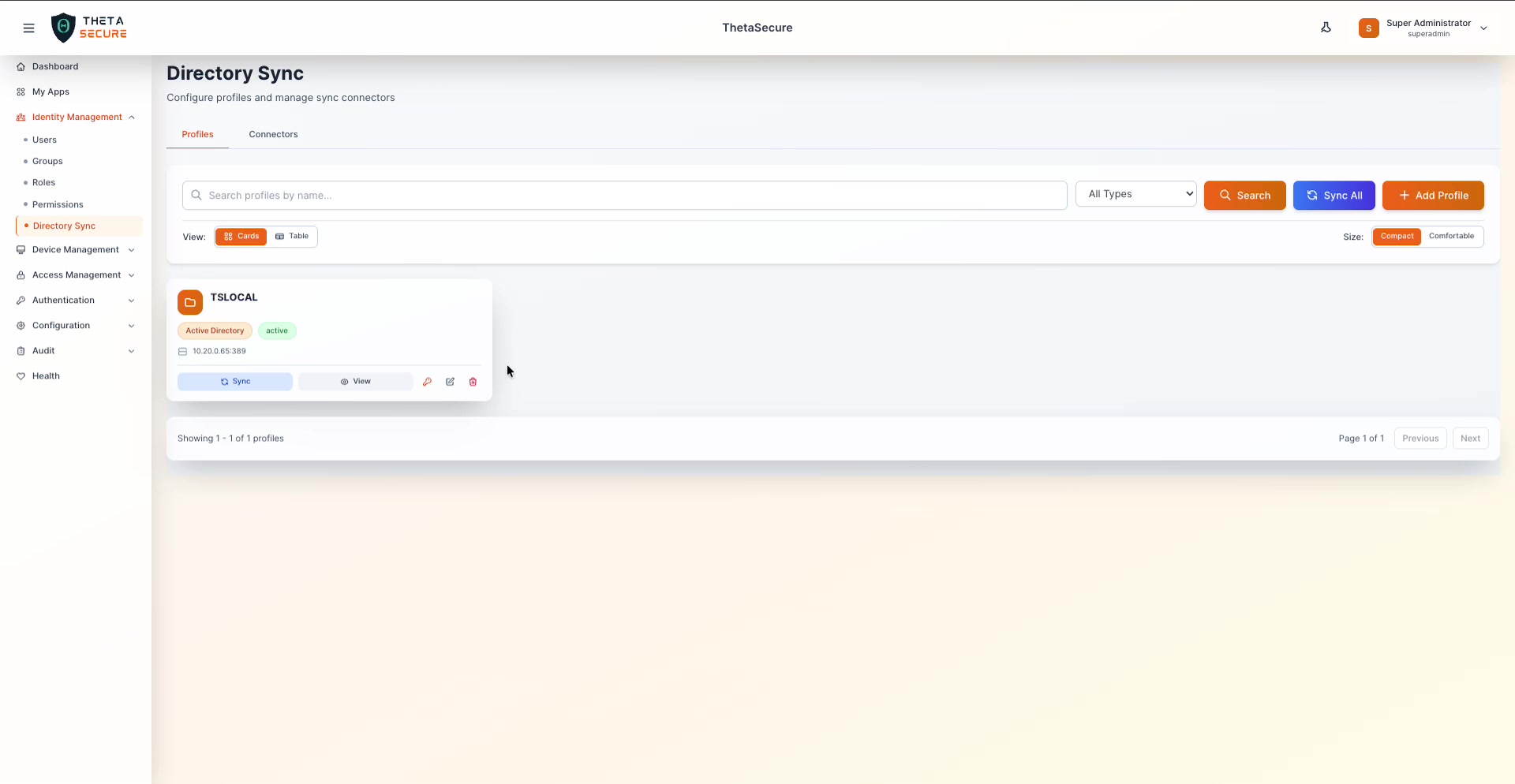 The Profiles tab displays all configured directory sync profiles. Each profile card shows the directory type, status, and server address, with quick actions for syncing, viewing, editing, and deleting.
Profiles
A profile represents a configured connection to a directory source. ThetaSecure supports two profile types:
| Profile Type | Protocol | Use Case |
|---|---|---|
| Active Directory (Microsoft Active Directory) | LDAP (port 389) or LDAPS (port 636) | On-premises AD environments |
| Azure AD (Microsoft Entra ID) | Microsoft Graph API | Cloud-based Azure AD / Entra ID tenants |
Profiles List
The Profiles tab provides the following capabilities:
- Search — Filter profiles by name using the search bar.
- Filter by Type — Use the "All Types" dropdown to show only Active Directory or Azure AD profiles.
- Sync All — Trigger synchronization across all active profiles at once.
- Add Profile — Create a new directory sync profile.
- View Toggle — Switch between Cards and Table views.
- Size Toggle — Switch between Compact and Comfortable card sizes.
Each profile card displays:
- Profile Name — The friendly name you assigned (e.g., "TSLOCAL").
- Directory Type Badge — "Active Directory" or "Azure AD".
- Status Badge — "active" or "inactive".
- Server Address — The host and port of the directory server.
- Quick Actions — Sync, View, Edit (key icon), Edit (pencil icon), and Delete.
Profile Card Actions
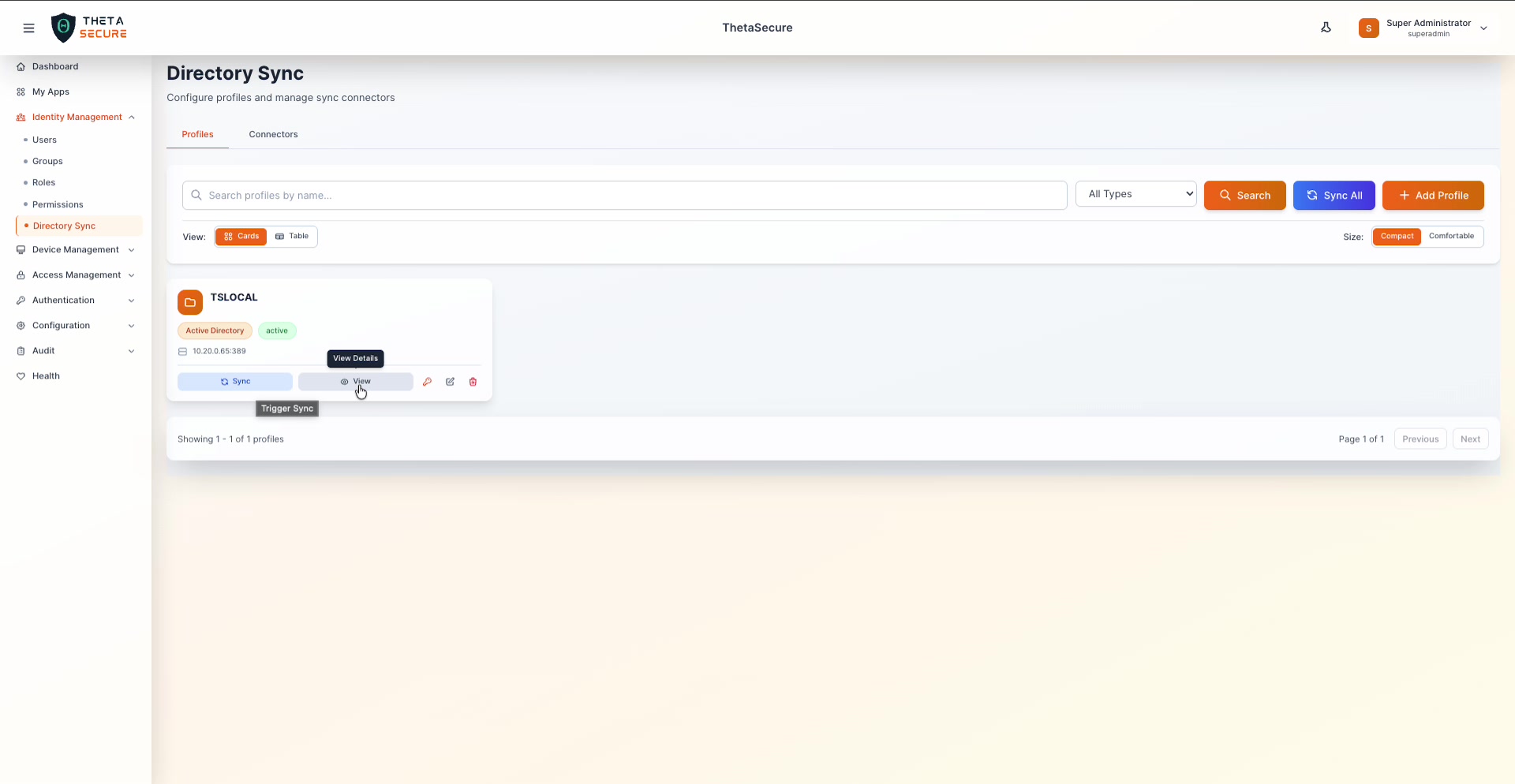 Hovering over the action buttons reveals tooltips: "Trigger Sync" starts an immediate sync, and "View Details" opens the full profile configuration panel.
- Sync — Manually triggers a synchronization for this profile. Users and groups are pulled from the directory source and updated in ThetaSecure.
- View — Opens a read-only detail panel showing the full profile configuration.
- Edit (Key icon) — Update the bind credentials (password/secret) for this profile.
- Edit (Pencil icon) — Modify the profile's configuration settings.
- Delete (Trash icon) — Remove the profile. This does not delete previously synced users.
Adding a New Profile
Click the + Add Profile button to open the profile creation panel. You will first select the directory type, then fill in the type-specific configuration fields.
Adding an Active Directory Profile (LDAP/LDAPS)
Select Active Directory (Microsoft Active Directory) as the profile type to connect to an on-premises AD environment via LDAP or LDAPS.
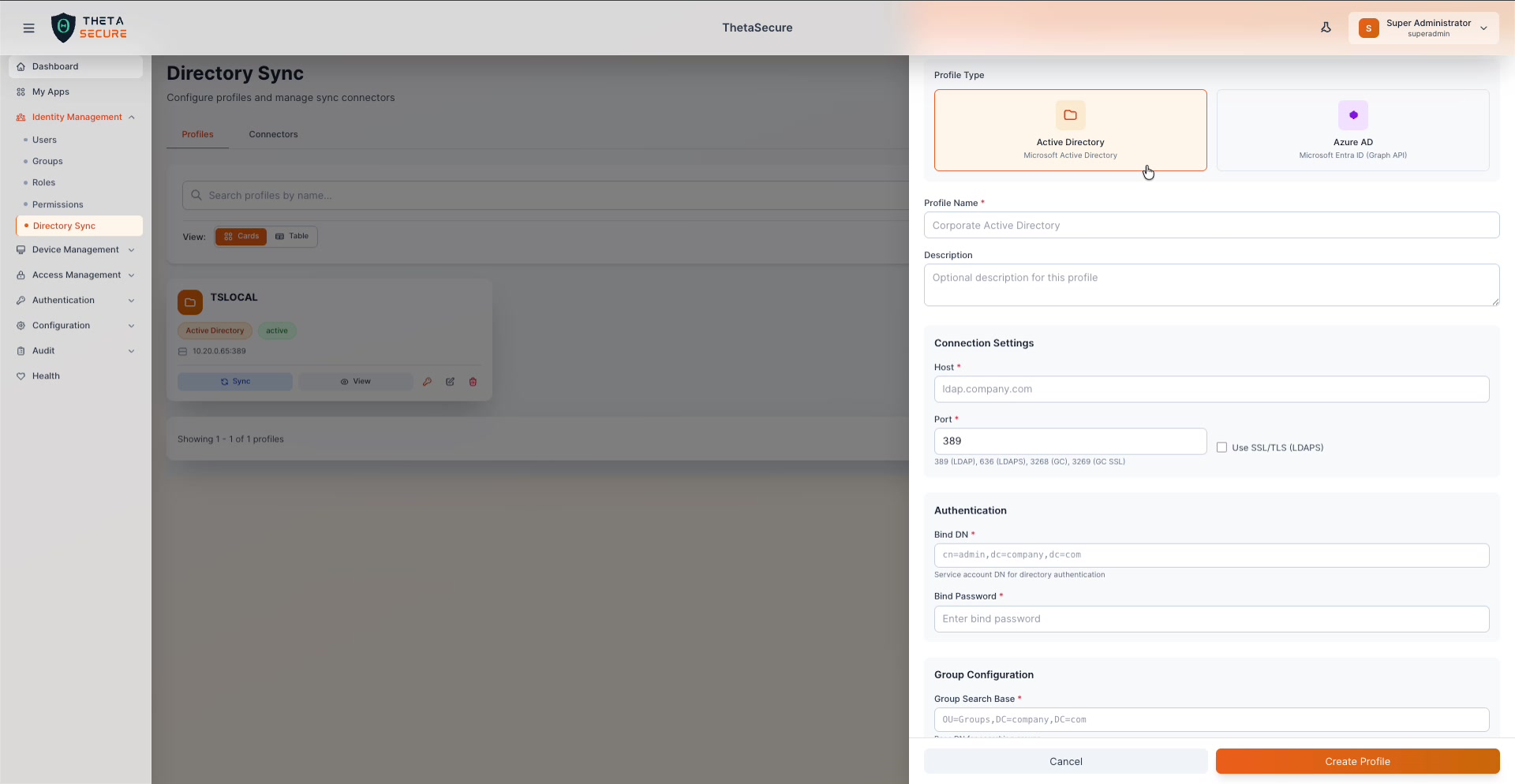 The Add Profile panel with Active Directory selected. Fill in the connection settings, authentication credentials, group configuration, and attribute mappings.
Profile Information
| Field | Required | Description |
|---|---|---|
| Profile Name | Yes | A descriptive name for this profile (e.g., "Corporate Active Directory"). |
| Description | No | Optional notes about this profile's purpose or scope. |
Connection Settings
| Field | Required | Description |
|---|---|---|
| Host | Yes | The hostname or IP address of your AD domain controller (e.g., ldap.company.com or 10.20.0.65). |
| Port | Yes | The LDAP port. Common values: 389 (LDAP), 636 (LDAPS), 3268 (Global Catalog), 3269 (GC over SSL). |
| Use SSL/TLS (LDAPS) | No | Check this box to enable encrypted LDAPS communication. When enabled, use port 636 or 3269. |
Always enable SSL/TLS (LDAPS) in production environments to encrypt directory traffic. Use port 636 for LDAPS or 3269 for Global Catalog over SSL.
Authentication
| Field | Required | Description |
|---|---|---|
| Bind DN | Yes | The Distinguished Name of the service account used to authenticate against AD (e.g., cn=admin,dc=company,dc=com or DOMAIN\Administrator). |
| Bind Password | Yes | The password for the Bind DN service account. |
Use a dedicated service account with read-only permissions for directory sync. Avoid using domain administrator credentials in production.
Group Configuration
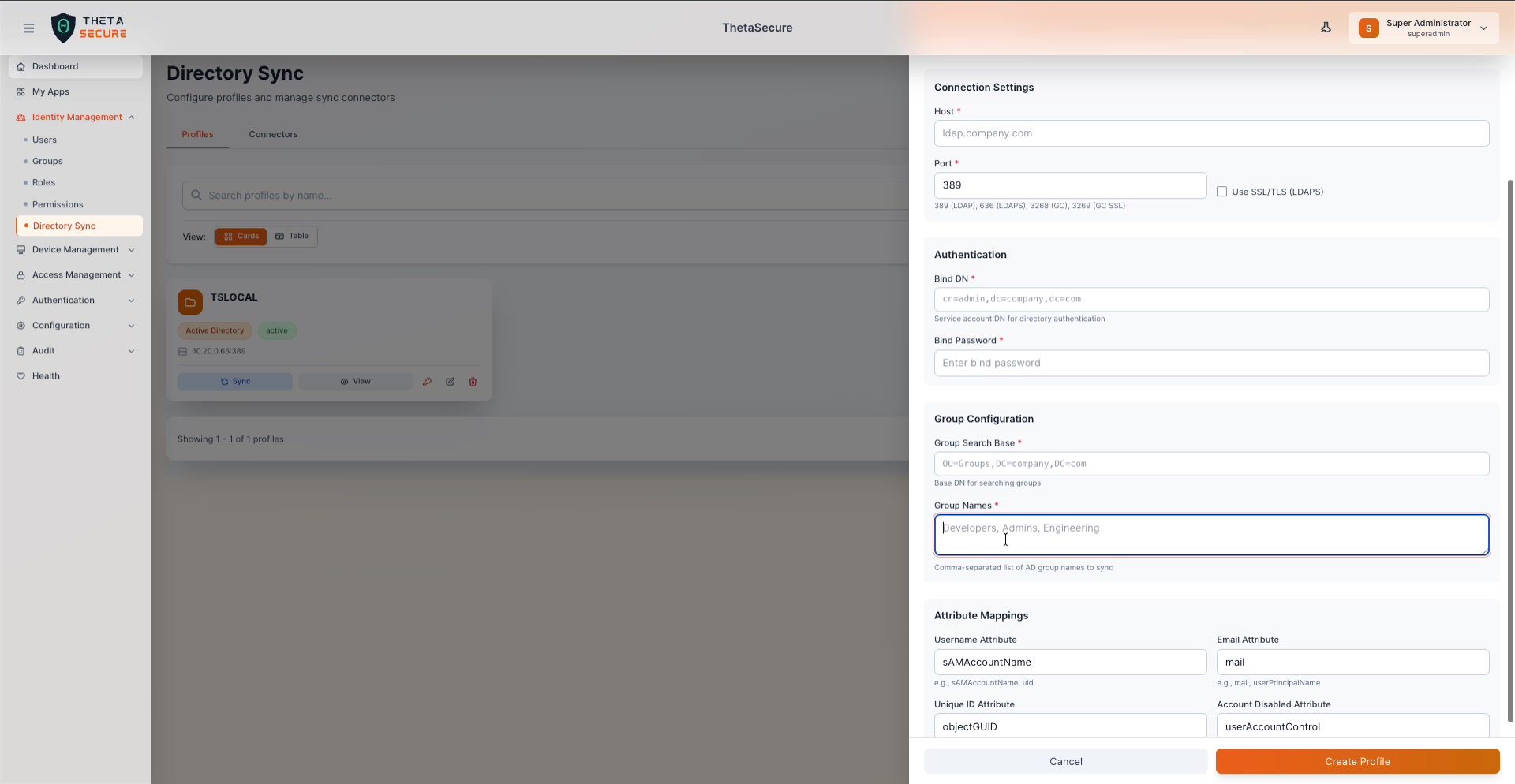 Scroll down to configure which AD groups to sync and how AD attributes map to ThetaSecure user fields.
| Field | Required | Description |
|---|---|---|
| Group Search Base | Yes | The base DN where ThetaSecure should search for groups (e.g., OU=Groups,DC=company,DC=com). |
| Group Names | Yes | A comma-separated list of AD group names to sync (e.g., Developers, Admins, Engineering). Only users belonging to these groups will be imported. |
Attribute Mappings
Attribute mappings define how Active Directory attributes are translated to ThetaSecure user fields.
| ThetaSecure Field | Default AD Attribute | Alternatives |
|---|---|---|
| Username Attribute | sAMAccountName | sAMAccountName, uid |
| Email Attribute | mail | mail, userPrincipalName |
| Unique ID Attribute | objectGUID | objectGUID, entryUUID |
| Account Disabled Attribute | userAccountControl | AD-specific flag field |
| Display Name Attribute | displayName | — |
| Given Name Attribute | givenName | — |
| Family Name Attribute | sn | — |
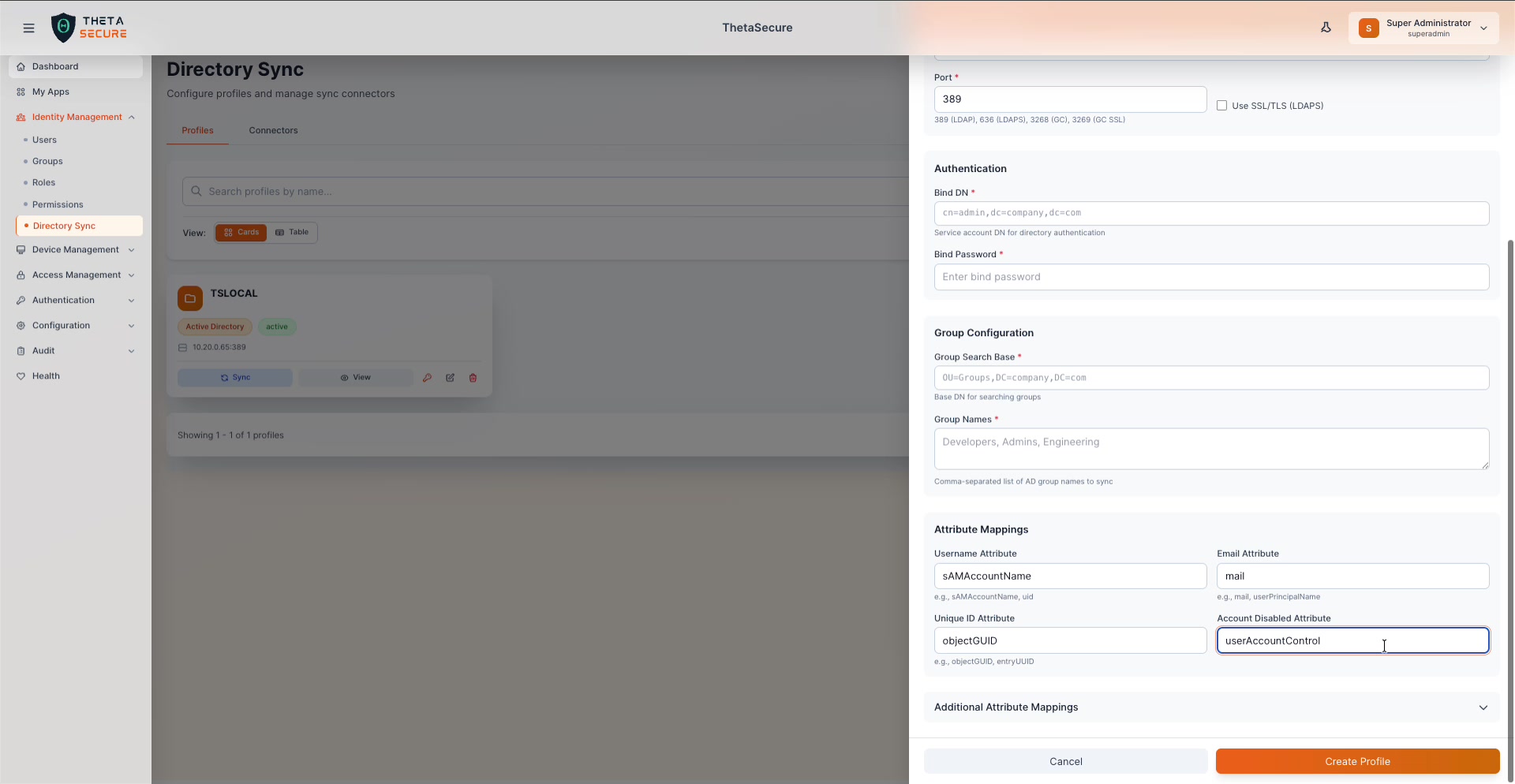 The full attribute mappings section, including the expandable "Additional Attribute Mappings" panel for custom field mapping.
An Additional Attribute Mappings expandable section is available for mapping custom AD attributes to ThetaSecure fields beyond the defaults.
Once all fields are configured, click Create Profile to save the profile, or Cancel to discard.
Adding an Azure AD Profile (Microsoft Entra ID / Graph API)
Select Azure AD (Microsoft Entra ID - Graph API) as the profile type to connect to a cloud-based Azure AD tenant using the Microsoft Graph API.
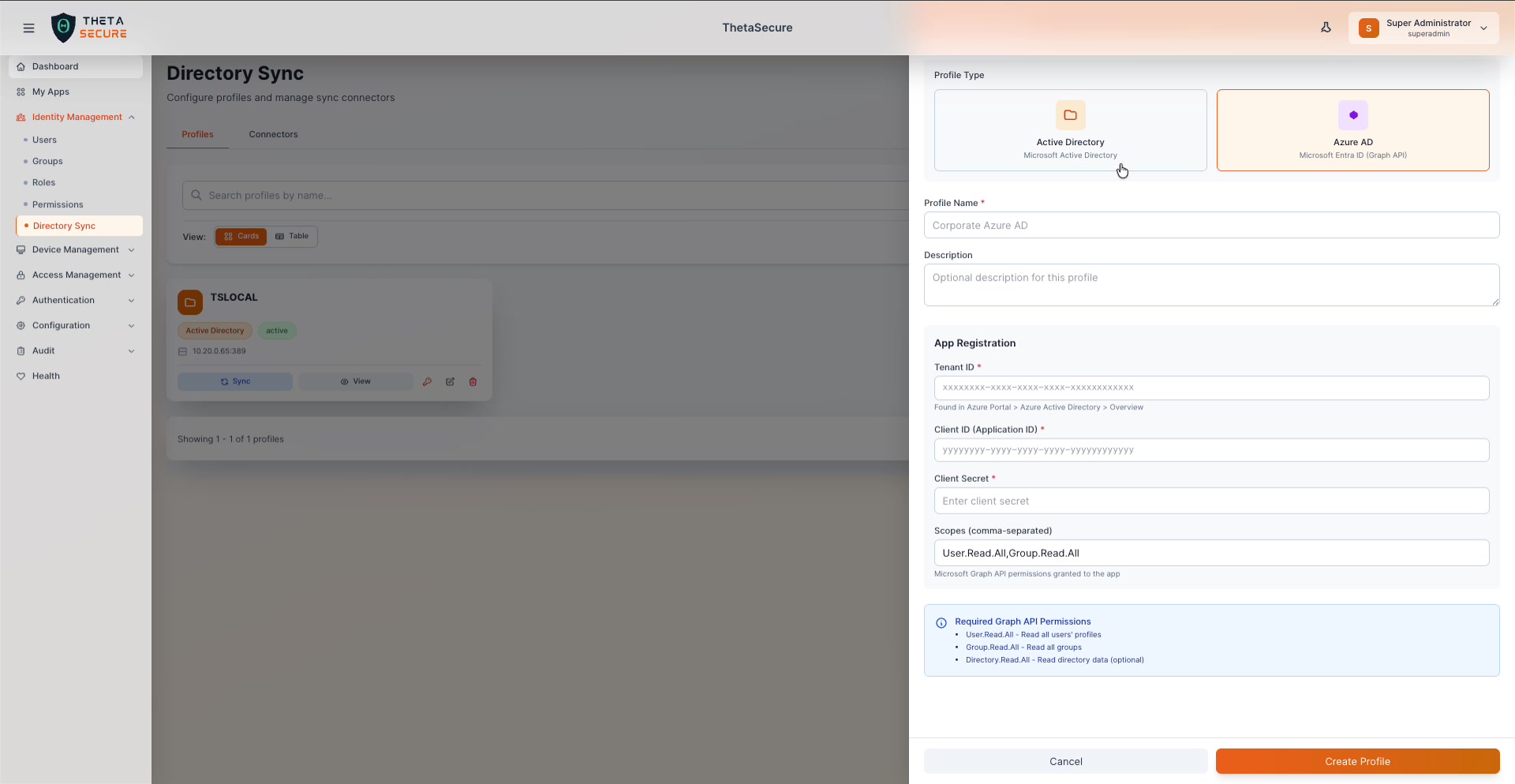 The Add Profile panel with Azure AD selected. Provide your Azure App Registration credentials and required Graph API permissions.
Profile Information
| Field | Required | Description |
|---|---|---|
| Profile Name | Yes | A descriptive name for this profile (e.g., "Corporate Azure AD"). |
| Description | No | Optional notes about this profile. |
App Registration
To connect to Azure AD, you must first register an application in the Azure Portal (Azure Active Directory → App registrations). Then provide the following credentials:
| Field | Required | Description |
|---|---|---|
| Tenant ID | Yes | Your Azure AD Tenant ID. Found in Azure Portal → Azure Active Directory → Overview. Format: xxxxxxxx-xxxx-xxxx-xxxx-xxxxxxxxxxxx. |
| Client ID (Application ID) | Yes | The Application (client) ID of your registered app. Format: yyyyyyyy-yyyy-yyyy-yyyy-yyyyyyyyyyyy. |
| Client Secret | Yes | A client secret generated for your app registration. |
| Scopes (comma-separated) | Yes | The Microsoft Graph API permissions required. Default: User.Read.All,Group.Read.All. |
Required Graph API Permissions
The following application permissions must be granted to your Azure AD app registration and admin-consented:
| Permission | Description |
|---|---|
User.Read.All | Read all users' profiles |
Group.Read.All | Read all groups |
Directory.Read.All | Read directory data (optional, for extended attributes) |
- Go to Azure Portal → Azure Active Directory → App registrations → New registration.
- Name the app (e.g., "ThetaSecure Directory Sync") and register it.
- Under API permissions, add the required Microsoft Graph Application permissions listed above.
- Click Grant admin consent for the permissions.
- Under Certificates & secrets, generate a new Client secret and copy the value.
- Copy the Tenant ID and Application (client) ID from the Overview page.
- Enter these values in the ThetaSecure Add Profile form.
Once all fields are configured, click Create Profile to save.
Viewing Profile Details
Click the View button on any profile card to open the detail panel. This provides a comprehensive read-only view of the profile's full configuration.
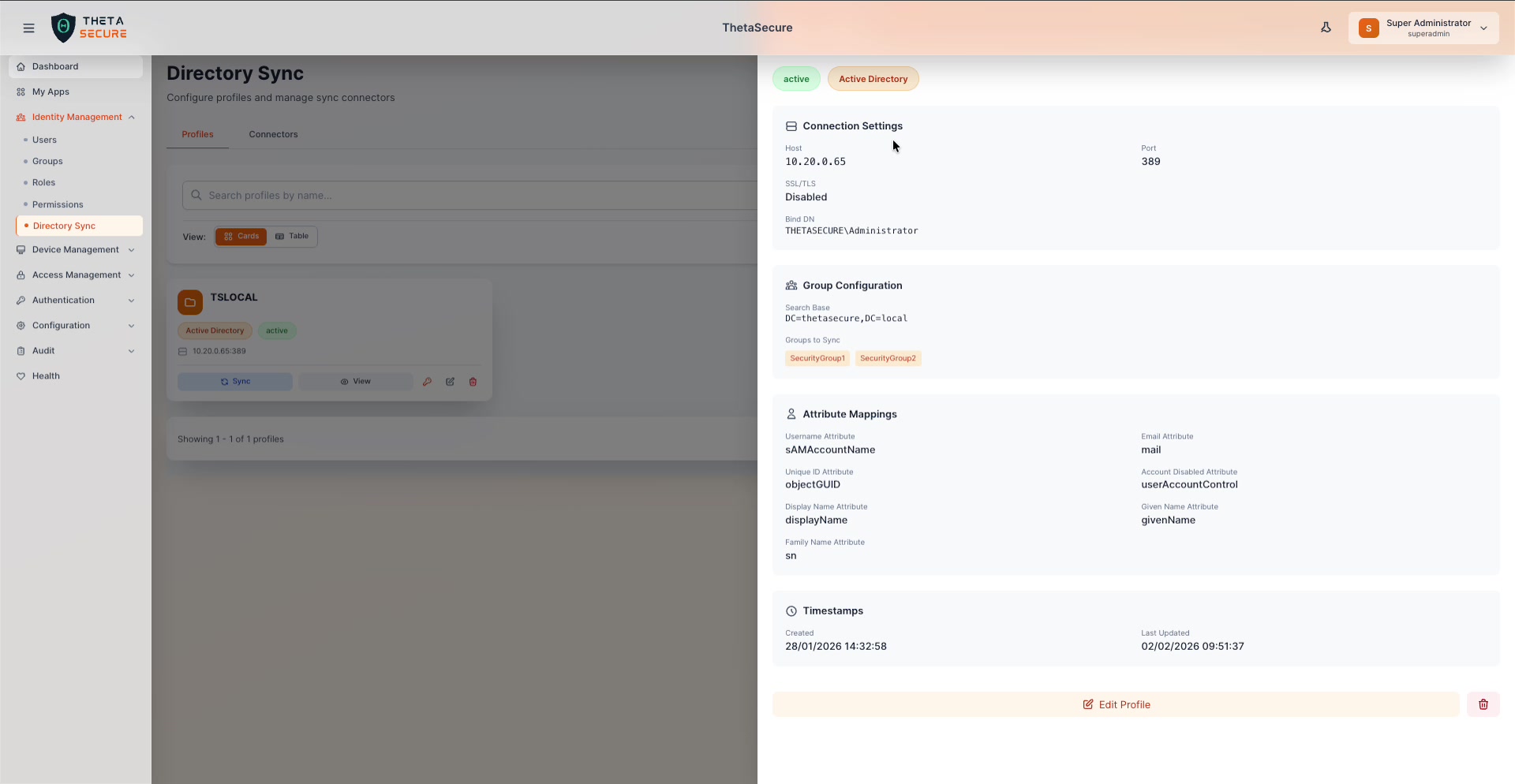 The profile detail panel for an Active Directory profile showing connection settings, group configuration, attribute mappings, and timestamps.
The detail panel displays:
- Status & Type — Badges indicating "active"/"inactive" and "Active Directory"/"Azure AD".
- Connection Settings — Host, Port, SSL/TLS status, and Bind DN.
- Group Configuration — Search Base and the specific groups being synced (displayed as tags, e.g., "SecurityGroup1", "SecurityGroup2").
- Attribute Mappings — The full mapping table showing how directory attributes map to ThetaSecure fields.
- Timestamps — Created date and Last Updated date.
At the bottom of the panel:
- Edit Profile — Opens the profile editor to modify settings.
- Delete (Trash icon) — Deletes the profile.
Connectors
The Connectors tab manages lightweight agents that facilitate communication between ThetaSecure (cloud) and your on-premises Active Directory servers. Connectors are required for AD profiles but are not needed for Azure AD profiles (which use the Graph API directly).
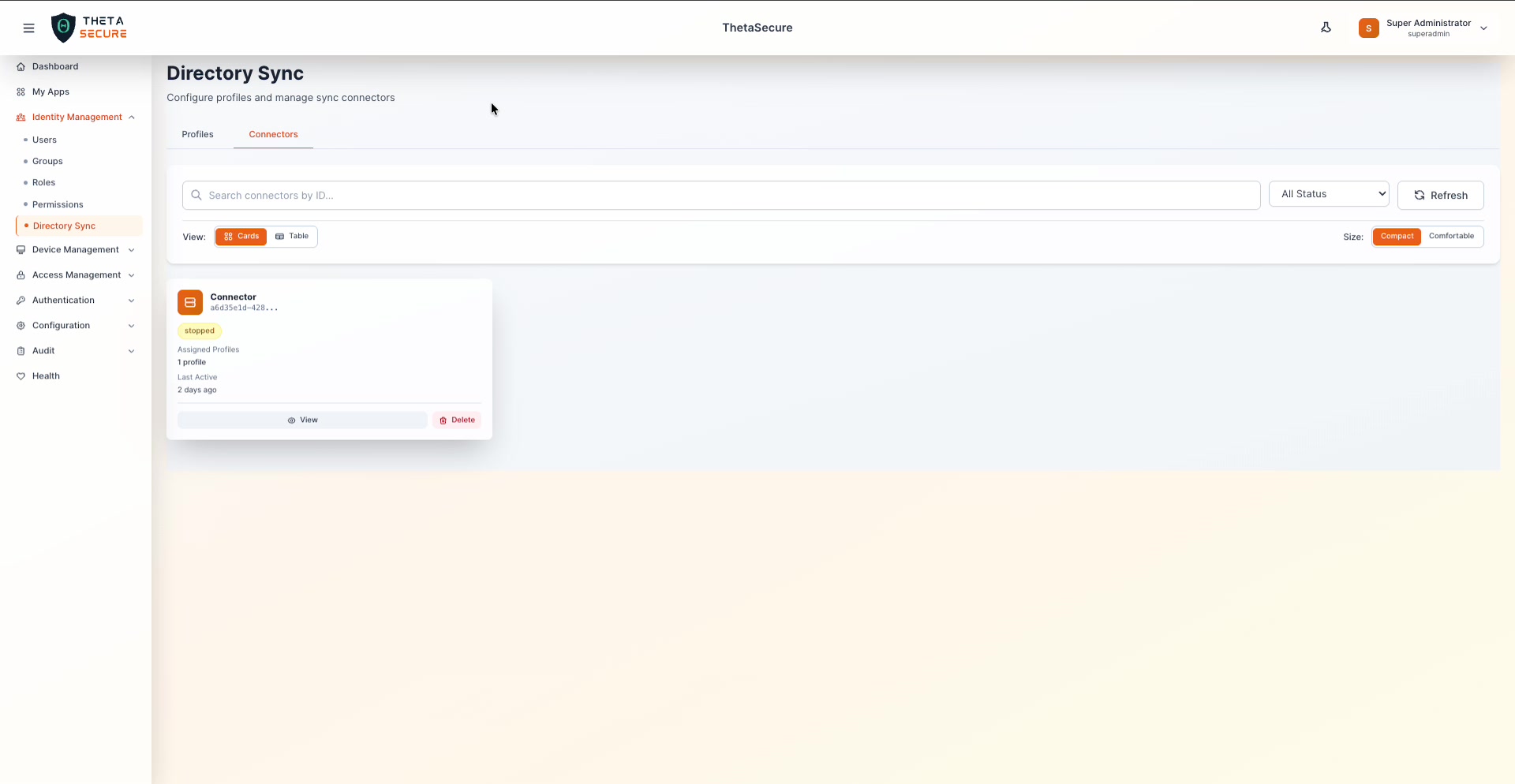 The Connectors tab showing a registered connector with its status, assigned profiles, and last active timestamp.
Each connector card displays:
- Connector ID — A unique identifier for the connector agent.
- Status — Current state: "running", "stopped", or "error".
- Assigned Profiles — The number of AD profiles this connector serves.
- Last Active — When the connector last communicated with ThetaSecure.
Connector Actions
- View — See full connector details and diagnostic information.
- Delete — Remove the connector registration.
- Refresh — Update the connector status display.
Connectors can be filtered by status using the All Status dropdown, and searched by ID.
Synchronization
Manual Sync
You can trigger synchronization in three ways:
- Per Profile — Click the Sync button on an individual profile card.
- Sync All — Click the Sync All button in the toolbar to sync all active profiles simultaneously.
- From Profile Details — Open a profile's detail view and trigger sync from there.
What Gets Synced
During synchronization, ThetaSecure:
- Connects to the directory source using the configured credentials and protocol.
- Queries for users belonging to the specified groups.
- Maps directory attributes to ThetaSecure user fields using the configured attribute mappings.
- Creates new ThetaSecure user accounts for users not yet synced.
- Updates existing accounts where directory attributes have changed.
- Optionally disables accounts that are disabled in the directory (based on the Account Disabled Attribute).
Sync Behavior
| Scenario | ThetaSecure Action |
|---|---|
| New user found in directory group | Creates a new user account |
| Existing user's attributes changed | Updates the user's profile |
| User removed from synced group | User remains but may be flagged |
| User account disabled in directory | Account marked as disabled (if attribute mapping is configured) |
| Directory unreachable | Sync fails; existing data is preserved |
Troubleshooting
Active Directory (LDAP/LDAPS)
| Issue | Possible Cause | Solution |
|---|---|---|
| Connection timeout | Firewall blocking LDAP port | Ensure ports 389/636 are open between the connector and AD server |
| Authentication failed | Incorrect Bind DN or password | Verify the Bind DN format (cn=admin,dc=... or DOMAIN\user) and password |
| No users synced | Wrong Group Search Base or Group Names | Verify the OU path and group names match your AD structure exactly |
| SSL/TLS handshake failed | Certificate not trusted | Ensure the AD server's SSL certificate is valid and trusted |
Azure AD (Graph API)
| Issue | Possible Cause | Solution |
|---|---|---|
| 401 Unauthorized | Invalid Client ID or Secret | Verify the App Registration credentials in Azure Portal |
| 403 Forbidden | Missing API permissions | Ensure User.Read.All and Group.Read.All are granted with admin consent |
| No users returned | Incorrect Tenant ID | Verify the Tenant ID matches your Azure AD directory |
| Client secret expired | Secret has a limited lifetime | Generate a new client secret in Azure Portal and update the profile |