MFA Profiles
MFA profiles define your organization's multi-factor authentication requirements. Each profile contains one or more rules that specify when MFA is required, which authentication methods users can choose from, and how frequently they must re-authenticate. When you build sign-in policies, you reference these MFA profiles to layer additional verification on top of primary authentication.
ThetaSecure includes a Default MFA profile that you can customize, and you can create additional profiles for different security contexts. For example, you might create a strict profile requiring hardware security keys for administrator access and a more flexible profile allowing email OTP for general workforce authentication.
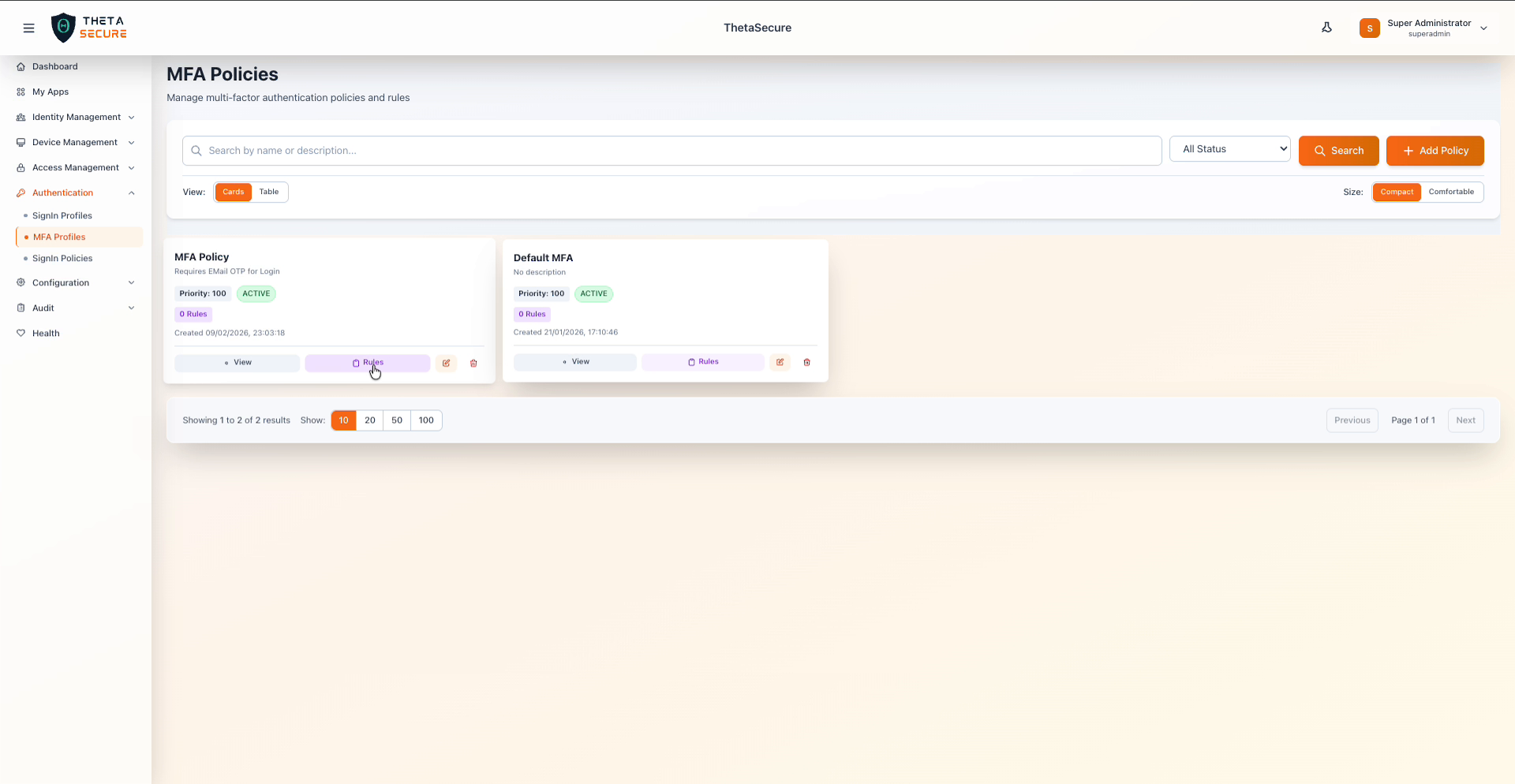 The MFA Profiles page showing two profiles with their priority, status, and rule counts.
Creating an MFA Profile
Navigate to Authentication > MFA Profiles and click + Add Policy. The creation form collects the profile name, an optional description, and a priority value.
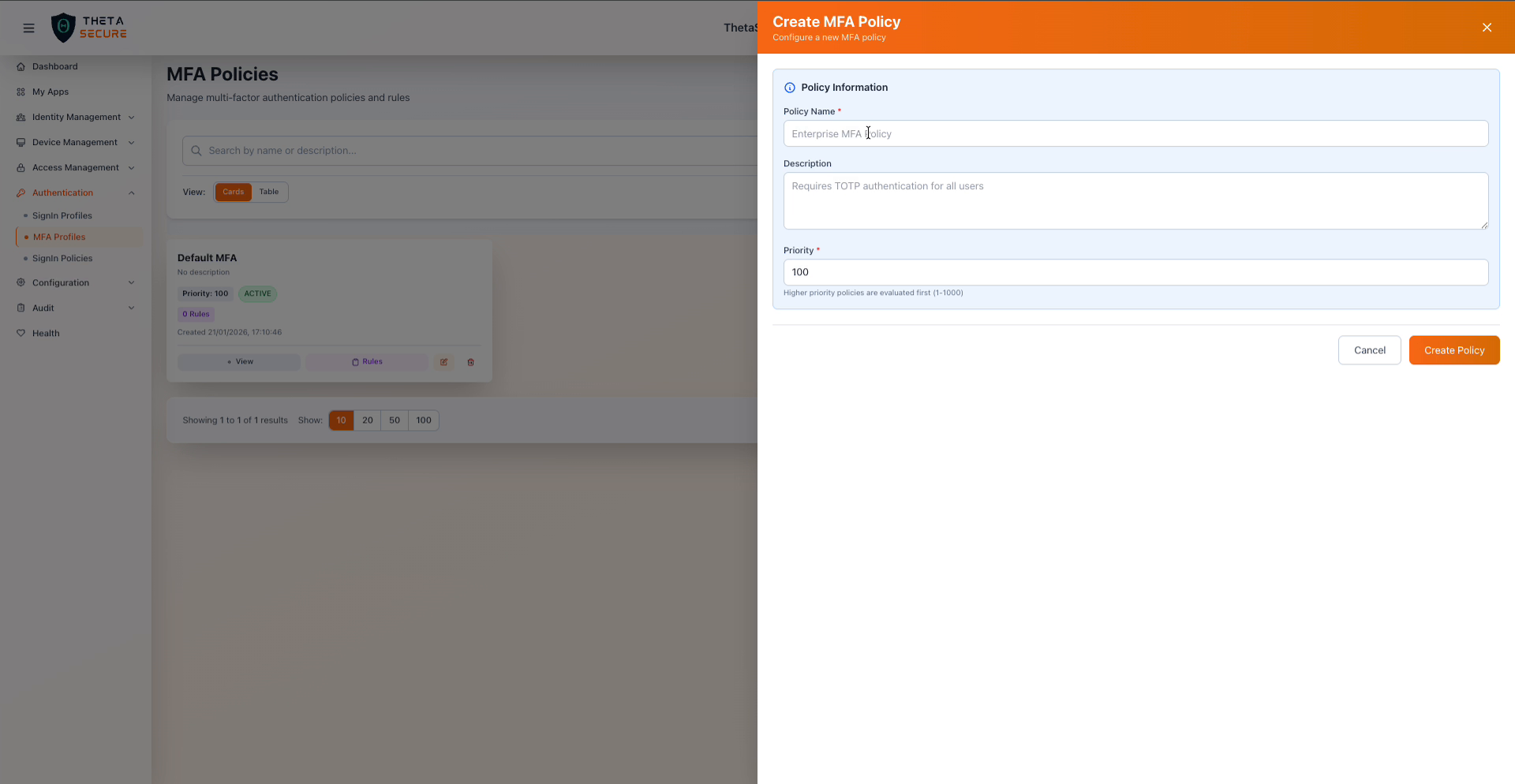 The Create MFA Profile form showing the required fields.
| Field | Required | Description |
|---|---|---|
| Policy Name | Yes | A descriptive name for this MFA profile. Choose a name that reflects its purpose, such as "Admin MFA" or "Standard Workforce MFA". |
| Description | No | An optional explanation of when and why this profile is used. |
| Priority | Yes | A numeric value between 1 and 1000 that determines evaluation order. Higher priority profiles are evaluated first. |
After creating the profile, you configure its behavior by adding rules.
Managing MFA Rules
Each MFA profile contains zero or more rules that define the actual enforcement logic. To manage rules, click the Rules button on the profile card. This opens the MFA Rules panel where you can add new rules or modify existing ones.
Adding a Rule
Click + Add New Rule to expand the rule creation form. Each rule consists of a name, a priority, optional conditions, and MFA action settings.
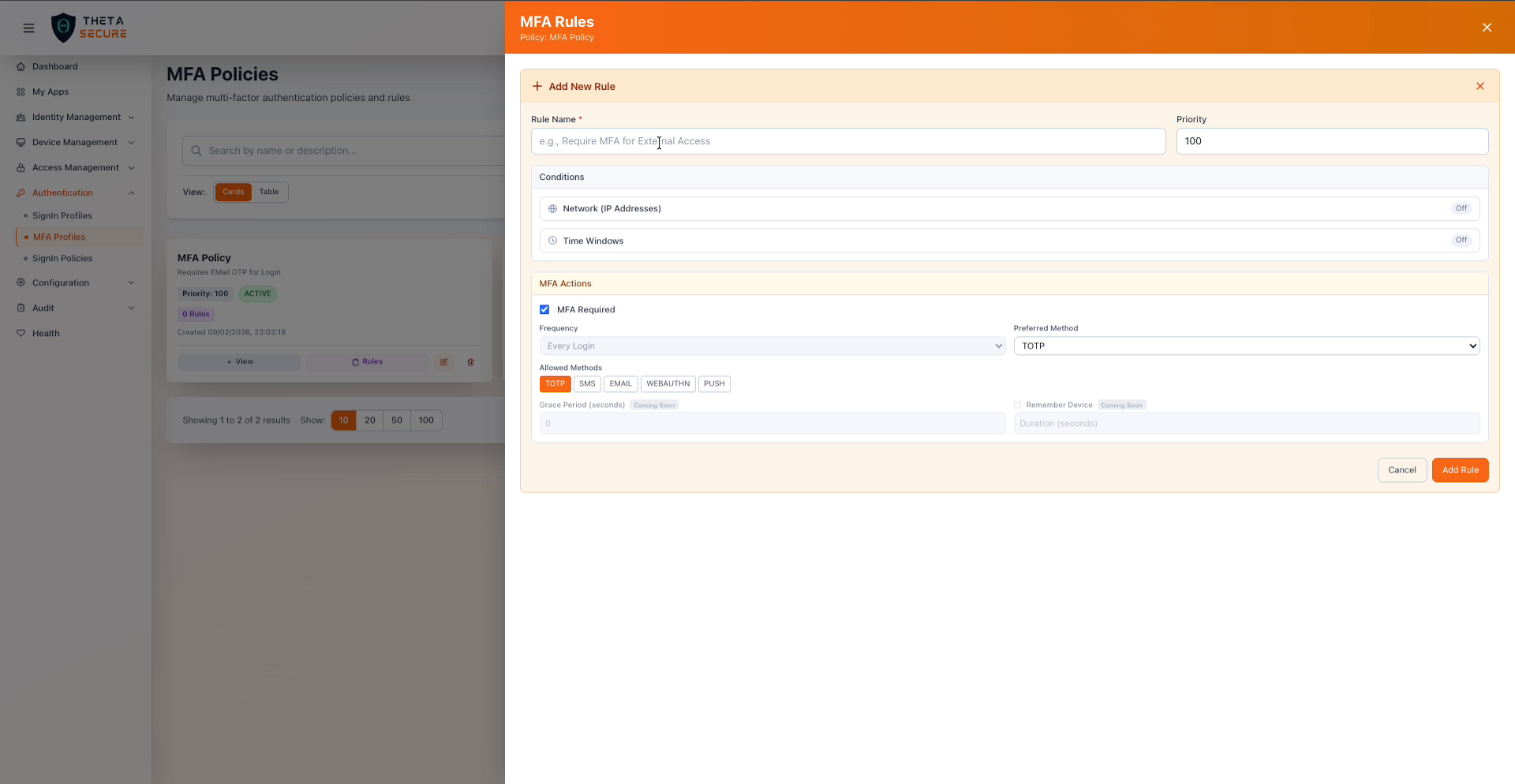 The MFA Rules form showing the rule name, priority, conditions toggles, and MFA action settings.
Rule Fields
| Field | Required | Description |
|---|---|---|
| Rule Name | Yes | A descriptive name for the rule, such as "Require MFA for External Access" or "MFA for all users". |
| Priority | Yes | A numeric value that controls evaluation order within this profile. Lower numbers are evaluated first. |
Conditions
Rules support optional conditions that control when the rule applies. Both conditions are toggled Off by default.
| Condition | Description |
|---|---|
| Network (IP Addresses) | When enabled, the rule only applies to authentication attempts originating from specific IP address ranges. This lets you skip MFA for trusted corporate networks while requiring it for external access. |
| Time Windows | When enabled, the rule only applies during specific days and times. This is useful for requiring stricter MFA during off-hours or weekends. |
When both conditions are disabled, the rule applies to all authentication attempts unconditionally.
MFA Actions
The MFA Actions section defines what happens when the rule matches.
| Setting | Description |
|---|---|
| MFA Required | When checked, users must complete multi-factor authentication. This is the primary toggle that enables MFA enforcement for this rule. |
| Frequency | Controls how often MFA is required. Every Login requires MFA on each authentication attempt. |
| Preferred Method | The MFA method that ThetaSecure presents to the user first. Options include TOTP, SMS, EMAIL, WEBAUTHN, and PUSH. Users can switch to another allowed method if they prefer. |
| Allowed Methods | The set of MFA methods users can choose from. Select one or more methods from TOTP, SMS, EMAIL, WEBAUTHN, and PUSH. Only selected methods will be available during the MFA challenge. |
| Grace Period (seconds) | The time window after a successful MFA challenge during which additional MFA is not required. Coming soon. |
| Remember Device | When enabled, allows users to skip MFA on recognized devices for a configured duration. Coming soon. |
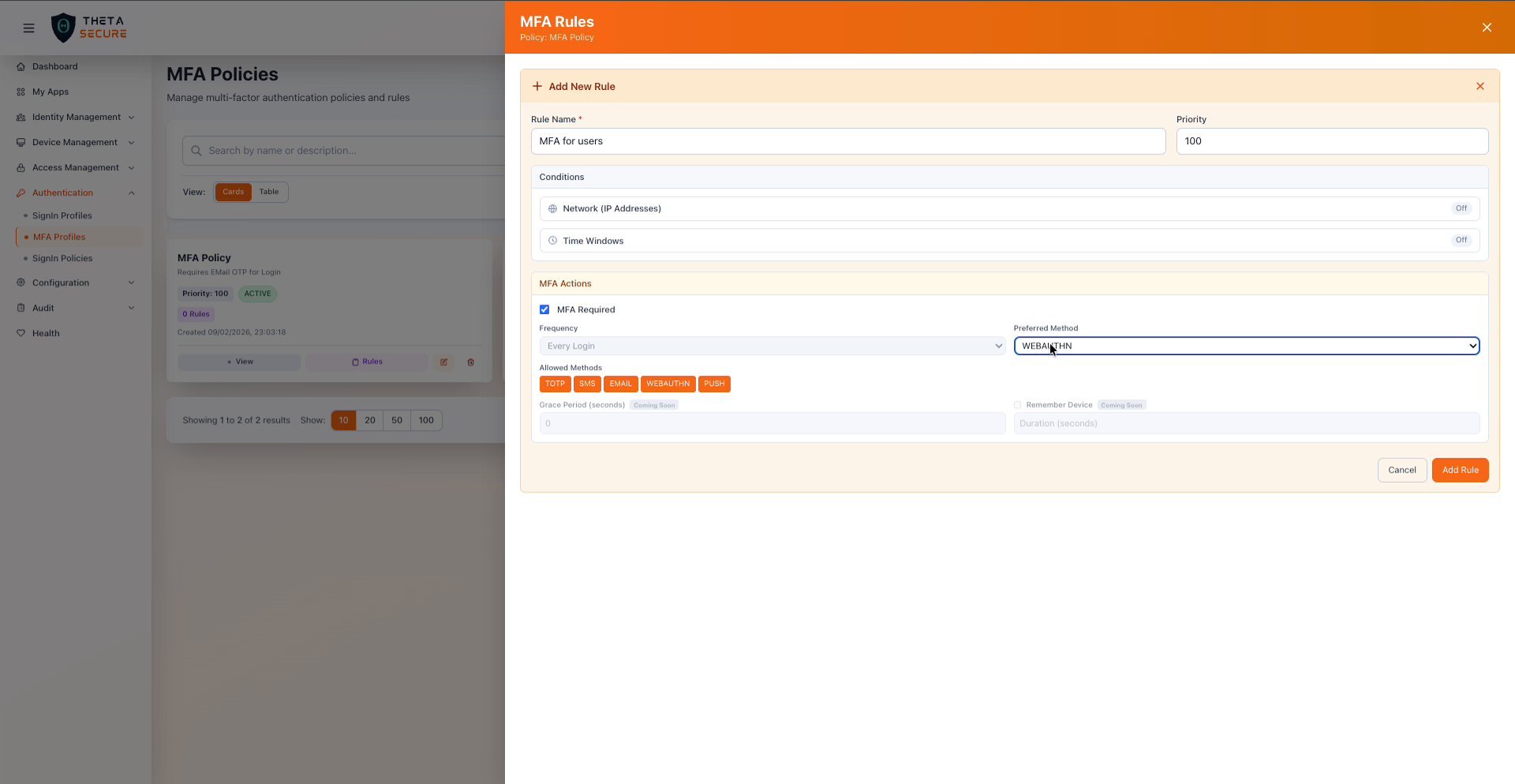 A completed MFA rule with WEBAUTHN set as the preferred method and all five allowed methods enabled.
Allowed MFA Methods
| Method | Description | Recommended For |
|---|---|---|
| TOTP | Time-based one-time password generated by an authenticator app such as Google Authenticator, Authy, or Microsoft Authenticator | General workforce, good balance of security and convenience |
| SMS | One-time code sent via text message to the user's registered phone number | Users without smartphones or authenticator apps, lower security than TOTP |
| One-time code sent to the user's registered email address | Fallback option when phone-based methods are unavailable | |
| WEBAUTHN | Hardware security keys (YubiKey, Titan Key) or platform authenticators (Touch ID, Windows Hello) using the FIDO2/WebAuthn protocol | High security environments, phishing resistant authentication |
| PUSH | Push notification sent to a registered mobile device for one-tap approval | User-friendly option for mobile-first workforces |
Enable at least two allowed methods in every MFA rule to give users a fallback. If a user loses access to their TOTP authenticator app, having EMAIL or SMS as an alternative prevents them from being locked out. For high security roles, consider WEBAUTHN as the preferred method with TOTP as the backup.
Profile Card Actions
Each MFA profile card displays the profile name, description, priority, status, and rule count. The action buttons on the card provide quick access to management functions.
| Action | Description |
|---|---|
| View | Open the profile details panel to see the full configuration |
| Rules | Open the MFA Rules panel to add, edit, or remove rules |
| Edit | Modify the profile name, description, or priority |
| Delete | Permanently remove the profile |
Best Practices
Start with a broad MFA profile and refine with rules. Create a baseline profile that requires MFA for all users with TOTP as the preferred method, then add rules with conditions to adjust behavior for specific scenarios. This ensures every user has MFA enabled by default while allowing exceptions where appropriate.
Prefer WEBAUTHN for administrators and privileged accounts. Hardware security keys provide the strongest protection against phishing attacks because they cryptographically verify the target site. Unlike TOTP codes or SMS messages, WEBAUTHN credentials cannot be intercepted or replayed by an attacker who has compromised a lookalike login page.
Avoid relying solely on SMS for MFA. While SMS is the most accessible option, it is vulnerable to SIM swapping attacks and interception. Use SMS as a fallback method rather than the primary or only allowed method. Pair it with at least one stronger option like TOTP or WEBAUTHN.
Set meaningful priorities when using multiple profiles. If a user's authentication matches multiple MFA profiles through different sign-in policies, the priority value determines which profile takes effect. Use a consistent numbering scheme, such as reserving 1 through 100 for high security profiles and 500 through 1000 for standard access profiles, so the evaluation order is predictable.