AI Assistant Settings
The AI Assistant Settings page configures the large language model (LLM) providers that power ThetaSecure's built in AI assistant. The assistant can help administrators with policy analysis, troubleshooting, and configuration guidance directly within the console.
Navigate to Configuration > AI Assistant to access this page.
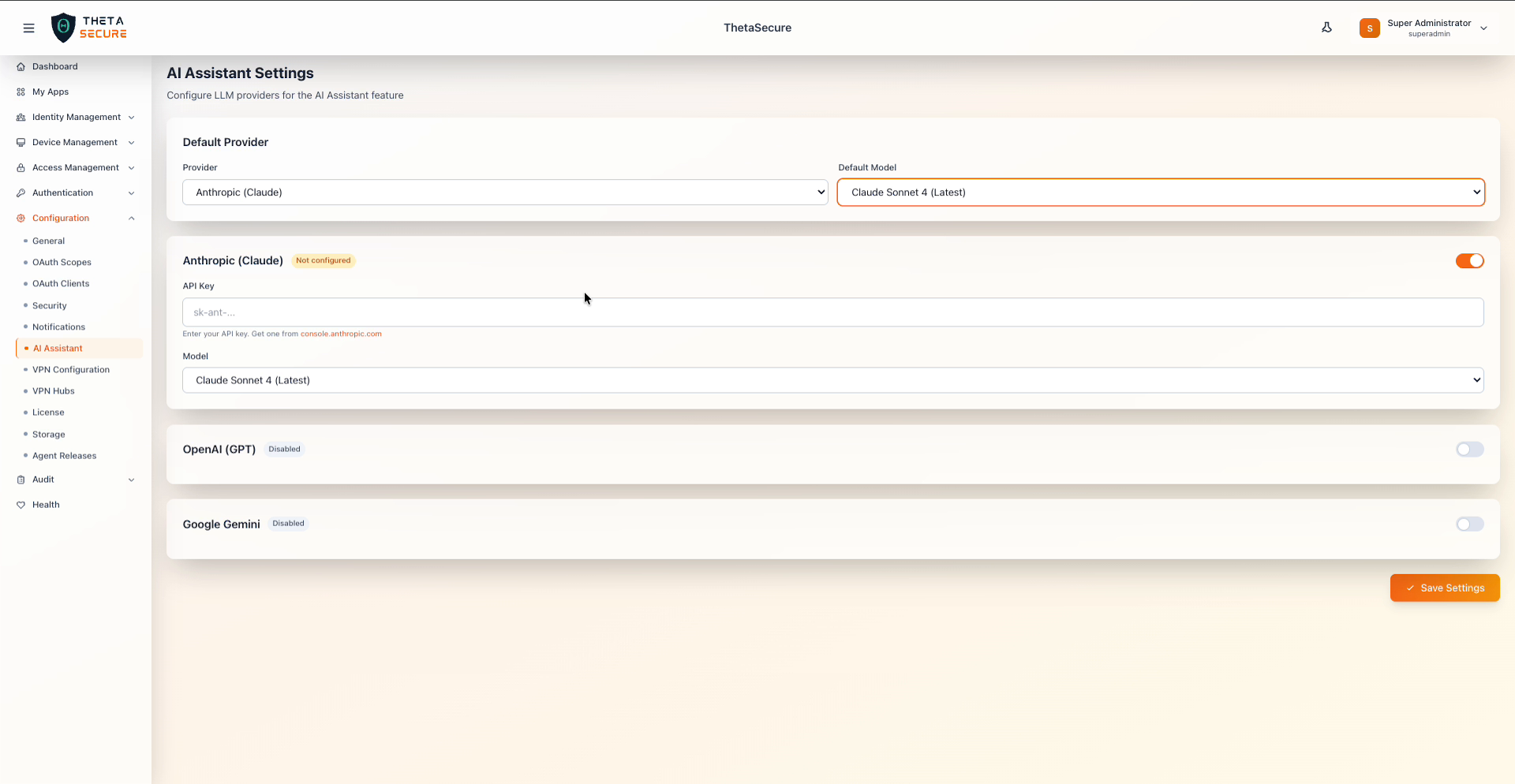 AI Assistant Settings with Anthropic (Claude) selected as the default provider
Default Provider
The Default Provider section controls which LLM powers the AI Assistant across the platform.
| Field | Description |
|---|---|
| Provider | Select the LLM provider to use as the default. Options include Anthropic (Claude), OpenAI (GPT), and Google Gemini. |
| Default Model | Select the specific model version to use from the chosen provider. For Anthropic, the default is Claude Sonnet 4 (Latest). |
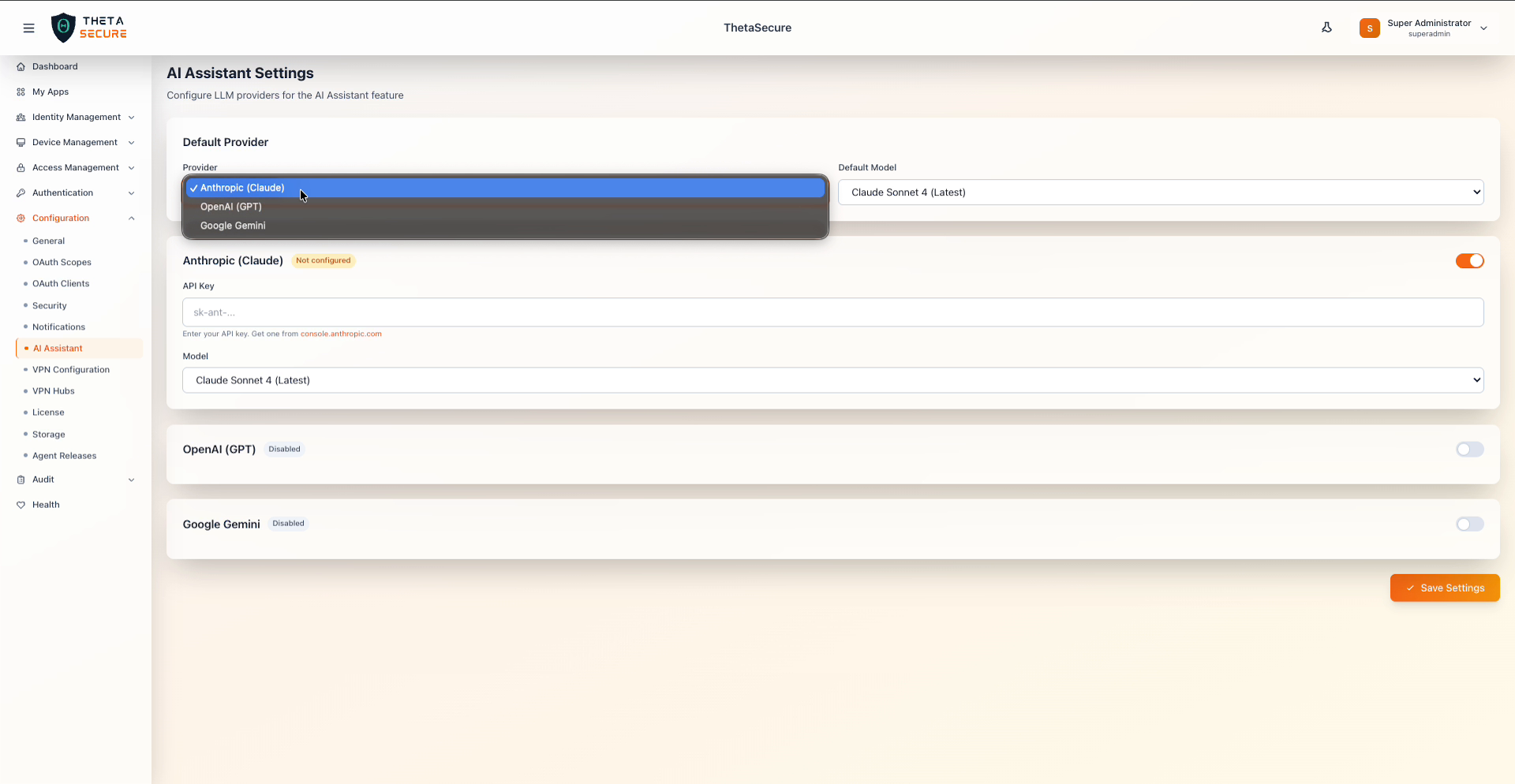 Provider selection dropdown with Anthropic (Claude), OpenAI (GPT), and Google Gemini
Provider Configuration
Each provider has its own configuration section where you enter credentials and select model preferences. Only one provider needs to be configured and enabled, though you can set up multiple providers and switch between them.
Anthropic (Claude)
| Field | Description |
|---|---|
| Enabled | Toggle to activate this provider. When enabled, Anthropic becomes available in the Default Provider dropdown. |
| Status | Shows Not configured until a valid API key is provided, then updates to reflect the active state. |
| API Key | Your Anthropic API key (begins with sk-ant-). Obtain one from console.anthropic.com. |
| Model | The Claude model to use. Default is Claude Sonnet 4 (Latest). |
OpenAI (GPT)
| Field | Description |
|---|---|
| Enabled | Toggle to activate the OpenAI provider. Disabled by default. |
When enabled, additional fields for API key and model selection become available, similar to the Anthropic configuration.
Google Gemini
| Field | Description |
|---|---|
| Enabled | Toggle to activate the Google Gemini provider. Disabled by default. |
When enabled, additional fields for API key and model selection become available.
You only need to configure one provider for the AI Assistant to function. Start with the provider your organization already has an API key for. The AI Assistant does not send any sensitive customer data to the LLM provider. Queries are scoped to general configuration assistance and policy interpretation.
Saving Changes
Click Save Settings to apply the provider configuration. The AI Assistant becomes available throughout the console once a provider is configured with a valid API key and set as the default.