Notifications
Notifications is where you control the messages ThetaSecure sends to your users and the delivery infrastructure behind them. Every password reset email, every OTP code, every verification SMS originates from a template defined here and travels through a provider configured on this page.
The section is organized into two tabs: Templates, which define the content of each notification, and Providers, which define how those notifications are delivered.
Templates
The Templates tab lists every notification template in the system. ThetaSecure ships with a set of built-in templates that cover the core identity workflows. You can customize these or create new ones.
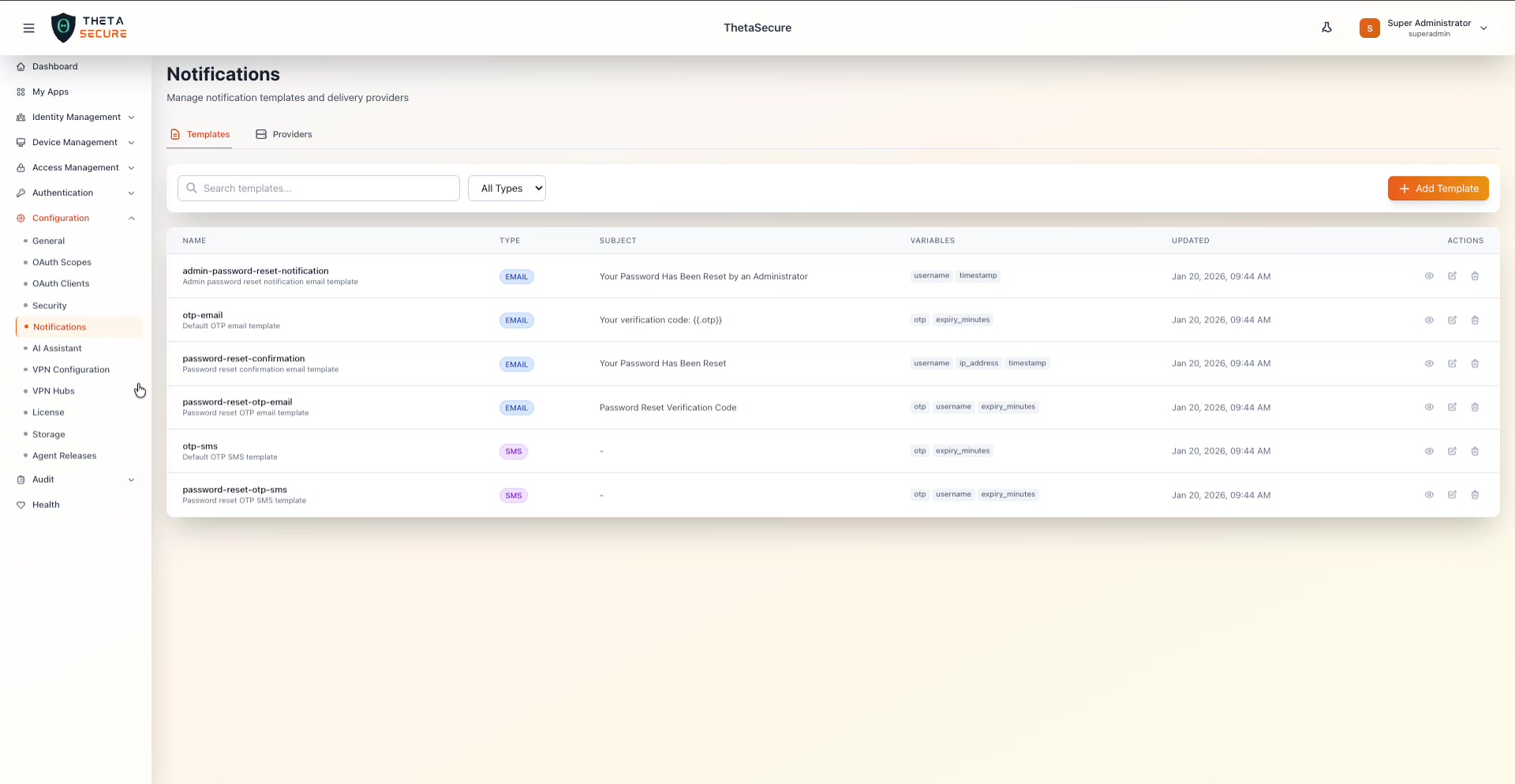 The Templates tab showing all six built-in notification templates. Each row displays the template name, type (EMAIL or SMS), subject line, dynamic variables, last updated date, and action icons for viewing, editing, and deleting.
Built-in Templates
ThetaSecure includes six templates out of the box, covering password management and one-time password delivery across both email and SMS channels.
| Template | Type | Subject | Variables | Purpose |
|---|---|---|---|---|
| admin-password-reset-notification | Your Password Has Been Reset by an Administrator | username, timestamp | Sent when an administrator manually resets a user's password. Informs the user of the reset action and advises them to contact IT if unexpected. | |
| otp-email | Your verification code: {{.otp}} | otp, expiry_minutes | Delivers a one-time password via email during MFA challenges or email-based verification flows. The OTP appears in both the subject line and body for quick access. | |
| password-reset-confirmation | Your Password Has Been Reset | username, ip_address, timestamp | Confirms to the user that their password has been successfully changed. Includes the IP address that initiated the reset for security awareness. | |
| password-reset-otp-email | Password Reset Verification Code | otp, username, expiry_minutes | Delivers the verification code required to complete a self-service password reset. Different from the general OTP template because it is specific to the password reset workflow. | |
| otp-sms | SMS | — | otp, expiry_minutes | Delivers a one-time password via SMS. SMS templates do not have a subject line. |
| password-reset-otp-sms | SMS | — | otp, username, expiry_minutes | Delivers the password reset verification code via SMS. Includes the username so the recipient can verify which account is being reset. |
Viewing Template Details
Click the eye icon on any template row to open the Template Details panel. This panel shows the full content of the template including its body text with variable placeholders.
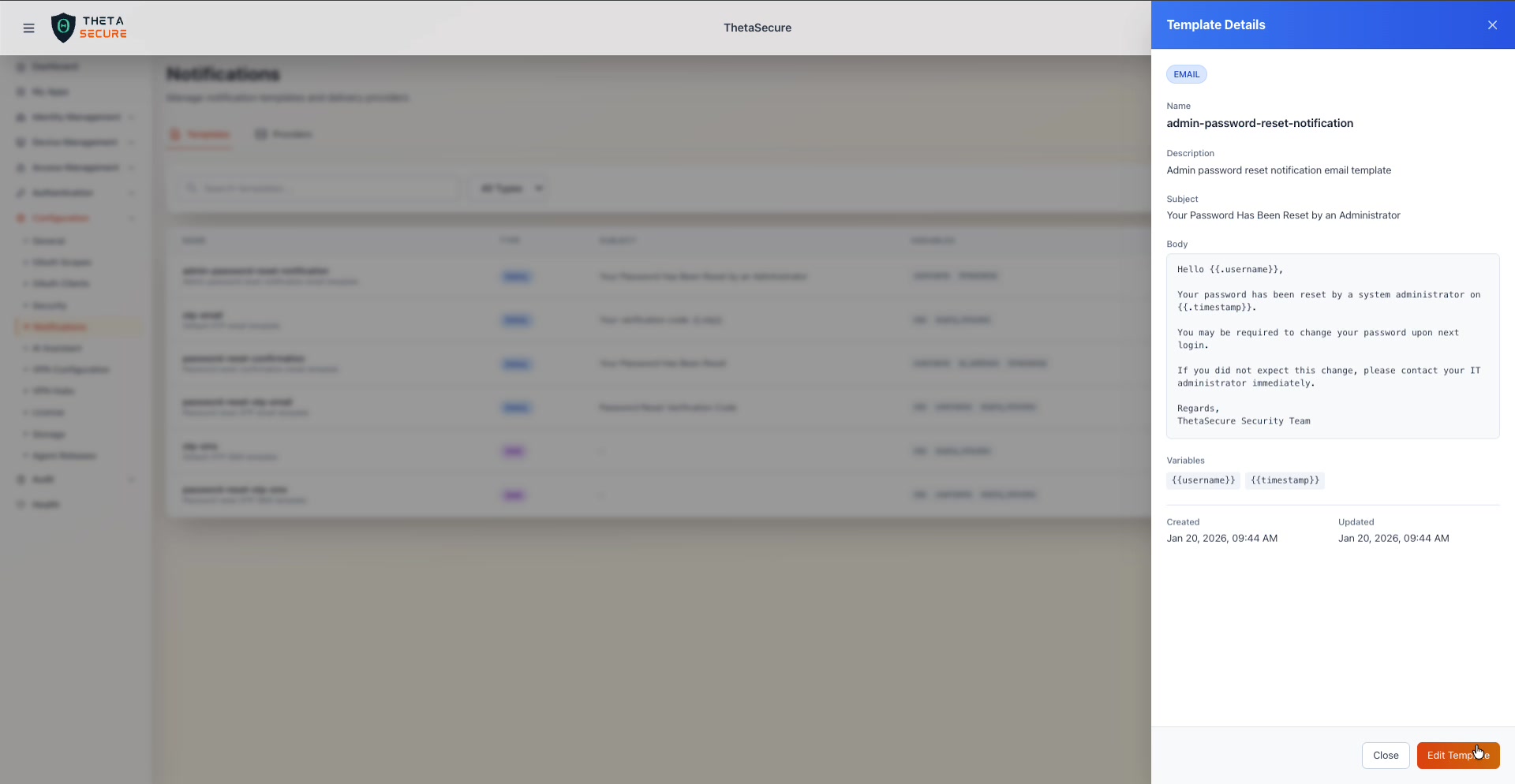 The Template Details panel for the admin-password-reset-notification template. The body uses {{.username}} and {{.timestamp}} placeholders that ThetaSecure replaces with actual values at send time. The panel shows the Created and Updated timestamps at the bottom.
The details panel displays the template name, description, subject line, the full body text, a list of available variables, and the creation and update timestamps. The body text is where you define exactly what the user receives. Variables are wrapped in double curly braces with a dot prefix, such as {{.username}} or {{.otp}}.
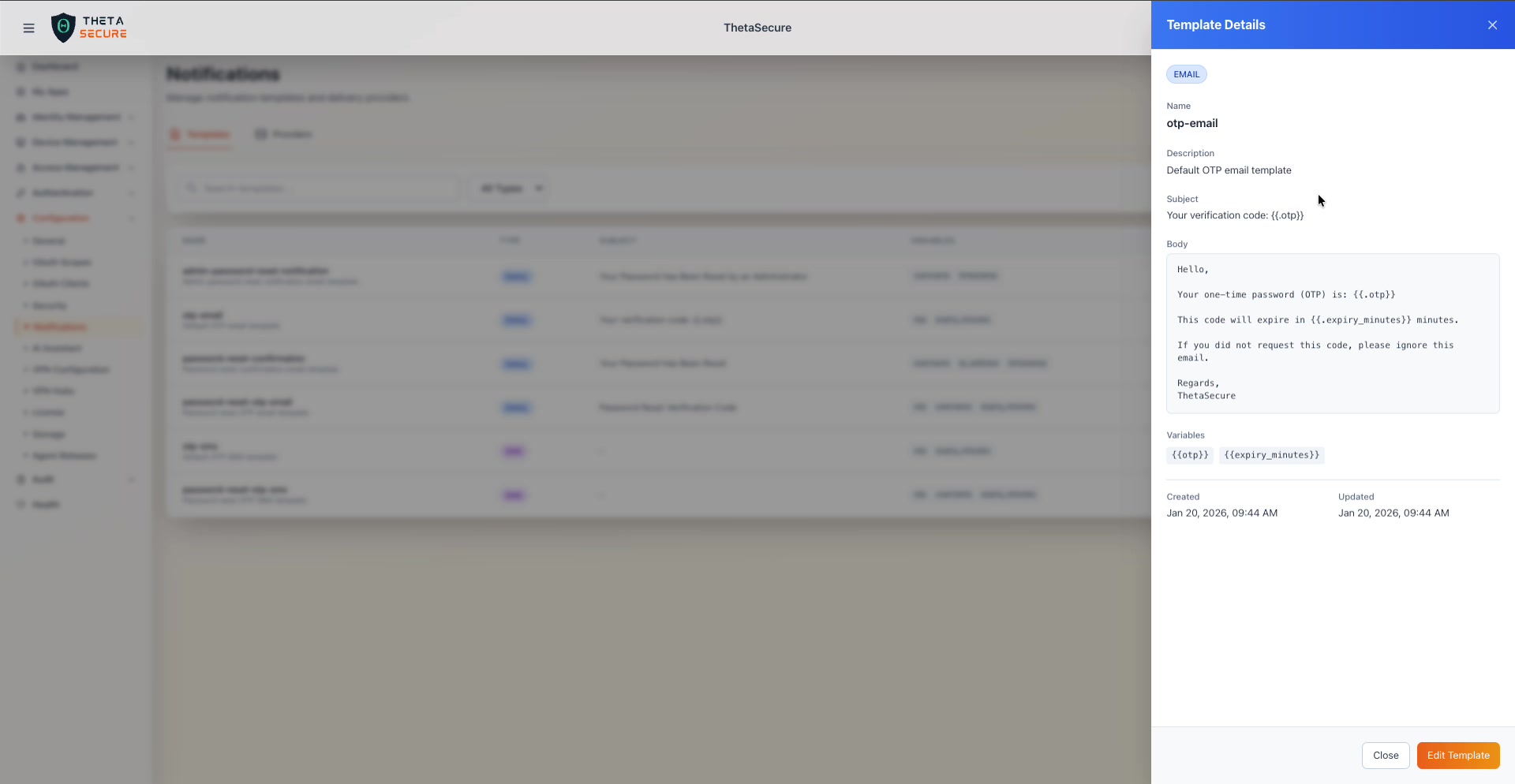 The OTP email template. The body is concise and functional: it delivers the code, states the expiry window, and includes a security note advising the user to ignore the message if they did not request it.
Each template follows a consistent structure: a greeting, the core information (reset confirmation, OTP code, or security alert), a security disclaimer, and a closing signature from the ThetaSecure Security Team.
Template Variables
Variables are the dynamic placeholders that ThetaSecure populates at send time. The available variables depend on the notification context.
| Variable | Description |
|---|---|
{{.username}} | The display name or username of the recipient |
{{.otp}} | The one-time password or verification code |
{{.expiry_minutes}} | How many minutes the code remains valid |
{{.timestamp}} | The date and time the action occurred |
{{.ip_address}} | The IP address that initiated the action |
Editing a Template
From the Template Details panel, click Edit Template to modify the template content. You can also click the edit (pencil) icon directly from the template list. When editing, you can change the subject line, body text, and description. Use the variable placeholders listed above to insert dynamic content.
Creating a Custom Template
Click + Add Template in the upper right corner to create a new notification template. You can choose whether the template is for Email or SMS delivery, define the subject (for email), write the body content with variable placeholders, and assign a descriptive name.
Custom templates are useful when you need notifications for workflows beyond the built-in set, such as account lockout alerts, device enrollment confirmations, or access request approvals.
Searching and Filtering
The search bar at the top of the Templates tab lets you find templates by name. The All Types dropdown filters the list by notification channel, so you can view only Email templates or only SMS templates.
Providers
The Providers tab is where you configure the delivery infrastructure that sends your notifications. Without at least one active provider, ThetaSecure cannot deliver email or SMS notifications to your users.
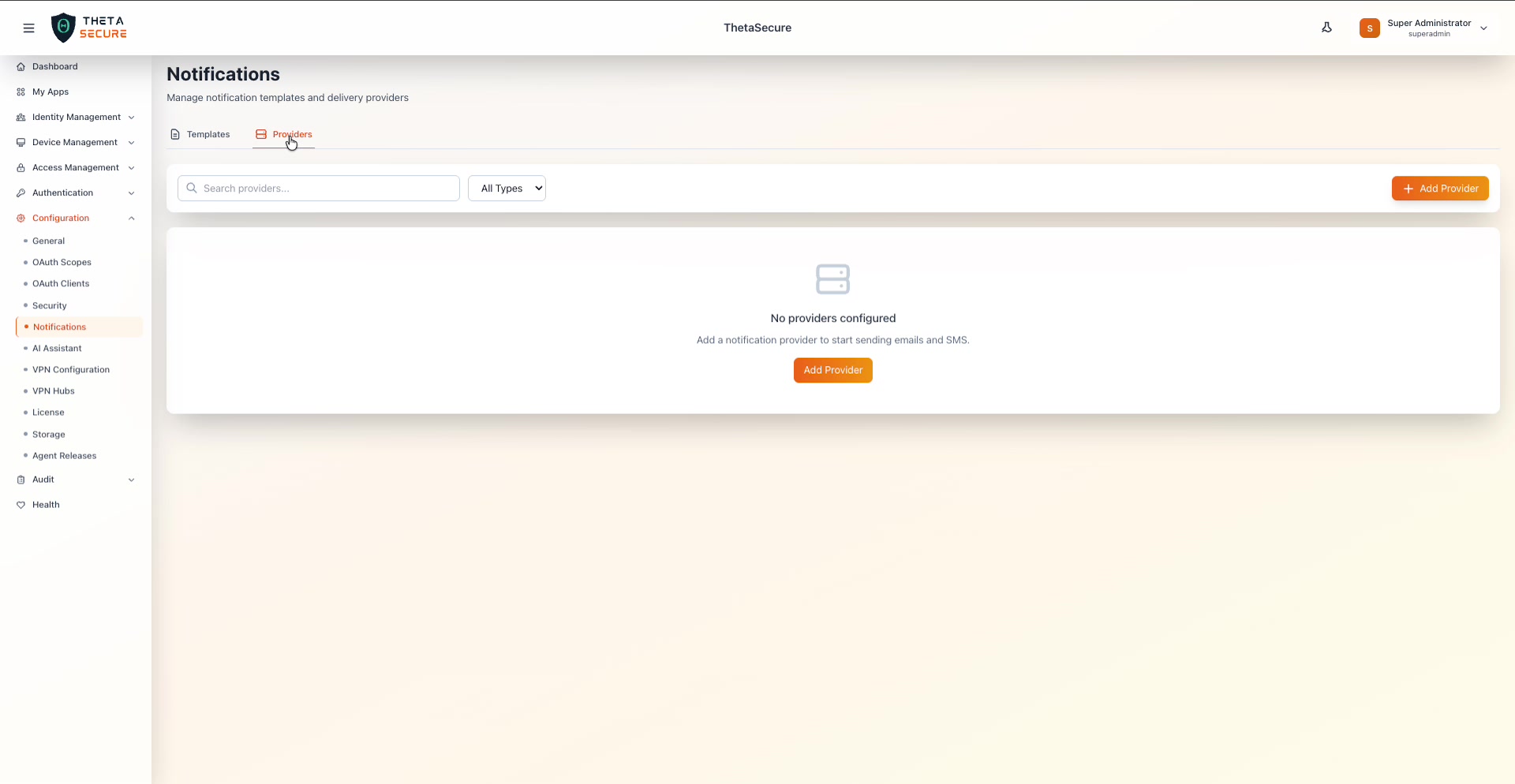 The Providers tab in its empty state. The message reads "No providers configured" with a prompt to add a notification provider to start sending emails and SMS. The + Add Provider button is available in the upper right corner.
Adding a Provider
Click + Add Provider to open the provider configuration panel. The form adapts its fields based on the Notification Type and Provider Type you select.
Every provider requires a Provider Name (a friendly label like "Primary SMTP Server" or "Twilio SMS"), a Notification Type (Email or SMS), and a Provider Type that determines the connection method. You also set the Status toggle (Active or Inactive) and a Priority number. When multiple providers of the same type are configured, ThetaSecure uses the one with the lowest priority number first, falling back to higher numbers if delivery fails.
Email Providers
ThetaSecure supports two methods for delivering email notifications.
SMTP Server
The SMTP Server option connects directly to your mail server. This is the traditional approach and works with any standard SMTP-compatible mail system, including Exchange, Postfix, and hosted services like Google Workspace or Microsoft 365.
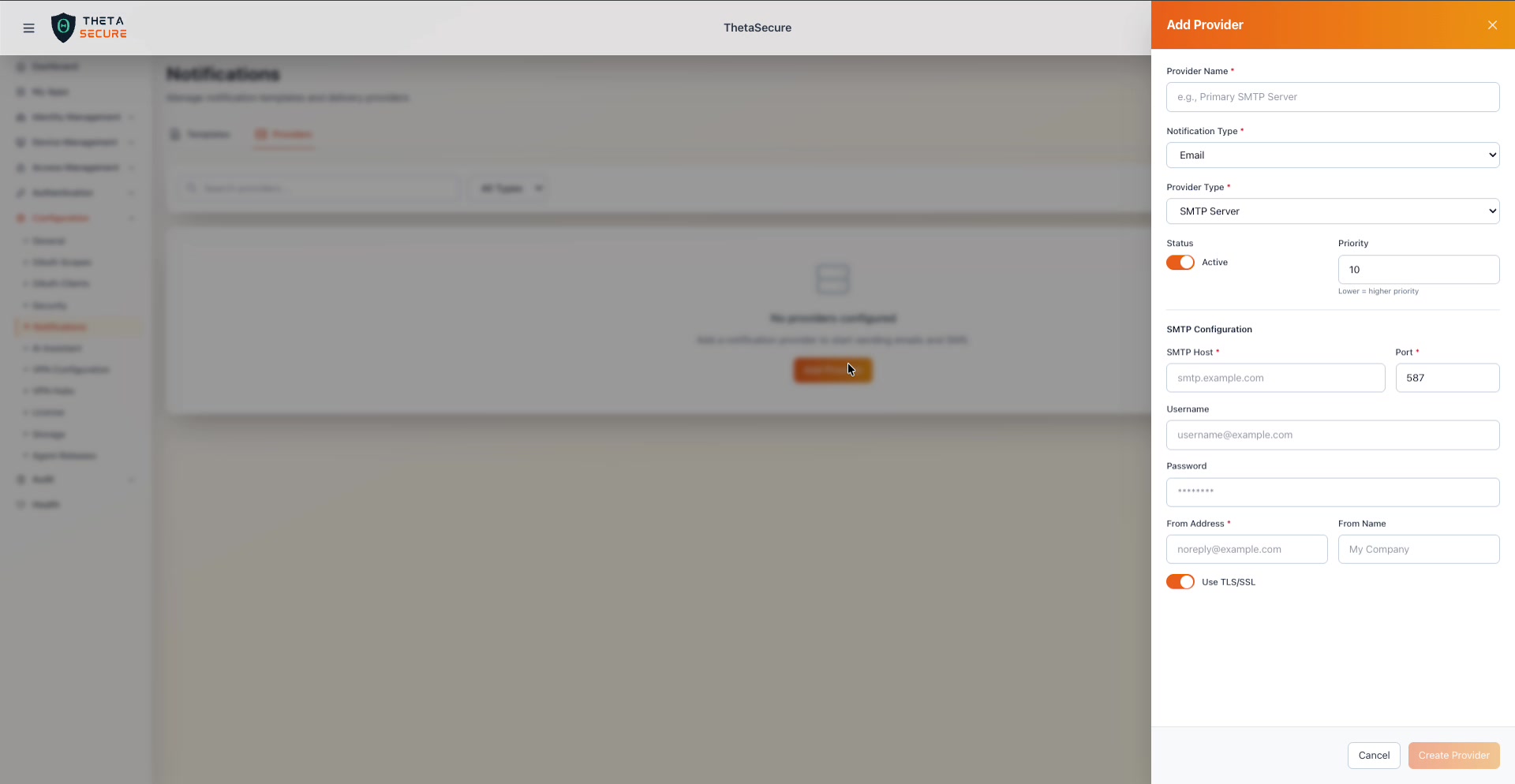 The Add Provider form for an SMTP Server. Fields include SMTP Host, Port (defaulting to 587), Username, Password, From Address, From Name, and a TLS/SSL toggle.
| Field | Required | Description |
|---|---|---|
| SMTP Host | Yes | The hostname or IP address of your SMTP server (e.g., smtp.example.com) |
| Port | Yes | The SMTP port. Common values are 587 (STARTTLS), 465 (implicit TLS), or 25 (unencrypted, not recommended) |
| Username | No | The authentication username for the SMTP server |
| Password | No | The authentication password |
| From Address | Yes | The email address that appears in the From field (e.g., noreply@yourcompany.com) |
| From Name | No | The display name that accompanies the From address (e.g., My Company) |
| Use TLS/SSL | — | Toggle to enable encrypted connections. Enabled by default and strongly recommended |
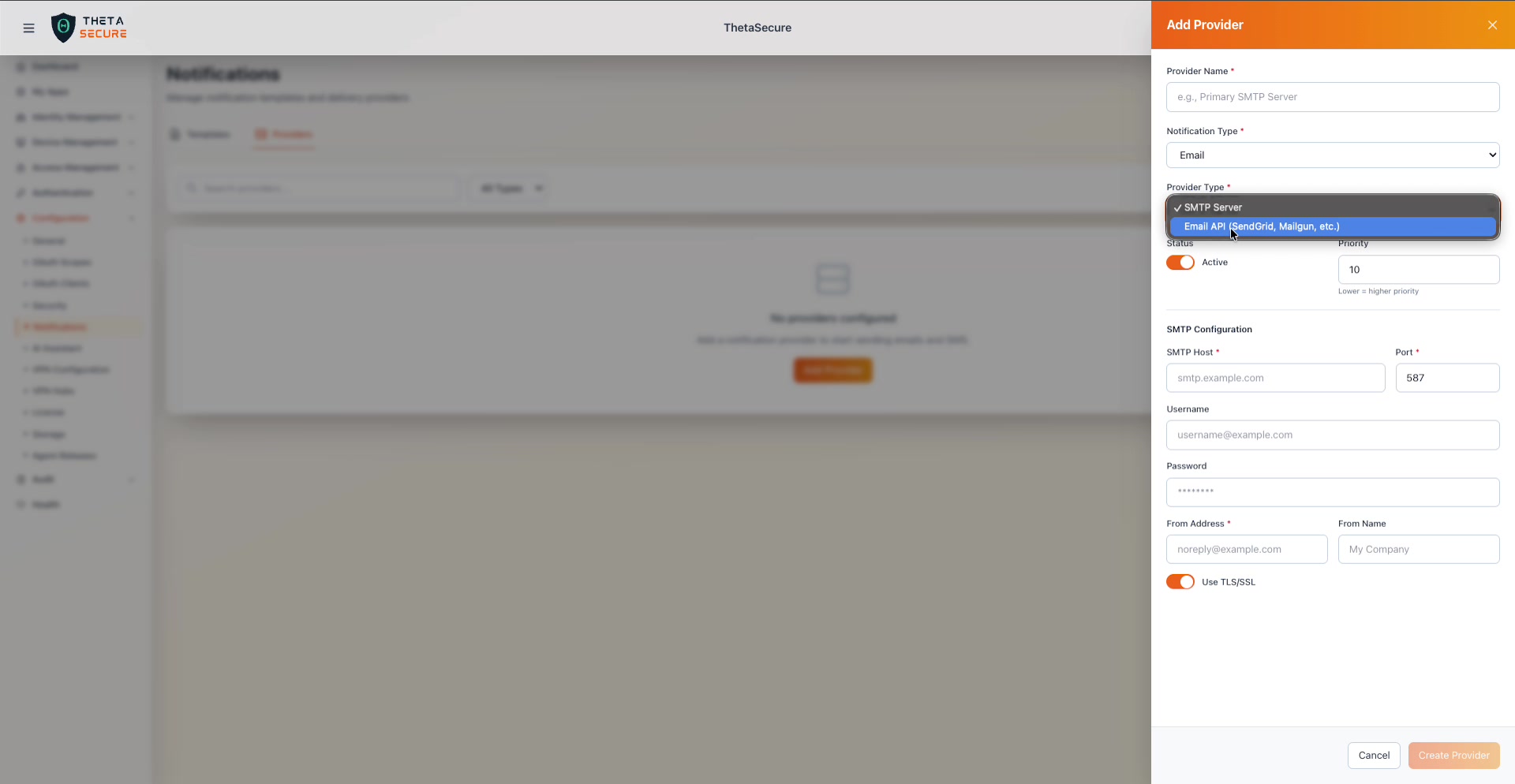 The Provider Type dropdown for email notifications offers two options: SMTP Server for direct mail server connections and Email API for cloud-based transactional email services.
Email API (SendGrid, Mailgun, etc.)
The Email API option integrates with cloud-based transactional email services. This is ideal for organizations that use services like SendGrid, Mailgun, Amazon SES, or Postmark, where delivery is handled through an HTTP API rather than a direct SMTP connection.
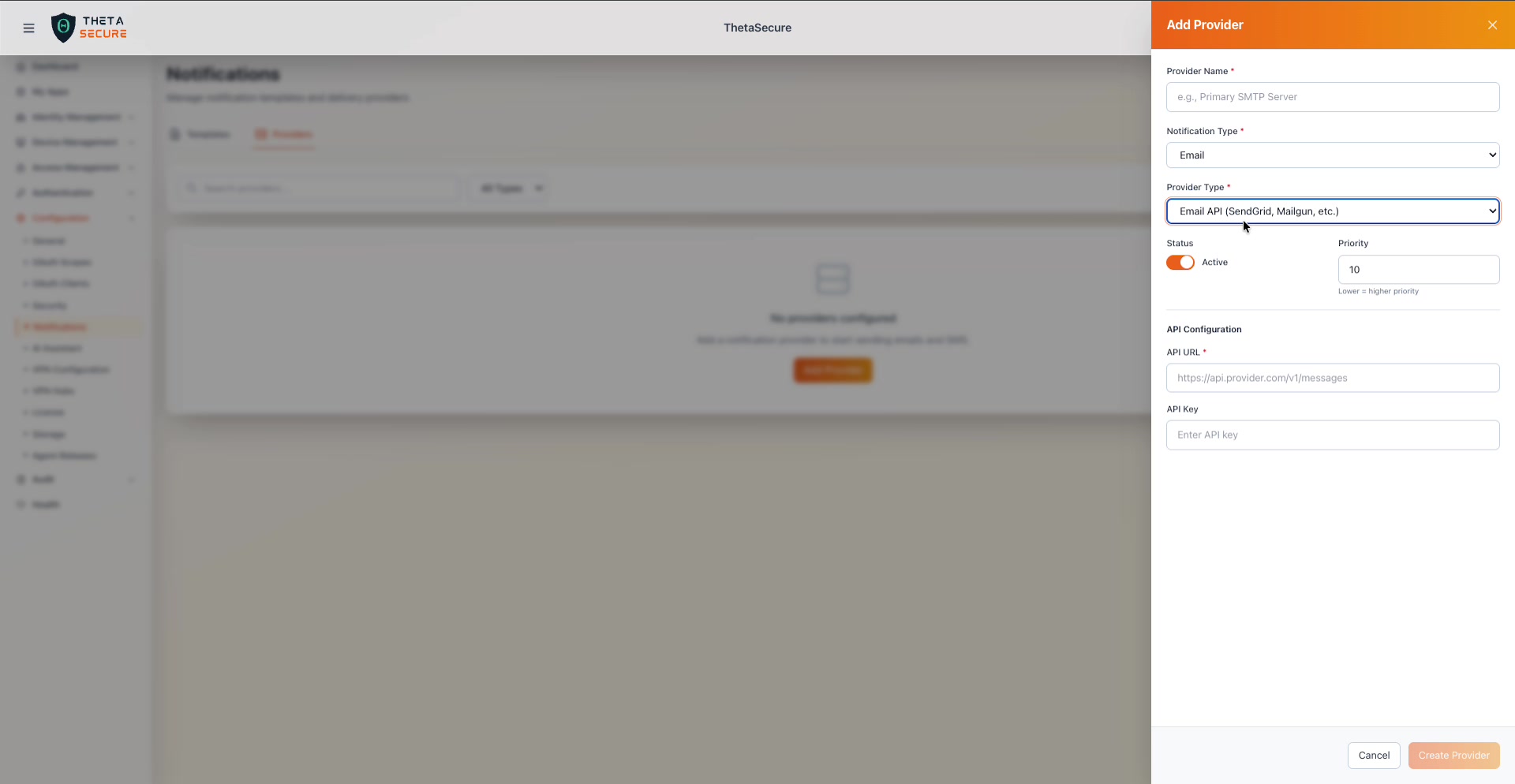 The Email API provider form. The configuration is simpler than SMTP: just provide the API URL and API Key for your email service.
| Field | Required | Description |
|---|---|---|
| API URL | Yes | The endpoint URL for your email service's send API (e.g., https://api.sendgrid.com/v3/mail/send) |
| API Key | No | The API key or token issued by your email service for authentication |
SMS Providers
For SMS notifications, ThetaSecure integrates with cloud SMS platforms through their APIs.
SMS API (Twilio, MessageBird, etc.)
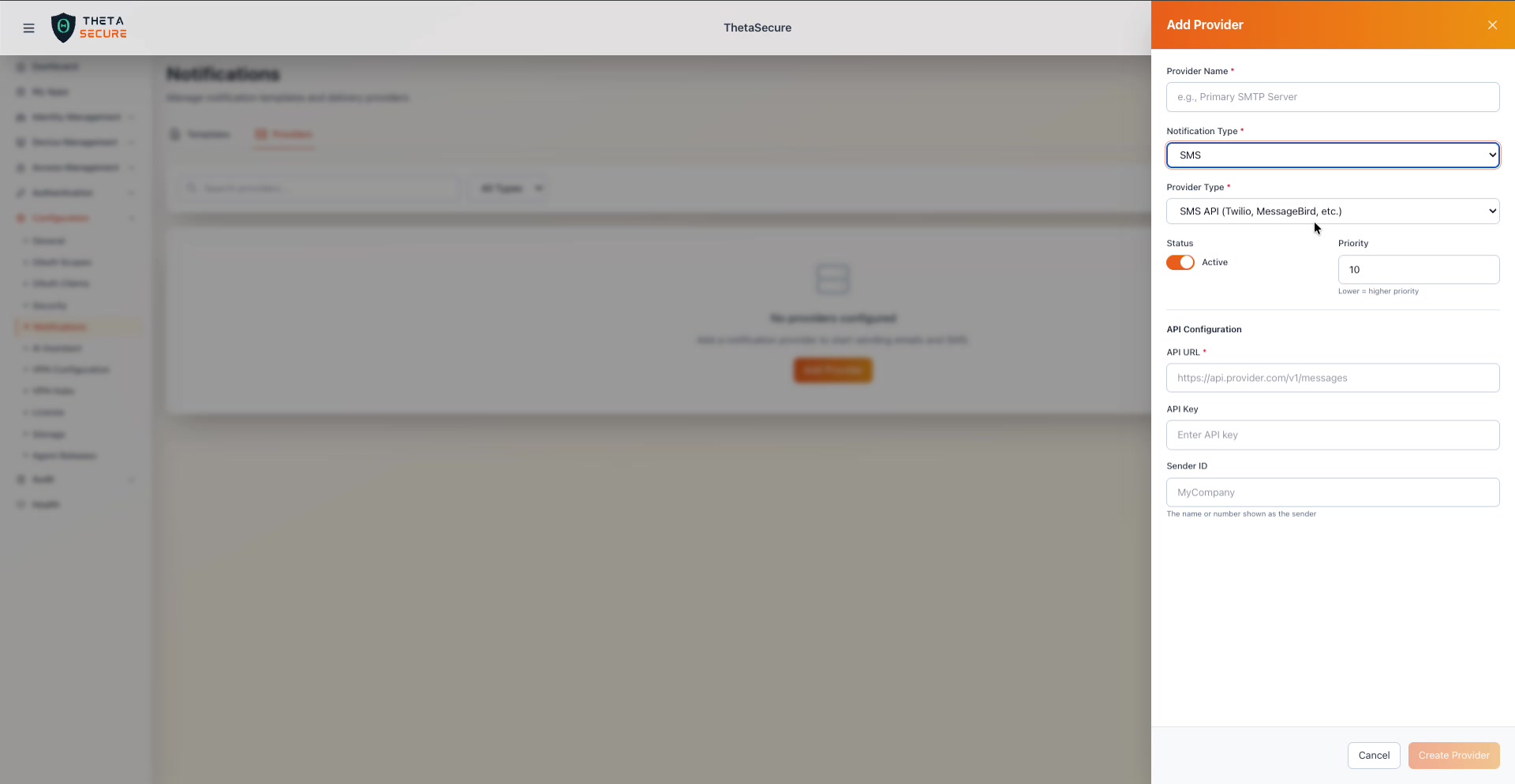 The SMS API provider form for services like Twilio or MessageBird. The configuration requires the API URL, API Key, and a Sender ID that identifies your organization in outgoing messages.
| Field | Required | Description |
|---|---|---|
| API URL | Yes | The endpoint URL for your SMS provider's message API (e.g., https://api.twilio.com/2010-04-01/Accounts/.../Messages.json) |
| API Key | No | The API key or authentication token for your SMS service |
| Sender ID | No | The name or phone number displayed as the sender on the recipient's device. Some providers require this to be a registered sender ID or phone number |
Provider Priority and Failover
When you configure multiple providers of the same notification type (for example, two email providers), ThetaSecure uses the priority number to determine which provider to try first. A lower number means higher priority. If the primary provider fails to deliver, ThetaSecure falls back to the next provider in the priority order.
This failover mechanism ensures notification delivery even when a provider experiences downtime. For production environments, configuring at least two providers per notification type is a good practice.
Test your provider configuration immediately after setup. Send a test password reset or OTP to a known account and verify that the message arrives. SMTP misconfigurations (wrong port, missing TLS, incorrect credentials) are the most common source of notification delivery failures.
Store API keys and SMTP passwords securely. If you rotate credentials on your email or SMS provider, remember to update them here as well. An expired or revoked API key will silently break notification delivery until it is replaced.