Security Settings
The Security Settings page centralizes your organization's authentication hardening controls. These settings apply globally to all local user accounts and admin sessions, covering password complexity, session behavior, brute force protection, and network level access restrictions.
Navigate to Configuration > Security to access this page.
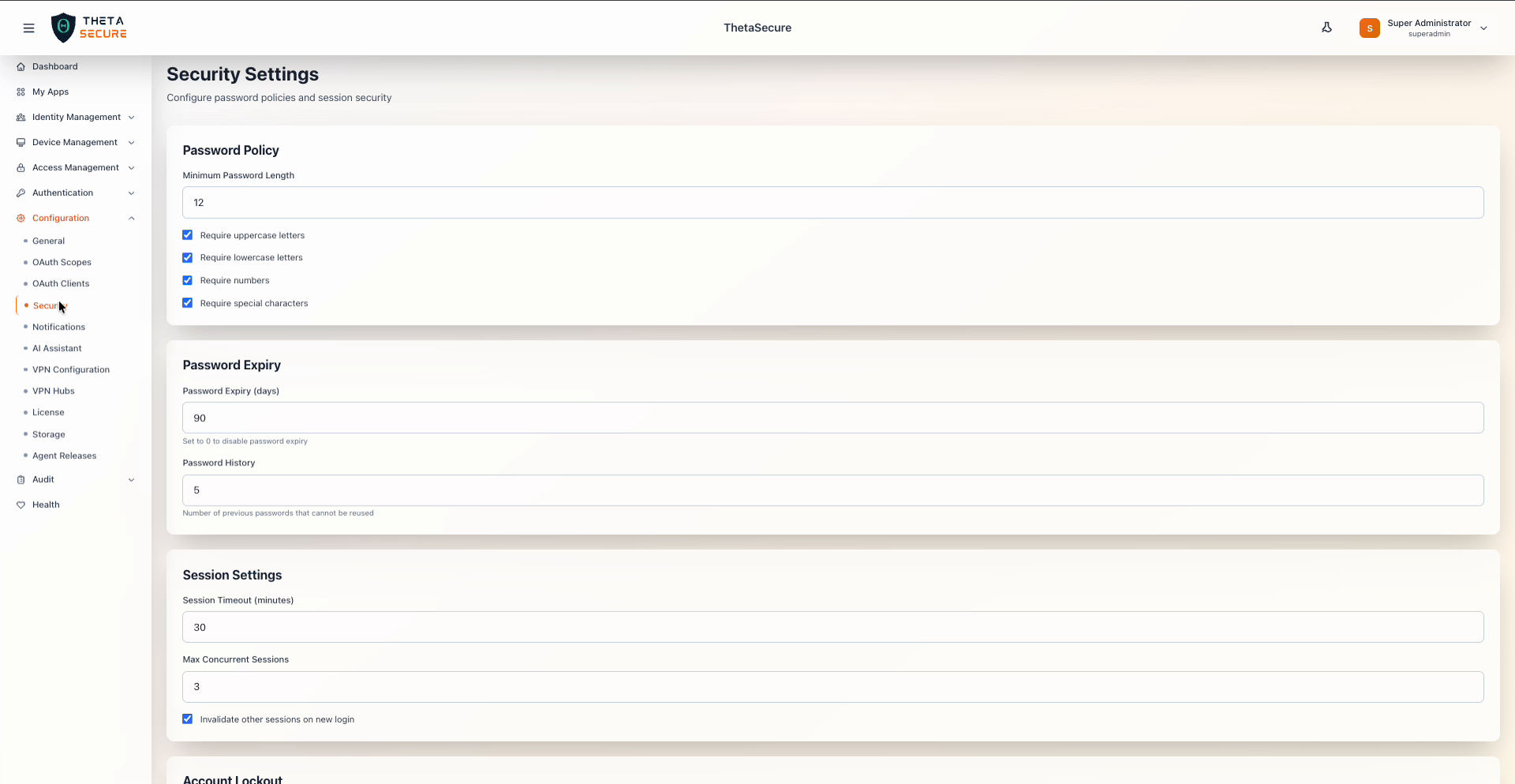 Security Settings with password policy, expiry, and session configuration
Password Policy
Password policy settings enforce minimum complexity requirements for all locally managed user passwords. These rules apply when users create or change their passwords.
| Setting | Default | Description |
|---|---|---|
| Minimum Password Length | 12 | The minimum number of characters required. Industry guidance recommends 12 or more characters for strong protection against brute force attacks. |
| Require uppercase letters | Enabled | Passwords must contain at least one uppercase letter (A through Z). |
| Require lowercase letters | Enabled | Passwords must contain at least one lowercase letter (a through z). |
| Require numbers | Enabled | Passwords must contain at least one digit (0 through 9). |
| Require special characters | Enabled | Passwords must contain at least one special character such as !, @, #, $, or %. |
Enabling all four character type requirements alongside a 12 character minimum length provides a strong baseline that aligns with NIST SP 800-63B recommendations. For environments with elevated security requirements, consider increasing the minimum length to 14 or 16 characters.
Password Expiry
| Setting | Default | Description |
|---|---|---|
| Password Expiry (days) | 90 | Number of days before a password must be changed. Set to 0 to disable password expiration entirely. |
| Password History | 5 | Number of previous passwords that cannot be reused. This prevents users from cycling back to old passwords during forced rotations. |
Organizations that enforce MFA across all users may choose to extend the expiry period or disable it, since MFA significantly reduces the risk of compromised credentials being exploited.
Session Settings
Session settings control how long authenticated sessions remain valid and how concurrent access is handled.
| Setting | Default | Description |
|---|---|---|
| Session Timeout (minutes) | 30 | Duration of inactivity before a session expires. Users must reauthenticate after the timeout elapses. |
| Max Concurrent Sessions | 3 | Maximum number of simultaneous active sessions per user. Attempts to open additional sessions are blocked or trigger the invalidation behavior below. |
| Invalidate other sessions on new login | Enabled | When a user logs in and the concurrent session limit is reached, the oldest existing sessions are terminated automatically. |
Account Lockout
Account lockout settings protect against brute force and credential stuffing attacks by temporarily disabling accounts after repeated failed login attempts.
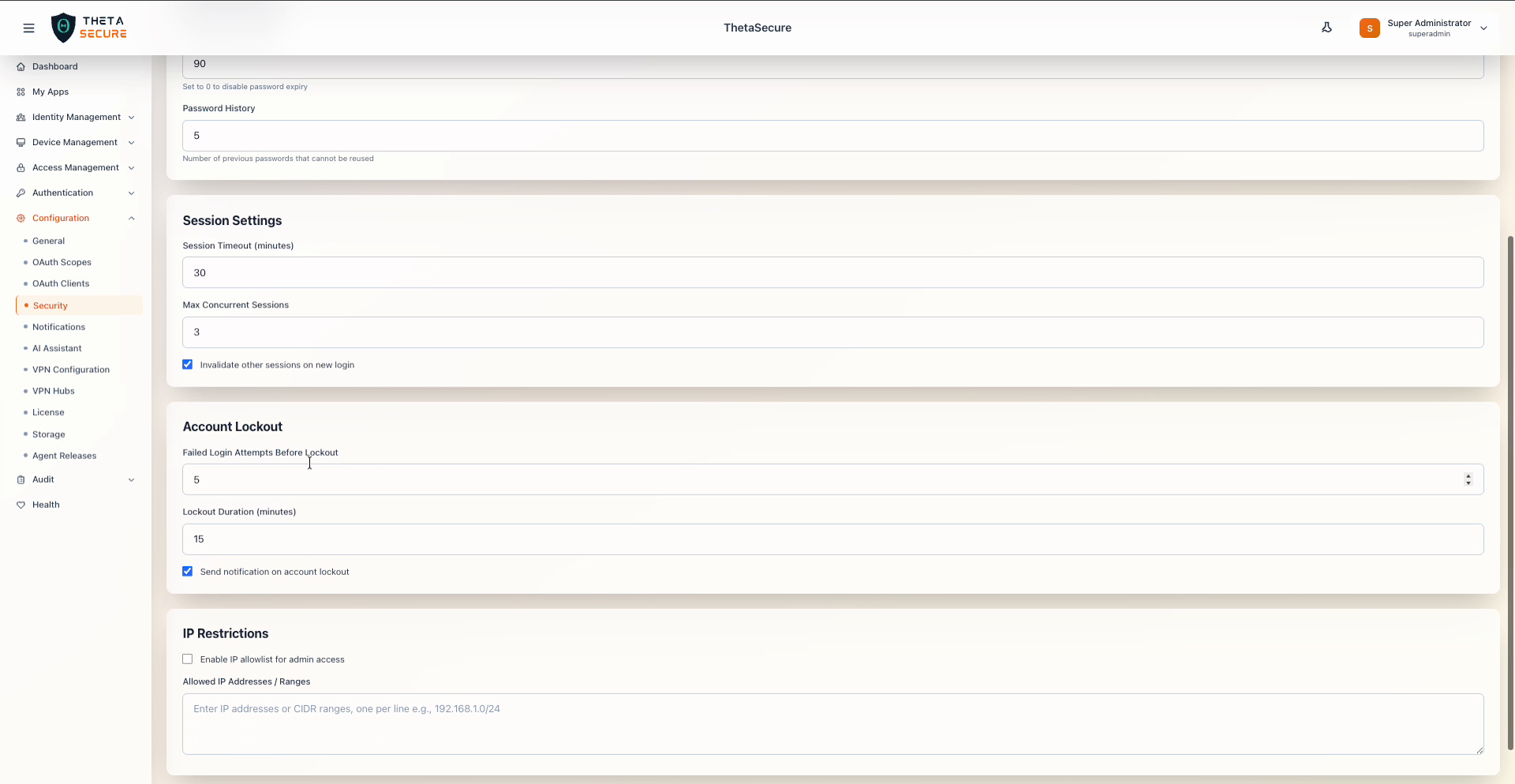 Account Lockout and IP Restrictions configuration
| Setting | Default | Description |
|---|---|---|
| Failed Login Attempts Before Lockout | 5 | Number of consecutive failed authentication attempts before the account is locked. |
| Lockout Duration (minutes) | 15 | How long the account remains locked after the threshold is reached. The account unlocks automatically after this period. |
| Send notification on account lockout | Enabled | Sends an email notification to the user (and optionally to administrators) when their account is locked due to failed login attempts. |
The lockout notification serves as an early warning that someone may be attempting unauthorized access to a user's account. If a user receives a lockout notification they did not trigger, investigate the source IP addresses in the Audit logs immediately.
IP Restrictions
IP Restrictions allow you to limit administrative console access to specific network ranges. When enabled, only requests originating from the listed IP addresses or CIDR ranges can reach the admin interface.
| Setting | Default | Description |
|---|---|---|
| Enable IP allowlist for admin access | Disabled | Toggle to enforce IP based access control for admin console login. |
| Allowed IP Addresses / Ranges | Empty | Enter IP addresses or CIDR ranges, one per line (for example, 192.168.1.0/24). Only these addresses will be permitted to access the admin console when the allowlist is enabled. |
Before enabling the IP allowlist, verify that your current IP address is included in the allowed ranges. Locking yourself out of the admin console requires backend intervention to resolve.
Saving Changes
Click Save Changes to apply the updated security settings. Password policy changes apply to new passwords only and do not force existing passwords to be changed. Session timeout changes take effect for new sessions. Account lockout settings apply immediately to all future login attempts.