VPN Flow Logs
The VPN Flow Logs page provides a detailed, packet-level view of all network traffic flowing through your ThetaSecure VPN tunnels. Every connection between a VPN client and a destination is captured as a flow record showing source, destination, protocol, action (allow or deny), and traffic volume. Navigate to Audit → VPN Flow Logs from the sidebar.
Summary Cards
Five metric cards at the top of the page give you an at-a-glance picture of VPN traffic activity.
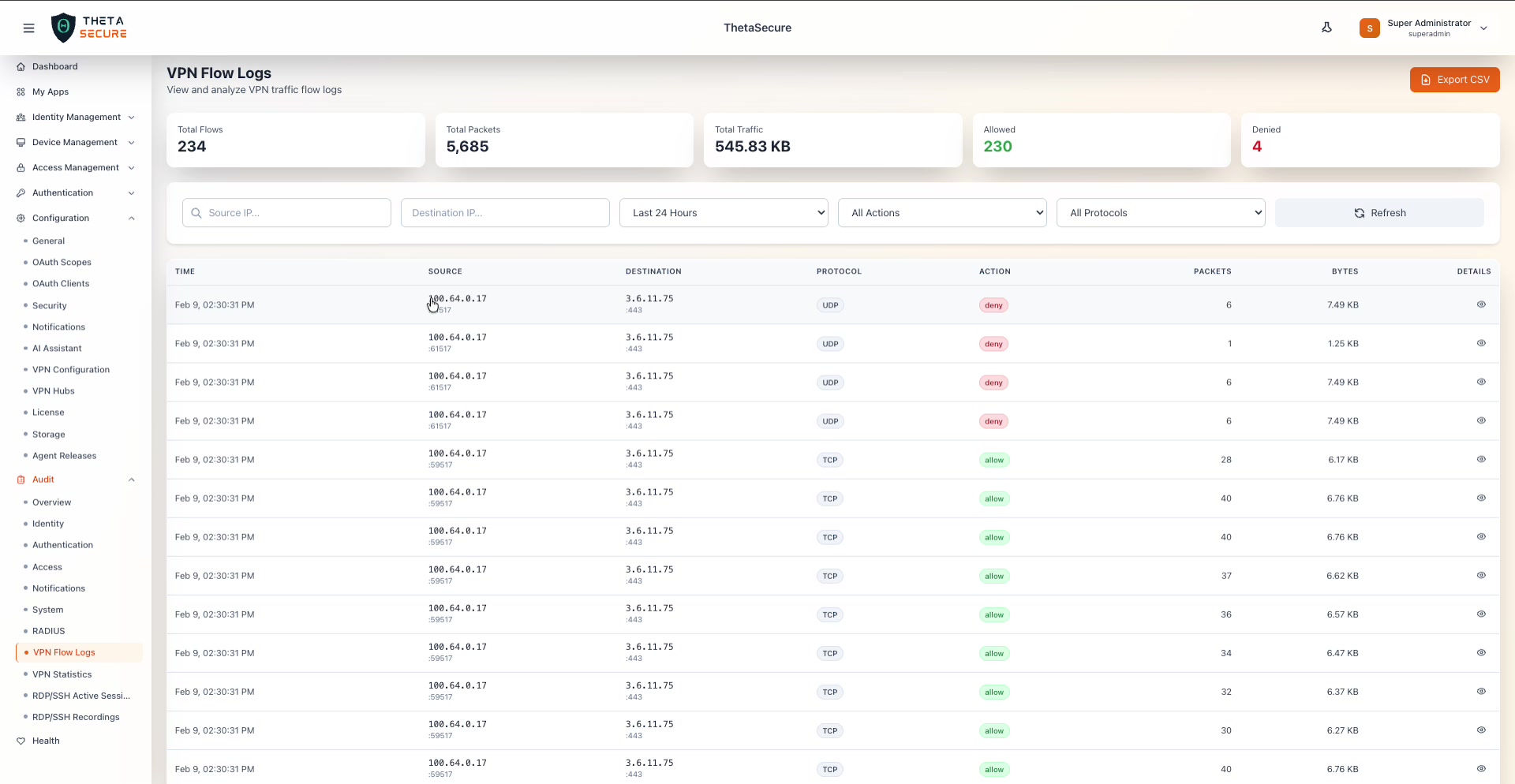 The VPN Flow Logs page showing 234 total flows, 5,685 packets, 545.83 KB total traffic, 230 allowed flows, and 4 denied flows. The table lists each flow with Time, Source (IP and port), Destination (IP and port), Protocol, Action (allow/deny badges), Packets, Bytes, and a Details eye icon.
| Card | Description |
|---|---|
| Total Flows | The total number of distinct network flows recorded in the selected time range. |
| Total Packets | The aggregate packet count across all flows. |
| Total Traffic | The total bytes transferred, shown in a human-readable format (KB, MB, GB). |
| Allowed | The number of flows that were permitted by the VPN access policies. Shown in green. |
| Denied | The number of flows that were blocked. Shown in red. |
Flow Table
The flow table lists every individual network flow with the following columns:
| Column | Description |
|---|---|
| Time | The timestamp when the flow was recorded. |
| Source | The source IP address and port (e.g., 100.64.0.17:61517). This is typically the VPN client's tunnel address. |
| Destination | The destination IP address and port (e.g., 3.6.11.75:443). |
| Protocol | The transport protocol: TCP, UDP, or ICMP. Shown as a colored badge. |
| Action | Whether the flow was allowed (green badge) or denyed (red badge) by the access policy. |
| Packets | The number of packets in this flow. |
| Bytes | The total data volume for this flow. |
| Details | An eye icon that opens the Flow Details panel for the selected flow. |
Filters
The filter bar between the summary cards and the table provides five controls to narrow down the flow list.
| Filter | Description |
|---|---|
| Source IP | Free-text field to filter by source IP address. |
| Destination IP | Free-text field to filter by destination IP address. |
| Time Range | Dropdown with options: Last Hour, Last 24 Hours, Last 7 Days, Last 30 Days, Last 90 Days. |
| Actions | Filter by flow action: All Actions, Allowed, or Denied. |
| Protocols | Filter by protocol: All Protocols, TCP, UDP, or ICMP. |
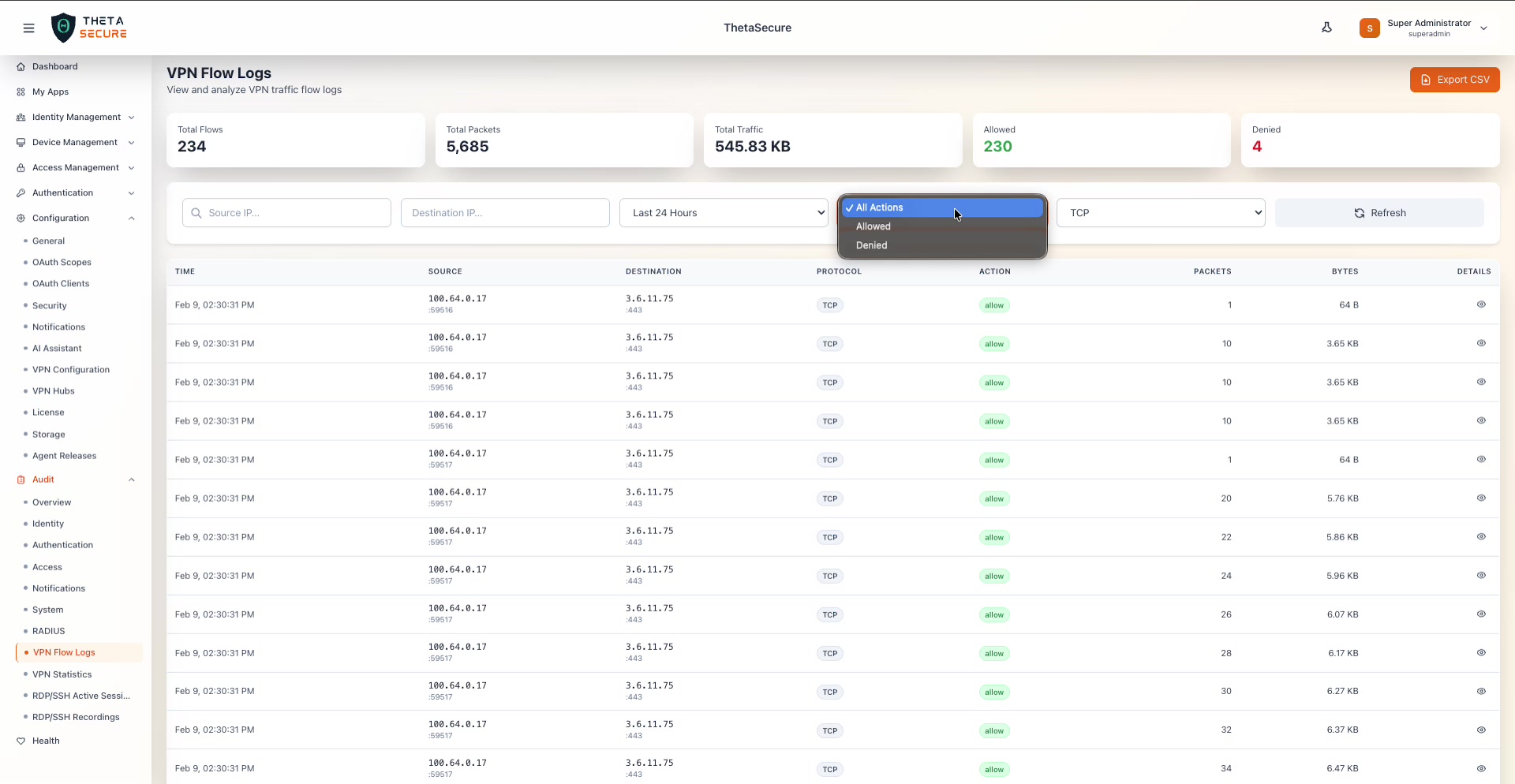 The Actions dropdown open with three options: All Actions (default), Allowed, and Denied. The table is currently filtered to TCP protocol and showing only allowed flows.
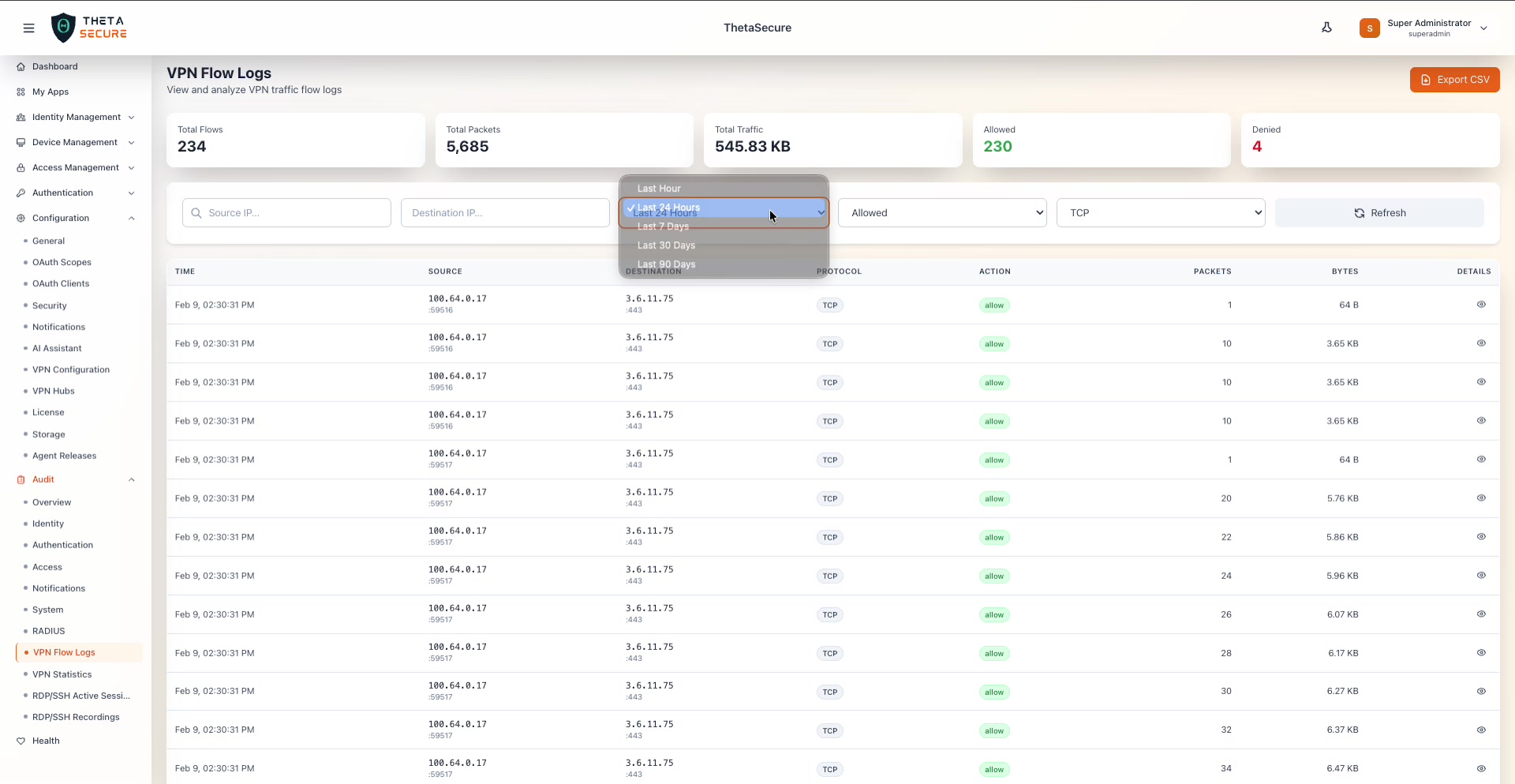 The Time Range dropdown showing five options: Last Hour, Last 24 Hours (selected), Last 7 Days, Last 30 Days, and Last 90 Days.
Click Refresh to reload the table with the current filter settings. Click Export CSV in the upper right corner to download the current filtered flow data as a CSV file for offline analysis or compliance reporting.
Flow Details
Click the eye icon on any flow row to open the Flow Details side panel with comprehensive information about that specific flow.
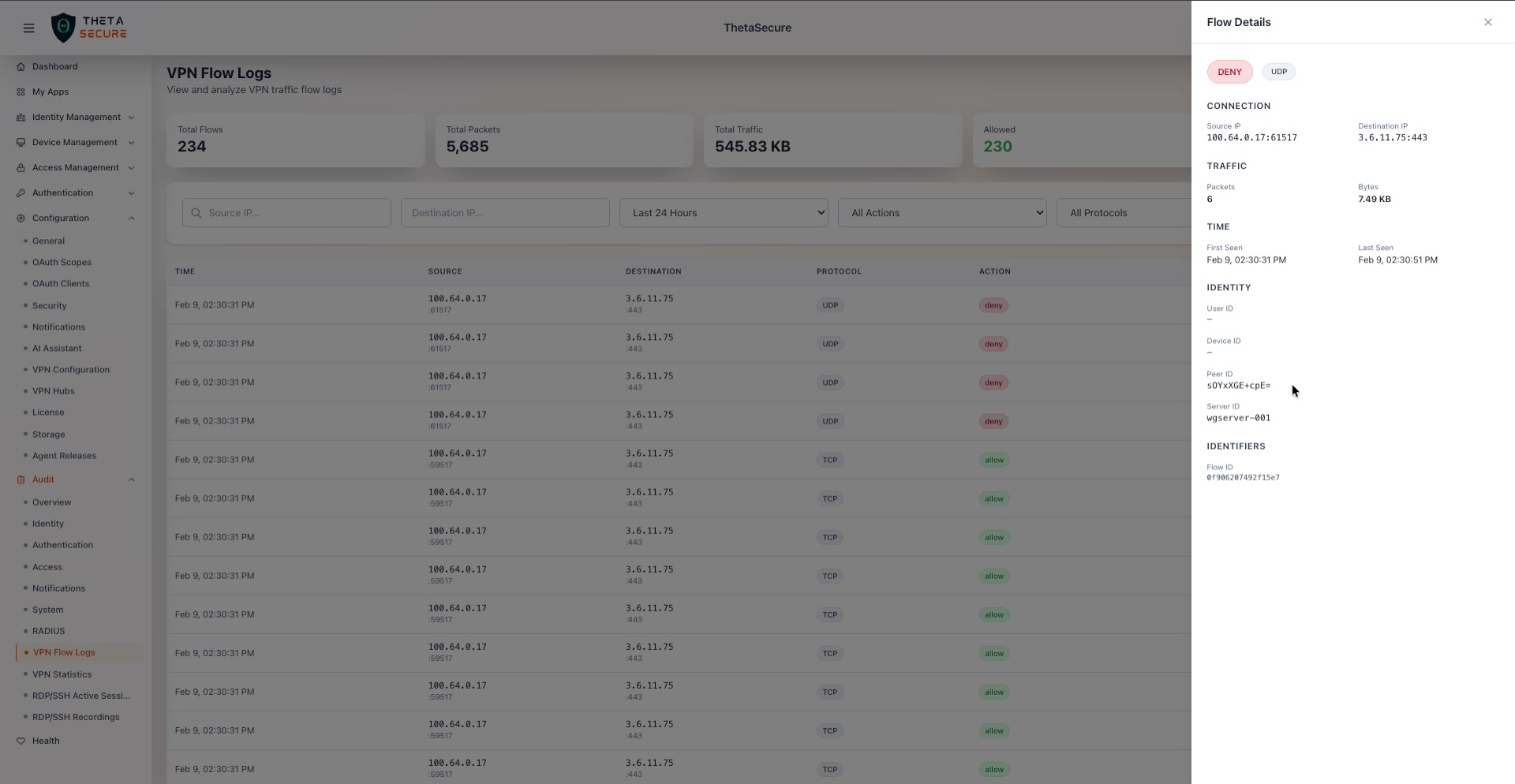 The Flow Details panel for a denied UDP flow. The panel shows action and protocol badges at the top, followed by five sections: Connection (source and destination IPs with ports), Traffic (packets and bytes), Time (first seen and last seen timestamps), Identity (User ID, Device ID, Peer ID, Server ID), and Identifiers (Flow ID).
Flow Details Sections
| Section | Fields | Description |
|---|---|---|
| Action & Protocol | Badges at top | Red DENY or green ALLOW badge alongside the protocol badge (TCP, UDP, ICMP). |
| Connection | Source IP, Destination IP | The full source and destination addresses including port numbers. |
| Traffic | Packets, Bytes | The packet count and byte volume for this specific flow. |
| Time | First Seen, Last Seen | The timestamps marking the beginning and end of the flow. |
| Identity | User ID, Device ID, Peer ID, Server ID | The identity context for the flow, linking it to a specific user, device, VPN peer, and WireGuard server (e.g., wgserver-001). |
| Identifiers | Flow ID | The unique identifier for this flow record. |
When investigating a blocked connection, use the Flow Details panel to identify the Peer ID and Server ID, then cross-reference with VPN Configuration to check whether the access policy is correctly configured for that peer.
Use the Export CSV feature to generate flow data exports for compliance audits or to feed into external SIEM tools for correlation with other security events.