RDP/SSH Active Sessions
The RDP/SSH Active Sessions page (labeled Gateway Sessions in the interface) provides real-time monitoring of all active SSH and RDP sessions being proxied through the ThetaSecure gateway. This is where administrators can see who is currently connected to which remote server, how long they have been connected, and take action to terminate sessions if needed. Navigate to Audit → RDP/SSH Active Sessions from the sidebar.
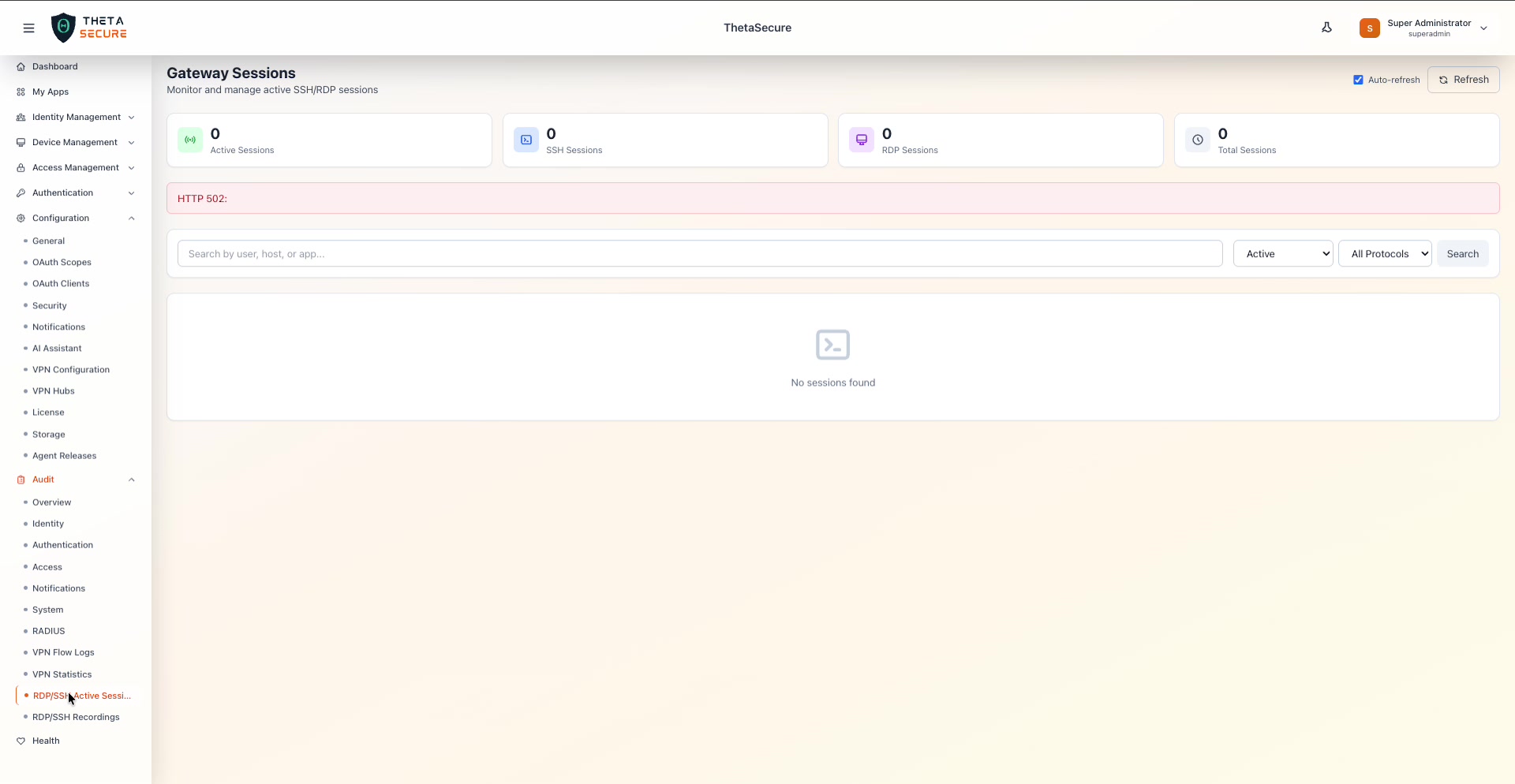 The Gateway Sessions page showing four status cards: Active Sessions (0), SSH Sessions (0), RDP Sessions (0), and Total Sessions (0). Below the cards, the filter bar provides a search field, a session status dropdown (Active), and a protocol filter (All Protocols). The session table shows "No sessions found" when no connections are active.
Status Cards
Four metric cards at the top provide a real-time count of gateway sessions.
| Card | Description |
|---|---|
| Active Sessions | The number of sessions currently in progress across all protocols. Indicated by a green connection icon. |
| SSH Sessions | The count of active SSH sessions specifically. Indicated by a terminal icon. |
| RDP Sessions | The count of active RDP sessions specifically. Indicated by a desktop icon. |
| Total Sessions | The cumulative total of all sessions (active and completed) in the current view. Indicated by a clock icon. |
Filters
The filter bar below the status cards lets you search and narrow the session list.
| Filter | Description |
|---|---|
| Search by user, host, or app | Free-text search to find sessions by the connected username, the target host, or the application name. |
| Status | Dropdown to filter by session state: Active (currently connected) or completed sessions. |
| Protocols | Dropdown to filter by protocol: All Protocols, SSH, or RDP. |
| Search | Button to apply the current filter criteria. |
Session Table
When sessions are active, the table displays each connection with details including the username, target host, protocol, connection start time, duration, and an action column for session management. Administrators can terminate active sessions directly from this table when needed — for example, to force-disconnect a user who should no longer have access.
Auto-Refresh
The Auto-refresh checkbox in the upper right corner (enabled by default) automatically reloads the session data at regular intervals. This ensures the dashboard always reflects the current state without manual refreshing. Uncheck it if you need to inspect a snapshot without the data changing underneath you. A manual Refresh button is available alongside it.
Keep this page open during maintenance windows or incident response to monitor who is actively connected to critical servers. The ability to terminate sessions in real time gives you an immediate response option if a compromised account is detected.